BSN.Cloud
How to recover my username and/or password?
Username
Your BSN.Cloud username is your email address. If you are using plus-addressing to create a different email address that goes to the same inbox, be aware that each username is different to the system. Check your email for messages from BSN.Cloud (the sender will be [email protected]) and check the To: field for the correct username.
Password
- In BrightSign Author, select Connect to BSN.cloud on the upper right
- In the Sign In window, select Forgot Password.
- Enter your email address and Submit. An email should arrive shortly from [email protected] with a link to reset your password, so be sure to add that email address to your whitelist or contact list to ensure it does not go into spam/junk/quarantine.
Can't connect because of cert validation error during TLS handshake
This sort of error typically occurs during player registration (it doesn’t happen later because the rule either exists or not, so if there is something wrong the player fails immediately). If this happens, you will see a purple screen with a -60 error code. You should then access the DWS, inspect the system log to find the entries that have the -60 error code, and look for the related certificate validation errors.
These errors are usually either complaints that the certificate is self-signed, or indications that the certificate is issued to a different host. In both cases, the reason for the error is an intermediate server which acts as a man-in-the-middle between the player and the BrightSign Cloud. This server replaces the BSN.Cloud server certificate with its own in order to inspect the encrypted TLS traffic:
- If you do not want the traffic to be inspected, find the intermediate server and configure it to pass through encrypted traffic to all BSN.cloud services referenced on this page without inspection.
- If traffic inspection is necessary, contact the support team ([email protected]) and provide the information to create a new certificate based on your intermediate server certificate to register all the players connecting through that traffic inspector as trusted.
My player status is red
The player status will be red if it is not connected to BrightSign Cloud. Check the following to establish or restore your connection:
- Is your player powered on?
- Is the player physically connected to your network? For example, is the ethernet cable plugged in and are the ethernet LEDs blinking as expected?
- Check your player connectivity. Can it reach the internet, and can it access these ports and URLs? Check this through your local Diagnostic Web Server (DWS):
- If the local DWS was not enabled on your player, follow the steps in DWS: Local Access to enable it and/or access it through a web browser on a local network.
- In the local DWS, open the Diagnostics tab and check:
- Network Configuration > View
- Network Diagnostics > Run Diagnostics
- You can also use the Log tab to troubleshoot problems, though logs are only available a few minutes after your player comes online.
Players with a red status cannot be accessed through the remote DWS.
Why am I asked to reset my password despite logging in with SSO?
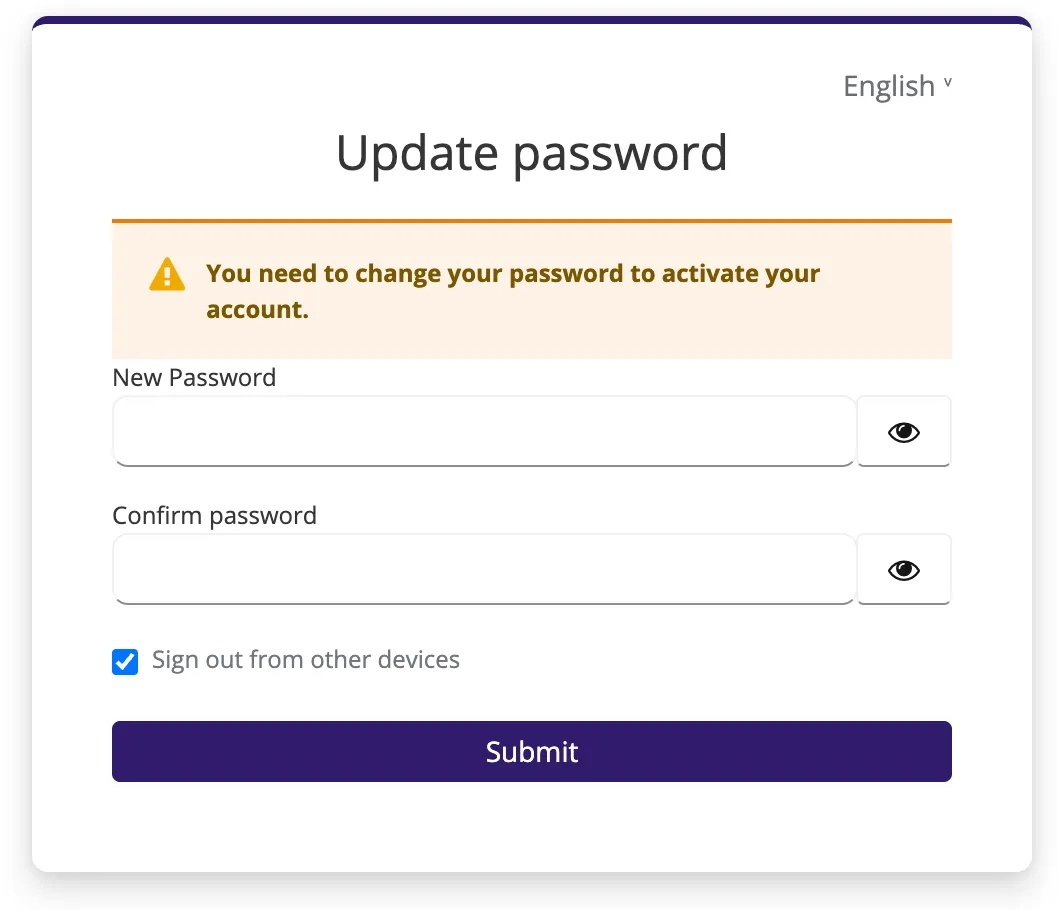
BSN.Cloud offers both SSO and legacy authentication (which is available for backwards compatibility), so users can have multiple available authentication methods. If you see the error message below, your account has a legacy authentication method unrelated to SSO. Since all stored passwords have an expiration period, you are being prompted to change the password for that legacy authentication method. If you don’t use these legacy credentials then you can just delete them after changing the password.