Authenticate in BSN.Cloud
This page / section pertains to BrightSign Author, our latest app for authoring and managing content and players. For the legacy BrightAuthor Classic app, refer to our Legacy DocsLegacy Docs.
As of Oct 21, 2024, BrightSign Cloud supports Single Sign-On (SSO), Multi-Factor Authentication (MFA), and other standard protocols such as OpenID Connect, OAuth 2.0, and SAML. This page describes how to authenticate in BrightSign Cloud using these new features. To set up SSO for BrightSign Cloud, see the Authentication.
BrightSign Author
The BrightSign Author web app is fully integrated with our new authentication server.
If you use the BrightSign Author desktop app, we encourage you to download the latest version.
BrightSign Cloud Login
When you log into BrightSign Cloud from the web or desktop you will see this login window:
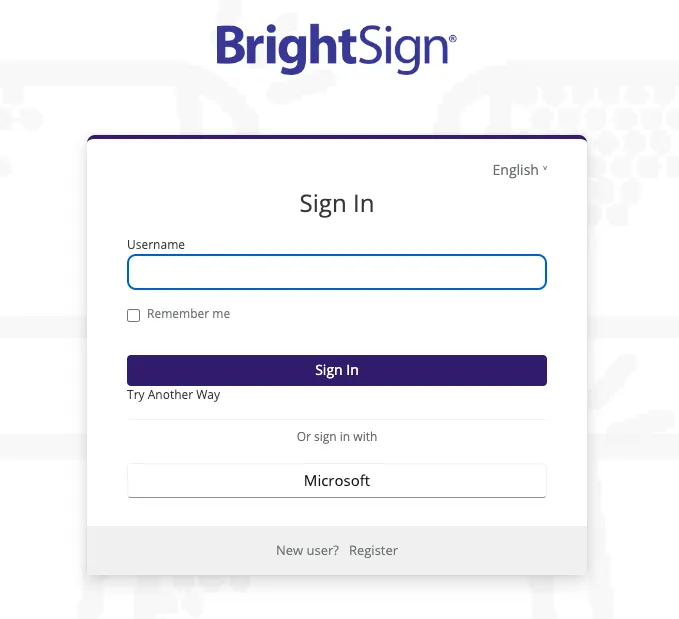
Enter the username and click the Sign In button and you will be prompted to enter the password.
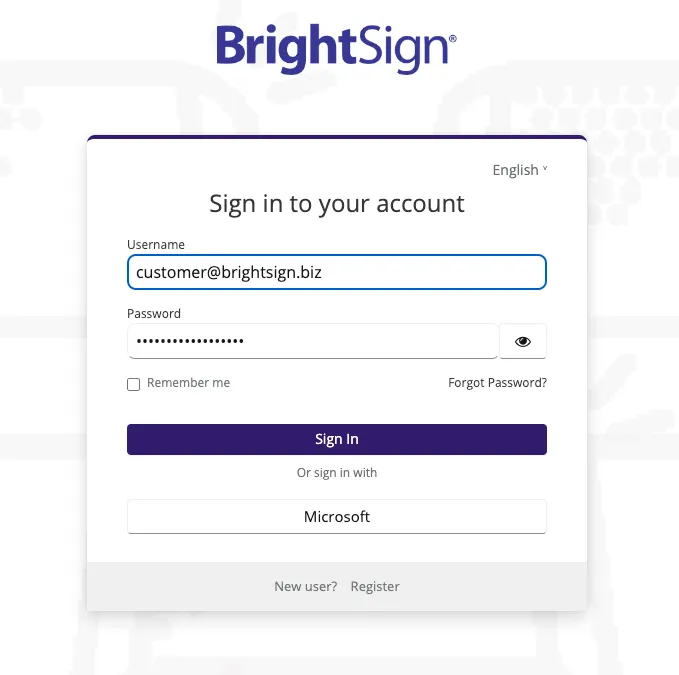
Enter the password and click the Sign In button to log in.
You should use the username and password login method described above immediately after first launching BrightSign Author to ensure your existing details, including passwords, are migrated to the new server.
SSO
BrightSign currently supports SSO with Microsoft Entra ID using OIDC, SAML, or OKTA. Other identity providers will be supported in the future.
Microsoft Entra ID
If you integrate with Microsoft Entra ID, then you can use the Microsoft button on login using SSO.
Important! If your first login after launch is via SSO, your existing password will not be migrated. To revert to using a username and password, go to the login screen, select the Try another way option, then click Username and Password, and then click Forgot my password and follow the process to create a new password.
Enforcing SSO Logins
If you require BrightSign to enforce SSO to work with your identity provider, submit a request via BrightSign support. Enforced SSO logins will mean that BrightSign no longer manages the passwords and authentication for you. Instead all logins and account authentication requests are validated by your identity provider only.
Two Factor Authentication
Adding 2FA
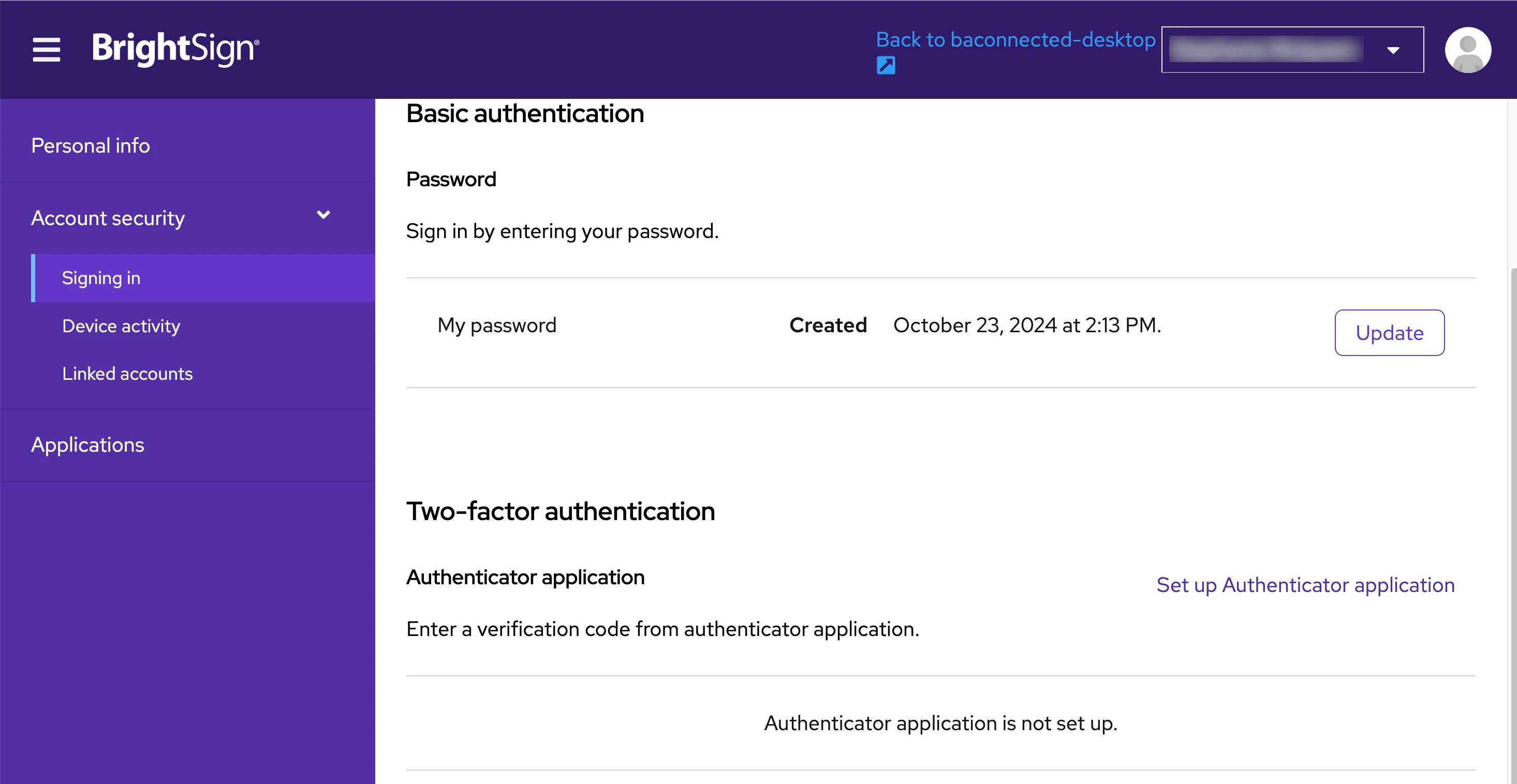
To set up Two Factor Authentication (2FA):
- Sign in to BrightSign Author.
- Go to the Admin page.
- Go to User Account. This will open a browser window.
- Open the Account Security expand and select Signing In as shown above.
- Under Two-factor authentication, select Set up Authenticator application
- Scan the QR code in the new window, or enter the code provided by the application and enter the One-time code and Device name
- Select Submit. You can check to make sure it works by signing out and signing back in.
Deleting 2FA
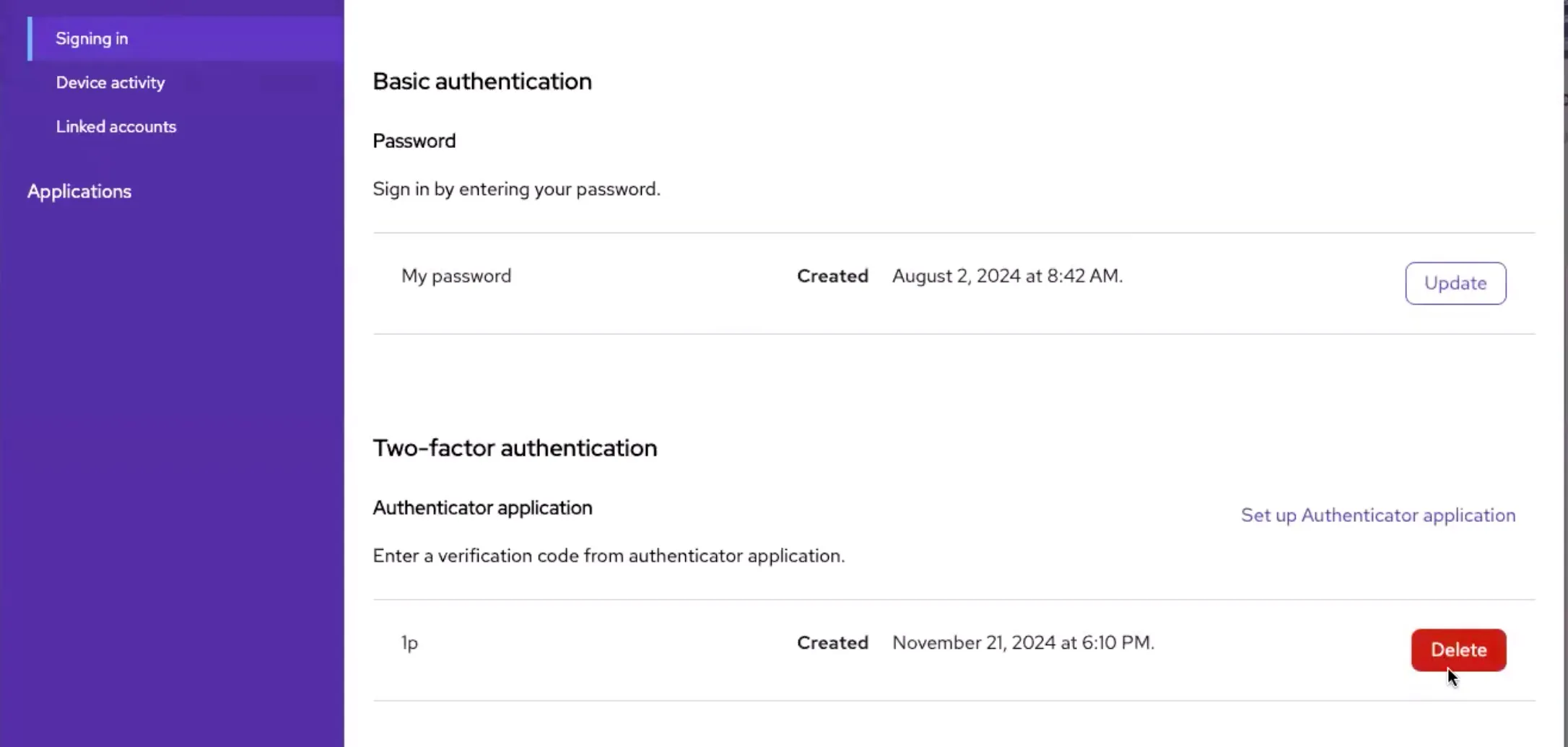
To delete Two Factor Authentication (2FA):
- Sign in to BrightSign Author.
- Go to the Admin page.
- Go to User Account. This will open a browser window.
- Open the Account Security expand and select Signing In.
- Under Two-factor authentication, select Delete as shown above.
Resetting a Password
You must complete your BrightSign Cloud registration before you can reset your password. After you have registered, the Forgot my Password option will be available on the Login page.
If Forgot my Password doesn't work, see Recover an Account/Login for more information.