Authentication
BrightSign’s authentication server supports Single Sign-On (SSO), Multi-Factor Authentication (MFA), and other standard protocols such as OpenID Connect, OAuth 2.0, and SAML.
We have implemented the OAuth2 “Client Credentials Flow” to allow customers to self-serve their credentials (Client ID and Secret) and to allow for more granular control of what the resulting tokens can do, improving security.
Client Credentials are used when clients (applications and services) want to obtain access on behalf of themselves rather than on behalf of a user. For example, these credentials can be useful for background services that apply changes to the system in general rather than for a specific user.
API Workflow
This document describes the steps required use our APIs along with code examples.
Create Client Credentials
To create new client credentials:
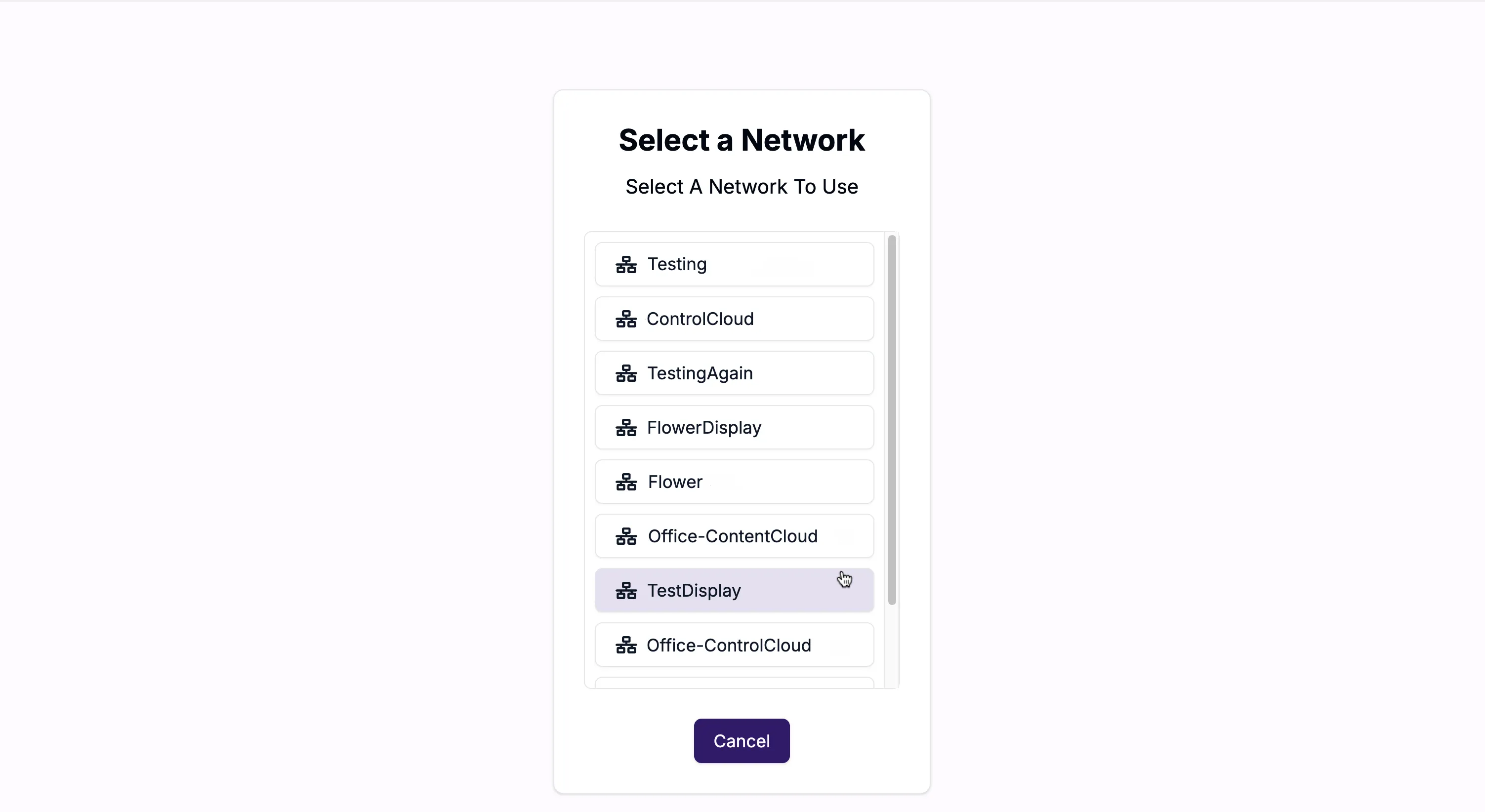
1. Login into BrightSign Control at control.bsn.cloud.
2. Select one of your networks. Note that the list of features available to your applications depends on your access level in the selected network.
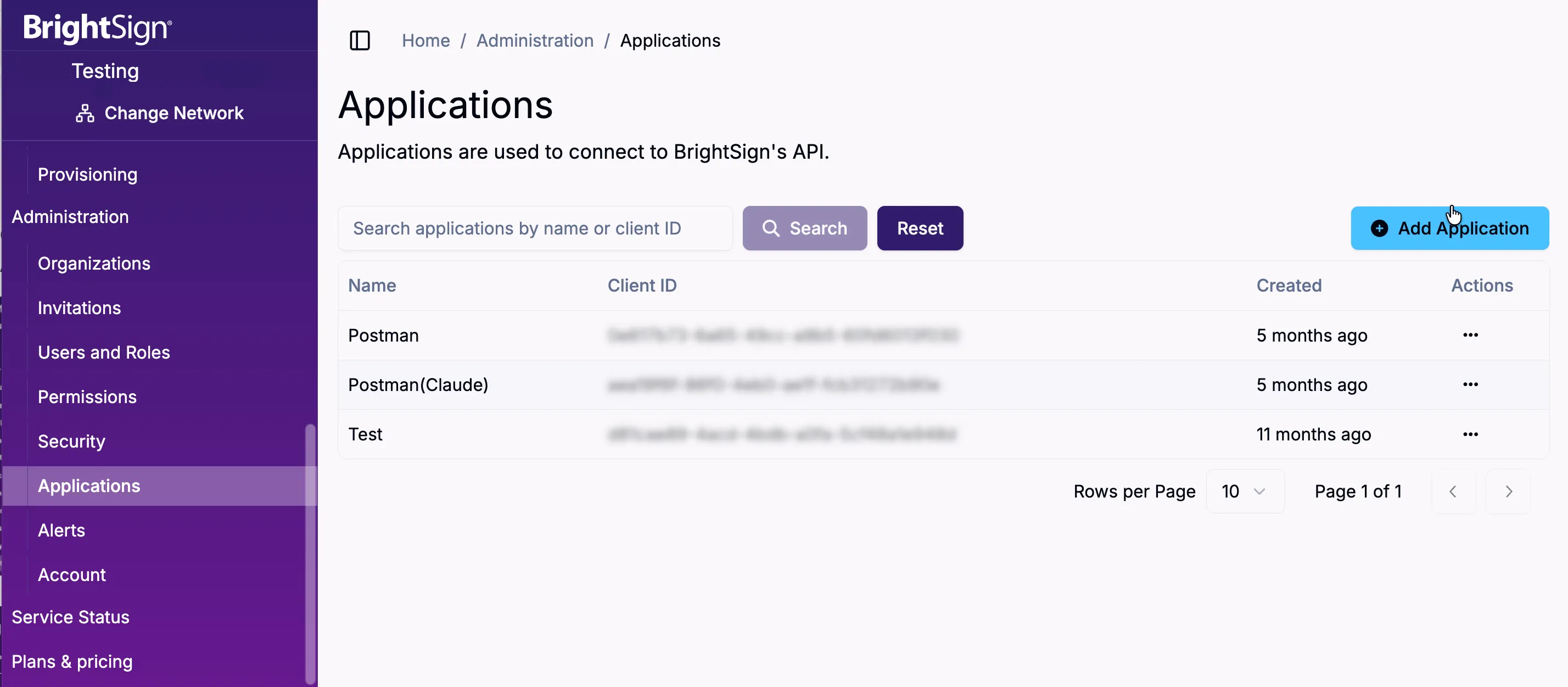
- Once the network is selected, you will enter the Home screen. Go to Administration > Applications and select Add Application.
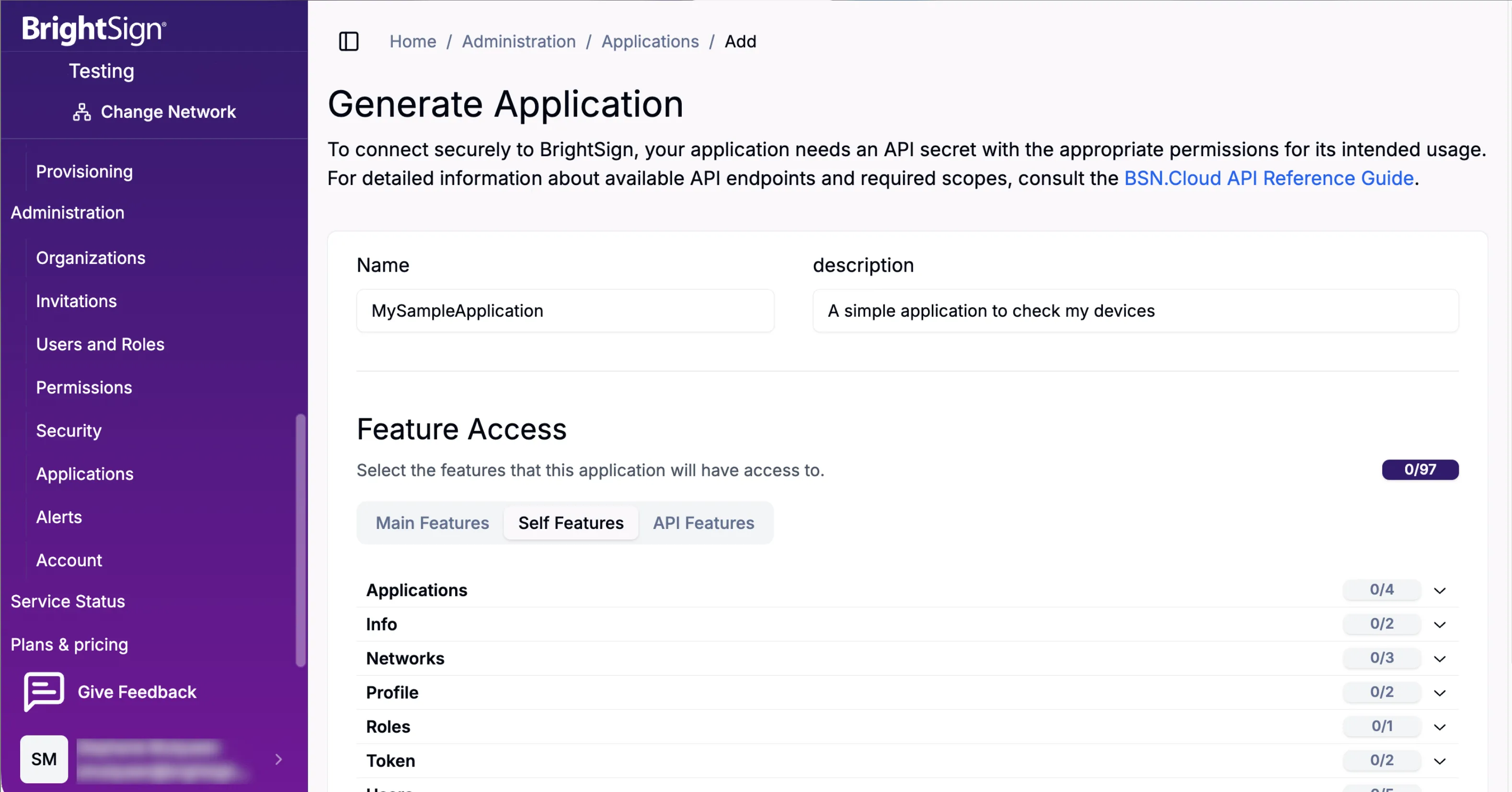
5. Enter an application name and description, and select the features which your application needs to access. According to the best security practices, you should select only the features which correspond to the BrightSign Cloud API methods that the related application actually uses. For information about what scopes are required for each API call, see the Feature Access and BSN.Cloud API documentation.
6. Click the Save button. The new Client ID and Secret will be displayed.
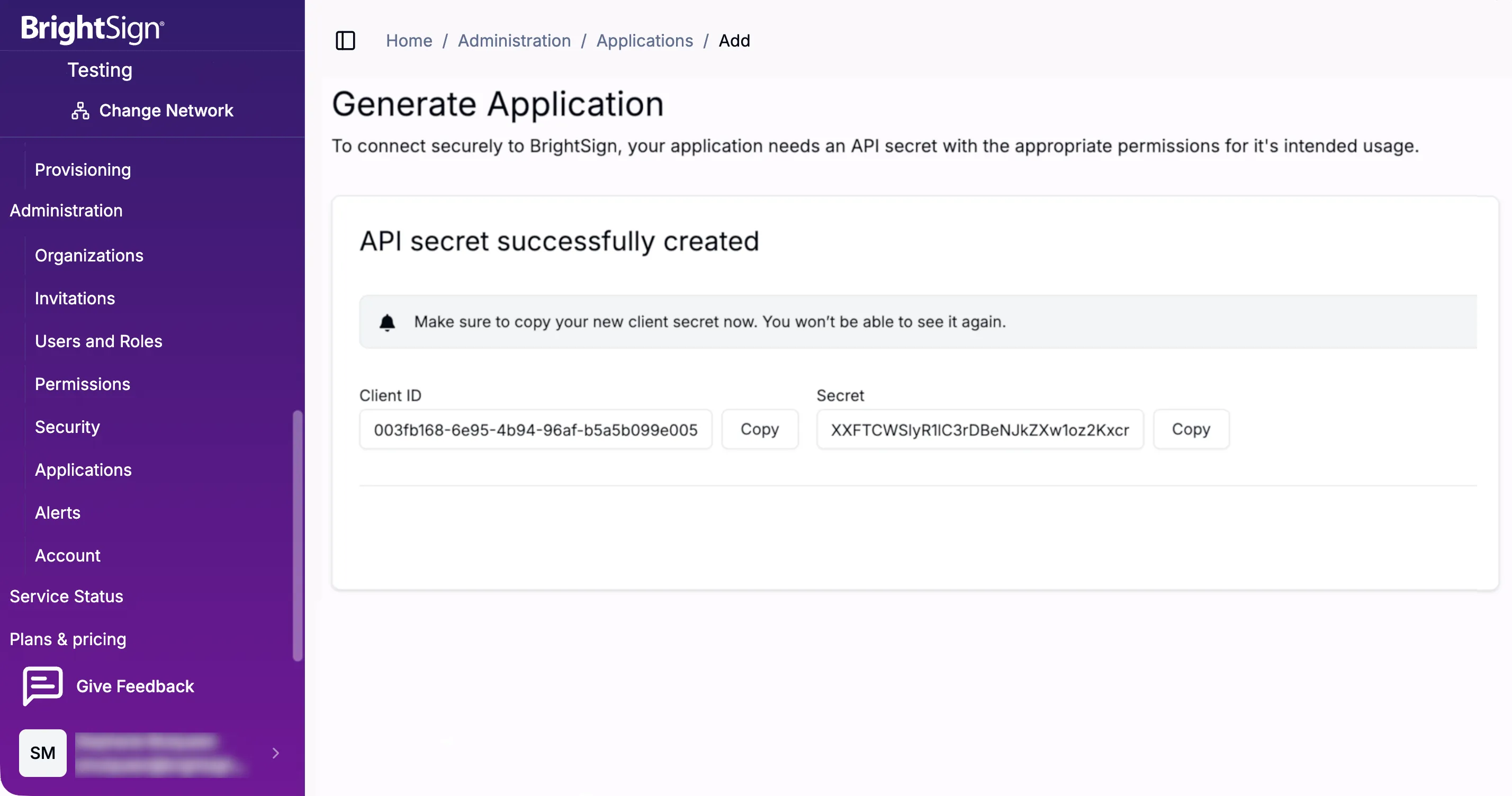
7. Copy these values and store them securely, ideally in a password manager. They will not be shown again after leaving this screen.
Secrets expire every 180 days. You should rotate them on or before they expire.
Notes
- Multiple Applications can be created
- Application name, description and permitted features can be edited or deleted
- Secrets can be rotated (see below).
Get Access Token
To make any API calls to BrightSign Cloud, an access token must be obtained from the token endpoint: https://auth.bsn.cloud/realms/bsncloud/protocol/openid-connect/token. Note that according to RFC6749 Section 4.4.2, the issued client credentials must be provided using the "Basic" authentication scheme in Base64 format (as in the examples below).
HTTP - Get Access Token
POST https://auth.bsn.cloud/realms/bsncloud/protocol/openid-connect/token
Content-Type: application/x-www-form-urlencoded
Authorization: Basic [base64-encoded-clientId-and-secret]
Accept: application/json

grant_type=client_credentials
TypeScript - Get Access Token
const clientId = '[clientId]';
const clientSecret = '[clientSecret]';
const clientCredentials = Buffer.from(`${clientId}:${clientSecret}`).toString('base64');

const request = formBody({
	grant_type: 'client_credentials'
}).toString();

const headers = {
	'Content-Type': 'application/x-www-form-urlencoded',
	'Authorization': `Basic ${client_credentials}`,
	'Accept': "application/json",
};

const response = await axios.post(`https://auth.bsn.cloud/realms/bsncloud/protocol/openid-connect/token`, request, { headers });
return response.data as { accessToken: string };
Expected Response Codes
Code | Description |
|---|---|
200 | OK |
401 | Unauthorized - Invalid Credentials |
Notable Response Data
Property | Description |
|---|---|
access_token | Access token to be used with API calls until expiry |
expires_in | Time to expiry of the access token |
scope | Permitted scopes |
Set Network
Each application you register has access to all the networks of which you are currently a member, so every time you obtain an access token, the next step is to select the network which you want to access in the scope of this session. For this purpose, you need to call the "PUT /2022/06/REST/Self/Session/Network/" method, provide the access token issued in the previous step, and the name or identifier of the selected network.
HTTP - Select network by ID
PUT https://api.bsn.cloud/2022/06/REST/Self/Session/Network
Content-Type: application/json
Authorization: Bearer [accessToken]
Accept: application/json

{
  "id": [networkId]
}
HTTP - Select Network by Name
PUT https://api.bsn.cloud/2022/06/REST/Self/Session/Network
Content-Type: application/json
Authorization: Bearer [accessToken]
Accept: application/json

{
  "name": "[networkName]"
}
TypeScript - Select Network by Id or Name
const network = "[networkId|networkName]";

const body =
	isNumber(network) ? { id: network } :
	isString(network) ? { name: network } :
	network;

return await this.put(`2022/06/REST/Self/Session/Network`, body, ["vnd.bsn.error"]);
Expected Response Codes
Code | Description |
|---|---|
204 | OK - No Content |
400 | Bad Request - Network does not exist |
401 | Unauthorized - Access token has expired |
Use the API
Once the network is selected, the current application has access to all of its resources but is limited by the permissions of the user who registered it, as well as features selected during registration. Be aware that every time an application issues a new access token, the target network needs to be selected again. If the permissions of a user who registered a given application get changed or this user gets removed from the target network, the resources available to a given application change accordingly.
When a 401 error code is received, this indicates that the access token has expired. You should then repeat the above process to obtain a new access token and set a network.
In some scenarios it might prove optimal to get a new access token prior to it expiring. You can use the expires_in value returned in the get access token payload, to calculate the expiry time and prefetch a new token ahead of time.
If a 403 error code is received, this indicates that your access token is not authorized to make this request, and you should check the Application scopes are correctly specified.
Expected Response Codes
Code | Description |
|---|---|
200 | OK |
401 | Unauthorized - Access token has expired |
403 | Forbidden - Access token is not permitted to make the request |
Rotating Client Secrets
Client secrets are expired every 180 days. Secrets can be rotated more often for additional security.
You can rotate the secrets automatically via the API, or manually via the user interface.
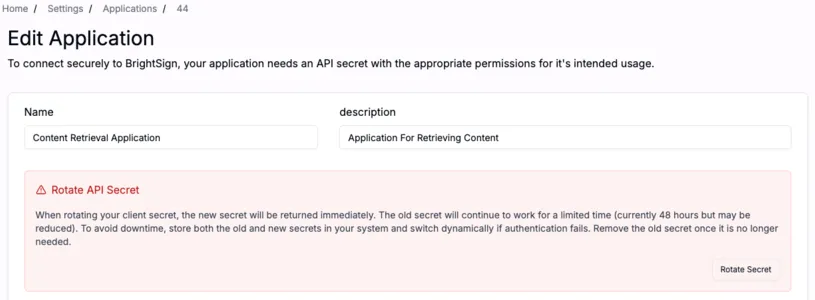
If a secret is suspected to be compromised, you should immediately rotate it by using the Rotate Secret option in the user interface. Rotating will return a new secret immediately, this should be stored securely. The old secret will continue to work for a limited time, but you should switch your application to the new secret as soon as possible.
HTTP - Rotate client secret
To rotate the client secret via the API the following method is provided. Replace {id} with the Application ID, not the Client ID.
POST https://api.bsn.cloud/2022/06/REST/Self/Applications/{id}/Secret/
Content-Type: application/json
Authorization: Bearer [accessToken]
Accept: application/json
Expected Response Codes
Code | Description |
|---|---|
200 | Success - existing client secret was invalidated and new secret is provided in response |
401 | Unauthorized - Access token has expired |
403 | Forbidden - Access token is not permitted to make the request |
FAQ
- How do I obtain a new Client ID and Secret? You will need to use BrightSign Control to create a new Application to obtain a new Client ID and Secret.
- How do I know what scopes to allocate to my application? For information about what scopes are required for each API call, see the BSN.Cloud API documentation.
- How long does the new Access Token lifetime last? 5 minutes 30 seconds
- How long does Network Session lifetime last? 24 hours
- Are Refresh Tokens supported? No, refresh tokens not supported with the OAuth2 “Client Credentials Flow”.
- Can I still use the old legacy API token endpoint with a new Client ID and Secret? You should NOT do this. The legacy API token endpoint ceased to work on February 23, 2026.
- What if I suspect my Client Secret has been compromised? You should use BrightSign Control to rotate the secret and then continue to use the old secret until it no longer works, then use the new secret.
- Are there other ways to handle a compromised Client Secret? Yes, you can simply delete the Application. This will destroy the existing Client ID and Secret. You can create another Application to obtain a new Client ID and Secret.
- Do Client Secrets expire? Yes, Client Secrets expire every 180 days. You should rotate them automatically or manually on or before they expire.
Further Information
For further information contact: [email protected]