Setup
My Activation Code doesn't work
- Your code is old: The code may have already expired if you did not try activating until several minutes after the player was powered up and connected to the Internet. To fix this, reboot the player and use the displayed code immediately.
- Double-check the code: Make sure that there are no typos or errors in the code you are entering.
- Try an activation method that doesn’t require a code:
- Activate the player via the web browser
- Use the QR code on the activation screen to activate the player.
Got “Unable to access a player at that IP address"
If you get this message when publishing to a player set up with Local Network, these could be the reasons:
- The player has not been, or is no longer, configured for Local Network. Apply new Local Network setup files to the player:
- For Series 3 and newer players, clear the content of the player's storage device.
- Factory reset the player.
- You are using DHCP addressing without an address reservation for the player and the router, or the DHCP server rebooted or changed the player address. To resolve this:
- Get the player's IP address. See this page if you don't know how to do that.
- Refresh the player list in the Network tab to see if you get a new/updated player entry with the correct IP address,onsider adding an address reservation to the DHCP server so the player's address is predictable.
- The presentation or content has put the player into a reboot loop. The easiest way to bring a player out of a reboot loop is to apply the Setup to the player's storage again. This will clear the player's presentation schedule so the presentation won't run and crash the player again. If you cannot physically access the player, you can still recover if the Diagnostic Web Server (DWS) is accessible:
- Keep trying to Disable Autorun from the Diagnostics tab of the player's local DWS (http://playerIPaddress/index.html - replace playerIPaddress with the player's LAN IP address) or remote DWS until you get a response from the player. After you see the response, the player will reboot with the autorun disabled.
- Check your presentation for invalid data feeds, out-of-spec media, and resource-hungry HTML sites.
- Update the player OS.
- The player's storage device has been removed or is not readable. To resolve this, put the player's storage device in your computer and see if it can be recovered. Replace the storage device and write new Local Network configuration files to it.
- If the player has been disconnected from the network or power, reconnect the player.
- Network access to the player on ports 80, 8008, and/or 8080 is blocked. To resolve this:
- Consult with IT to ensure the computer that BrightSign Author is installed and can communicate with the player.
- See if you can open http://playerIPaddress:8080/GetID (replace playerIPaddress with the player's LAN IP address) from a web browser on the same network as the player.
- Access to ports 80, 8008, and/or 8080 is blocked. To resolve this:
- Consult with IT to ensure the the computer that BrightSign Author is installed on can communicate with the player.
- Check any third-party antivirus / firewall / security software.
I can't publish to my player
Check your connection to the player:
- Make sure the player is powered on and can be pinged at its IP address. To do this, open a command line terminal and type ping followed by the IP address (for example, ping 192.0.2.1), then hit Enter.
Check your presentation:
- Publish a simple image or video that you know worked in the past. If it works and your presentation does not, the presentation may have been corrupted.
- Check the codec and file types of the content that you are using in your presentation to make sure that they are supported. This information can be found in the Supported Modes & Formats section, which contains information about supported audio, image, video and other formats and codecs.
- Your presentation may be too large for player's available storage. If you don't have enough (free-able) storage to publish the schedule, publish a small/simple presentation to the schedule so the current items are no longer in use, then publish the desired schedule (and the prior “actual” schedule's items can be freed from storage).
- You cannot publish a file or files that are larger than 4GB to FAT32-formatted storage. To fix this, either reformat the storage as exFAT or Ext3/Ext4 (see Format a microSD Card for instructions); or reduce the size of the files in the presentation so they are all (individually) less than or equal to 4GB in size.
Other possible issues:
- Make sure the publishing has completed and that the associated files actually arrived on the player’s SD card.
- Your storage may have failed into read-only mode. (Local Network publish can still appear to complete without error, but nothing actually changes)
- You may have selected a publishing type that doesn't work with your network/player setup. See Quick Publishing using Author for a discussion of different publishing types.
If you get any error messages, keep that information in case you need to contact support.
My player’s serial number is already registered
If this error appears when adding a player from the Provision screen, the player already has an existing provisioning record under with BrightSign Cloud network.
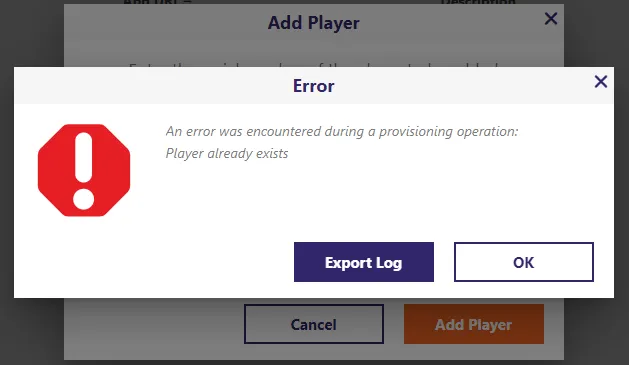
A player can only have one provisioning record, so the player’s existing provisioning record must be deleted and the player removed from its current network. To do this, follow the steps outlined here. Only the owner of the network to which the player belongs can perform these functions so you may have to contact that person to request that they do this.
Note that a factory reset of the player resets the settings of the player to its factory defaults but does not delete the player’s provisioning record. More info about that here.
My players aren't in the Network tab
This is usually caused by a communication issue with BSN.Cloud servers (for example, a missing player setting or configuration or a network issue). Check the following:
- Make sure that Enable bsn.Control or bsn.Content is selected in Admin > Setup > Player Settings > Advanced (older versions of BrightSign Author say Enable BSN.cloud or Enable Control Cloud or Content Cloud).
- Make sure that the player was activated before or during the setup process. For more information, see this page.
- To communicate with players, the network must meet some basic requirements. See this page for more details.
- Players must be on BrightSignOS version 8.0.119 or later to run BSN.Cloud, so make sure your player OS is compatible with BSN.Cloud. See the next topic if you need instructions about how to update your OS.
BrightSign Author won't open on a Mac (malicious software error)
- Open to Apple Menu > System Settings (System Preferences on older OS versions)
- Go to Privacy & Security
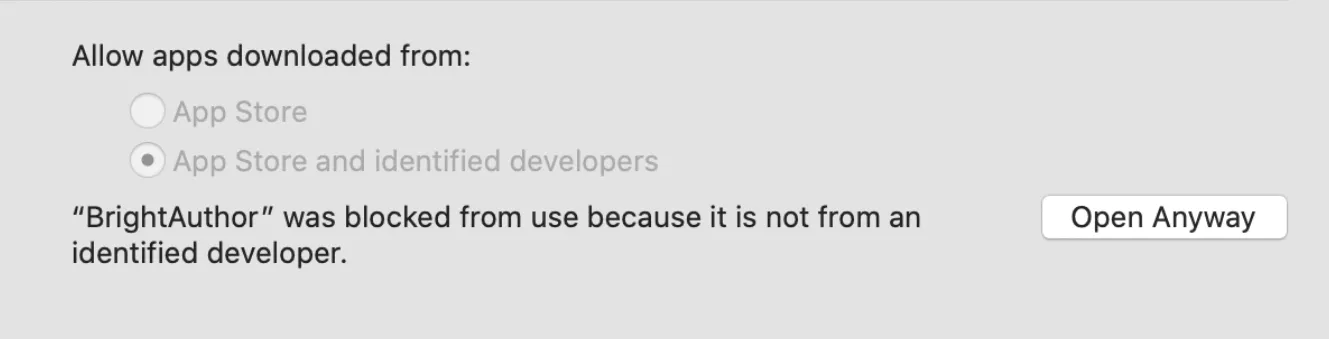
- Scroll down to Security. If you just tried to open BrightSign Author, you should see a message like the one in the image below.
- Select Open Anyway and Open in the following dialogue box.
Players aren't visible in BrightSign Author on a MacOS
Check your MacOS settings:
- Open System Settings.
- Go to Privacy & Security.
- Go to Local Network.
- Make sure the Local Network option is enabled for both "BA connected" and "BA connected Helper (Renderer)":

