Prerequisites
In order to use BrightSign Cloud, BrightSign players must have an active internet connection. Ethernet, Wi-Fi, and mobile / cellular internet connections are supported.
Ethernet
If your player has an active Ethernet connection to the internet, it is all set to connect to BrightSign Cloud.
Ethernet Settings
Additional Ethernet settings (e.g., static IP address, 802.1x security, etc.) can be configured in the player's Setup.
From BrightSign Author, go to Admin > Setup and go to Network Configuration > Network Options > Ethernet.
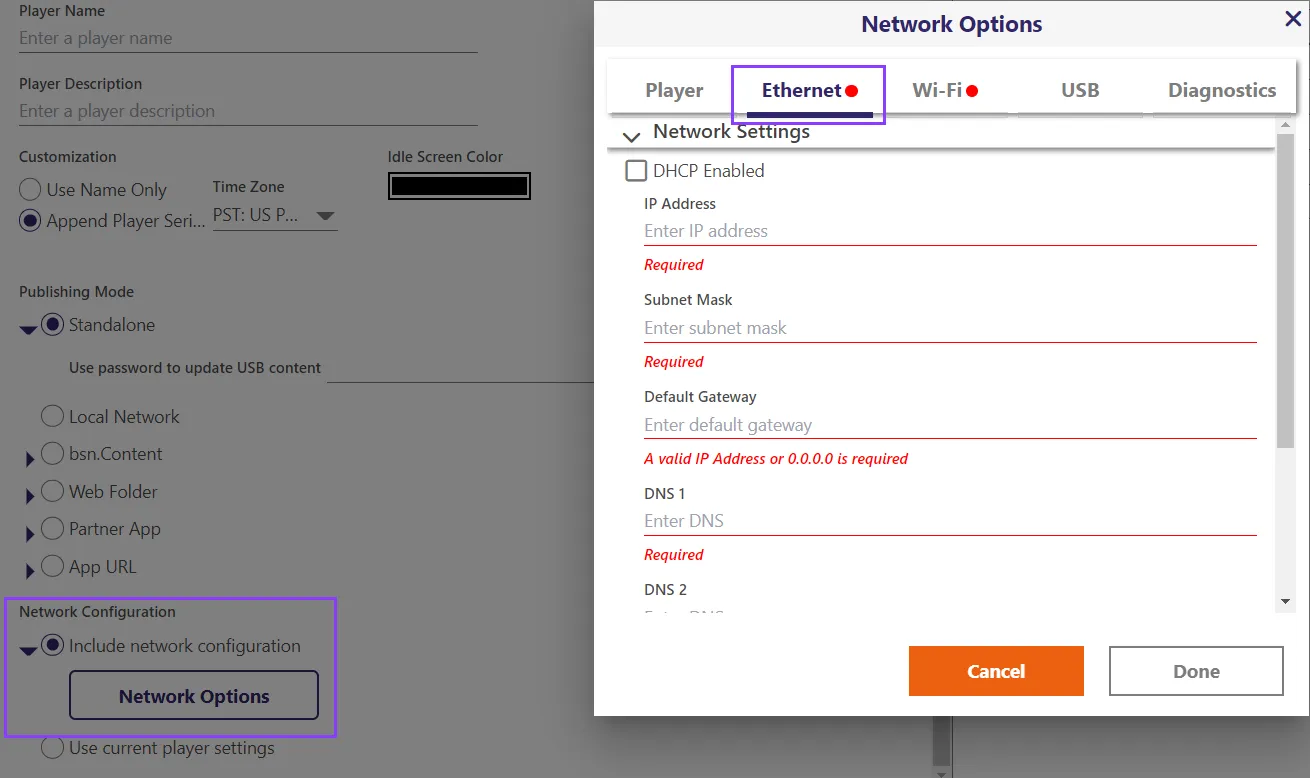
For complete details on the available Ethernet settings, refer here.
In addition to network settings, the Setup File also includes various other player settings such as player name, description, and importantly, the player's Publishing Mode. These settings should also be configured. For more info on the available settings, refer to Setup.
After creating the Setup File, manually copy the Setup File to the player's storage device and reboot the player as described below.
Wi-Fi
There are several ways to configure Wi-Fi connectivity for players equipped with Wi-Fi modules:
- Recommended Method: Create a Setup File with the required Wi-Fi info. Manually copy the Setup to the player's storage device and reboot the player as described below.
- Create a Setup File with the required Wi-Fi info. Provision the player to apply the Setup File to the player. Temporarily connect the player to the network via Ethernet to enable the transfer of the Setup File to the player. After the Setup File has been installed, the Ethernet connection can be removed, and the player will connect via Wi-Fi.
- The Direct Wi-Fi Setup method can also be used which does not require a temporary Ethernet connection nor the manual copying of a Setup File to the player.
For complete details on the available Wi-Fi settings, refer here.
Wi-Fi Settings
From BrightSign Author, go to Admin > Setup and go to Network Configuration > Network Options > Wi-Fi.
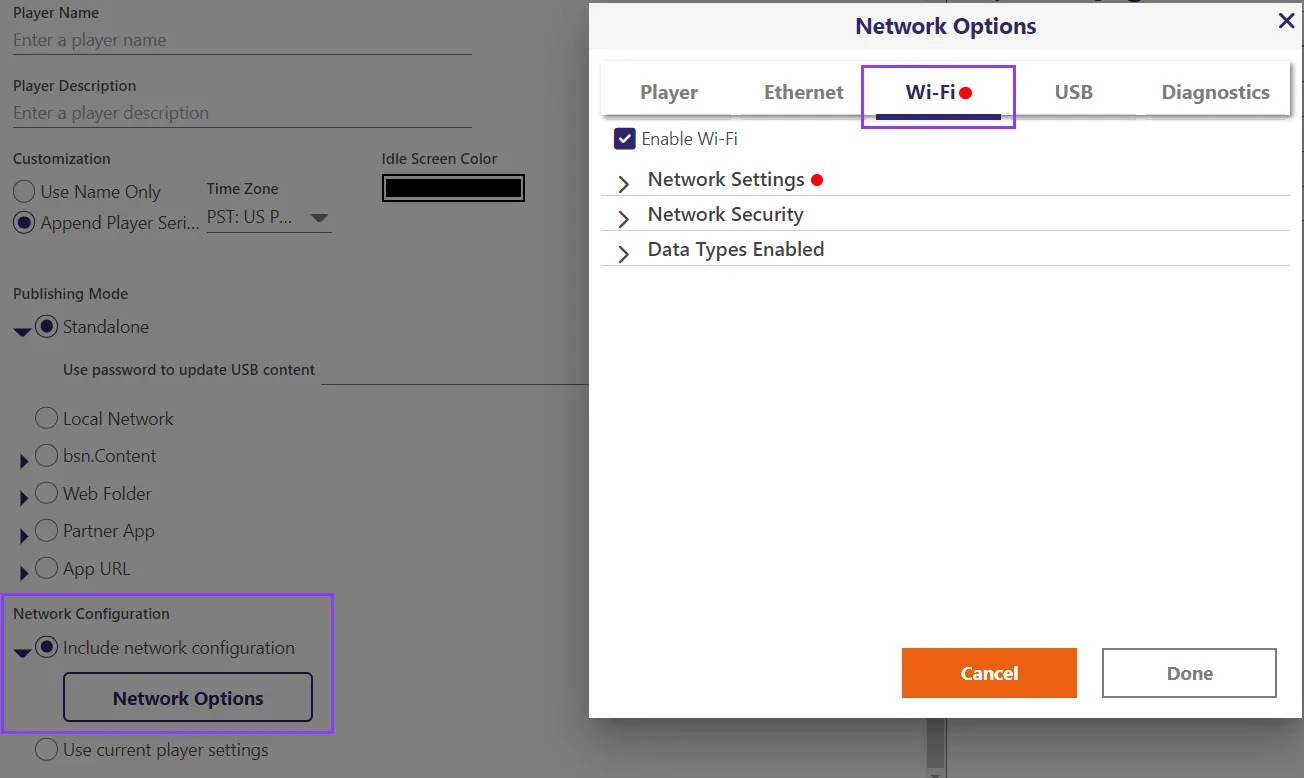
In addition to network settings, the Setup File also includes various other player settings such as player name, description, and the importantly, the player's Publishing Mode. These settings should also be configured. For more info on the available settings, refer to Setup.
Manually Copy Setup to Player
Once the Setup File has been created, it needs to be copied to the player. The most straightforward way to do this is to manually copy the Setup File to the player's storage device (e.g., microSD card) and then install the storage device to the player. After rebooting the player, the player should be configured per the settings in the Setup File. If the Setup File was properly configured for Wi-Fi, the player should automatically connect to the designated Wi-Fi network.
Access
BrightSign Cloud can be accessed in several ways with the most common being through the BrightSign Author desktop application which can be downloaded here for Mac or PC, or the BrightSign Control application which can be accessed at control.bsn.cloud.
BrightSignOS
Player(s) must be running BrightSignOS version 8.0.119 or higher.
BrightSign Cloud Account
You must create a user account and set up your BrightSign Cloud network to begin using the BrightSign Author and/or Control applications. See Create a BrightSign Cloud Account & Network.