Reboot via the DWS
If you need to reboot your player but don't have physical access to it, the easiest way to reboot it is via the player's Diagnostic Web Server (DWS).
Remote Access
If the player is connected to the internet and is registered with BSN.Cloud, the DWS can be accessed remotely (i.e., over the internet). See DWS: Remote Access for more details.
Local Access
If the player is accessible over the local network, the DWS can be accessed over the local network, assuming that local access of the player has been enabled. Refer to this important note:
Local access (i.e., access over the local network) of the Diagnostic Web Server (DWS) is disabled by default as of BrightSignOS 9.0.218 (on the 9.0 branch) and BrightSignOS 9.1.75 (on the 9.1 branch). In BrightSignOS versions prior to these, local access to the DWS was enabled by default. To enable local access to the DWS, see DWS: Local AccessDWS: Local Access.
Note that some specially configured players have the external microSD card port and USB storage disabled at the factory (SKU: SVC-internal-storage-only). For these players, local access to the DWS remains enabled by default.
Remote access (i.e., access over the internet) of the DWS remains available for all internet-connected players registered with BrightSign Cloud.
Rebooting
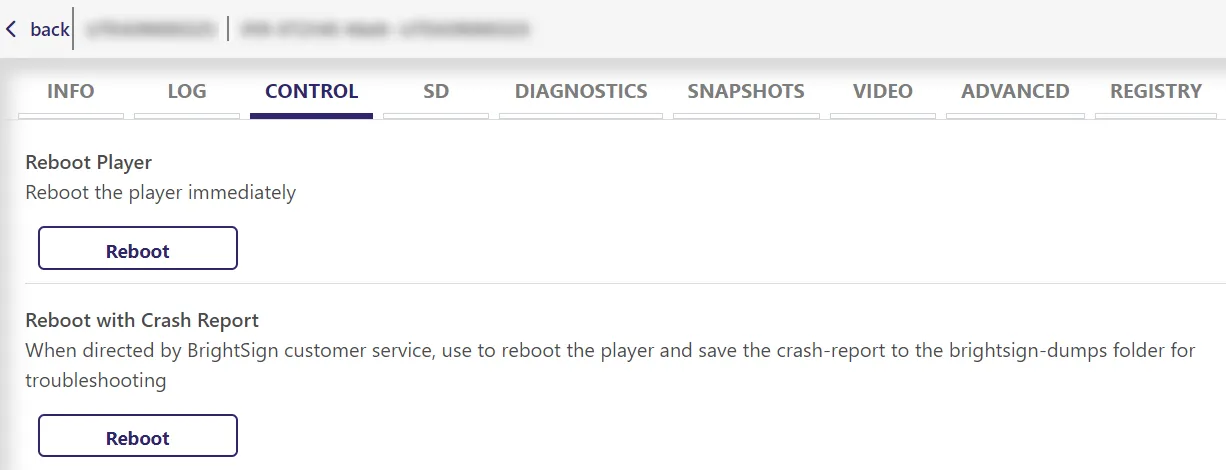
From the DWS, go to the Control tab.
From there, you can simply Reboot Player or Reboot with Crash Report. See descriptions in screenshot above.
Other Methods
- To reboot via the legacy BSN (BrightSign Network), see Reboot a Player via BSNReboot a Player via BSN
- To schedule reboots, see Schedule Player RebootsSchedule Player Reboots
- To reboot via UDP command, see Reboot Locally Networked Players via UDP commandReboot Locally Networked Players via UDP command