Reboot Locally Networked Players via UDP
This page / section pertains to BrightAuthor Classic, our legacy app. BrightSign Author is our latest app for managing content and players.
Development of BrightAuthor Classic has largely ceased and the app will eventually be deprecated and replaced with BrightSign Author.
With BrightAuthor Classic, one or more players can easily be rebooted if they are on the same local network. This can be done by adding an Event Handler that responds to a UDP message in the presentation(s) scheduled on the player. This will allow the BrightSign iOS app or any app capable of sending UDP messages to reboot the player with the appropriate message string. This method can be adapted for other trigger mechanisms like Serial Input and GPIO Input, but the advantage of UDP is that it is a network-based communication that does not require additional wiring or cables.
Reboot Using an Event Handler
Open your presentation and select the Edit tab.
Select Add Zone as shown:
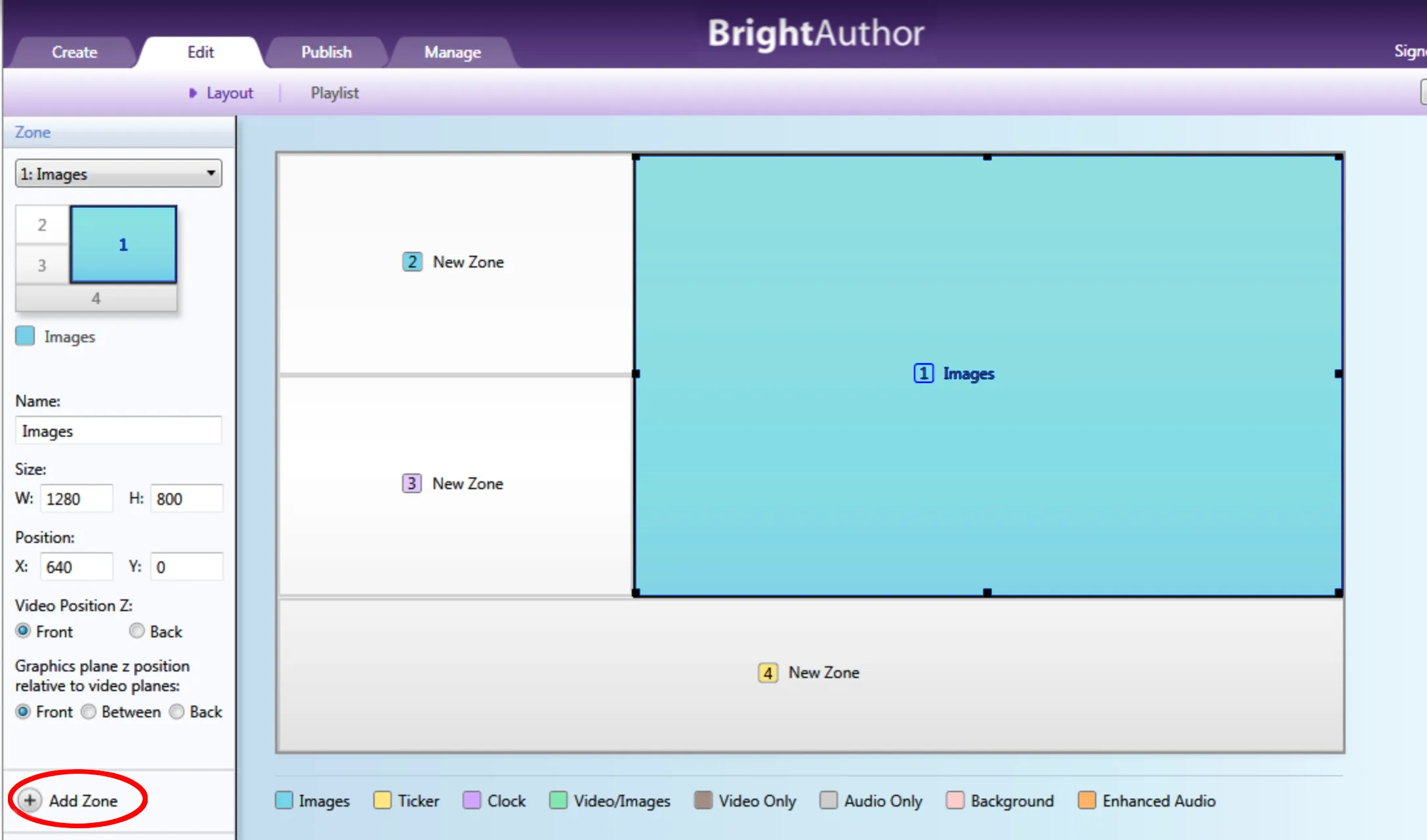
Add an Images zone with a suitable name. It will contain the Event Handler that will listen for the reboot requests.
Return to the Playlist view and select the zone you just added by opening the drop down or selecting the thumbnail.
Select Interactive to make the playlist interactive and the other tab in the Media Library.
Drag the Event Handler into the playlist storyboard and select the events tab in the Media Library.
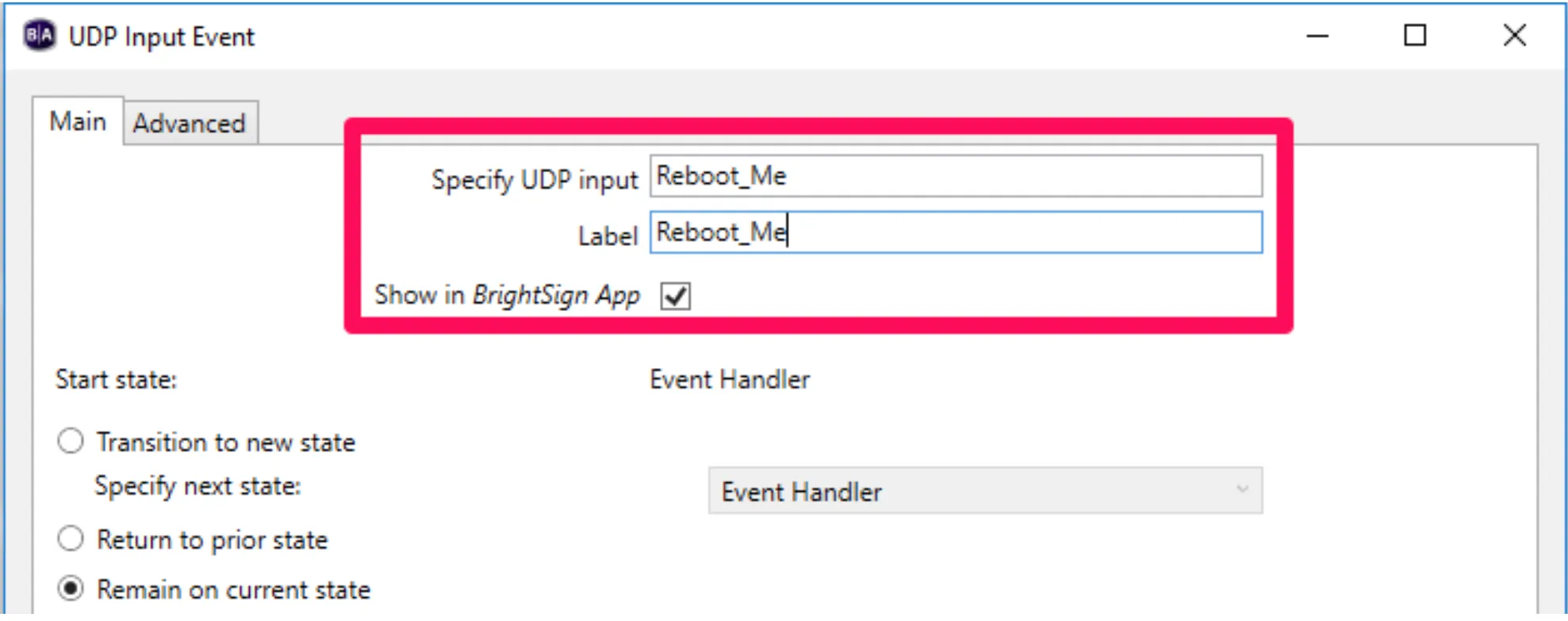
Scroll down to find the UDP Input event, then drag and drop it onto the Event Handler that you just added. The UDP Input Event settings will now appear, as shown in Image 2.
- Enter the message that you want to use to trigger the reboot in Specify UDP input. This must be unique so it won't be triggered by any random UDP traffic on your network, otherwise your player will randomly reboot. For this example, use the message Reboot_Me.
- The Label will be used by the player to identify the command, and by other apps that query the player for available events.
- If you want the reboot to appear as a button in the BrightSign iOS App, tick the box.
Select the Advanced tab and select (+) Add Command, which adds a command in the list.
- Change the Commands drop down to Other
- Change the Command Parameters drop down to Reboot.
- Select Ok.
Save, Upload (if necessary), and Publish your presentation. When you send the UDP message Reboot_Me to the player, it will now reboot. If you have multiple players on the same network subnet and they are all listening on the same UDP port, you can send a UDP message to the subnet's broadcast address (i.e., 192.168.1.255 for everything on 192.168.1.x) and all the players that are listening for that command will respond.
Since this command lives in the presentation, if you want the same command to apply to other presentations, you will need to perform the same steps to add the Event Handler and UDP Input Event to those presentations as well.