Schedule Reboots
Even though BrightSign players are capable of running for months or even years, scheduling regular player reboots will help maximize trouble-free operation. You can do this by creating an event and then schedule it as described below.
In BrightSign Control Plus
BrightSign Control Plus subscribers can easily schedule reboots and other player actions. See Schedule (PLUS) for more information.
In BrightSign Author
To create and schedule reboots in BrightSign Author, see the following steps:
Create a Reboot Event
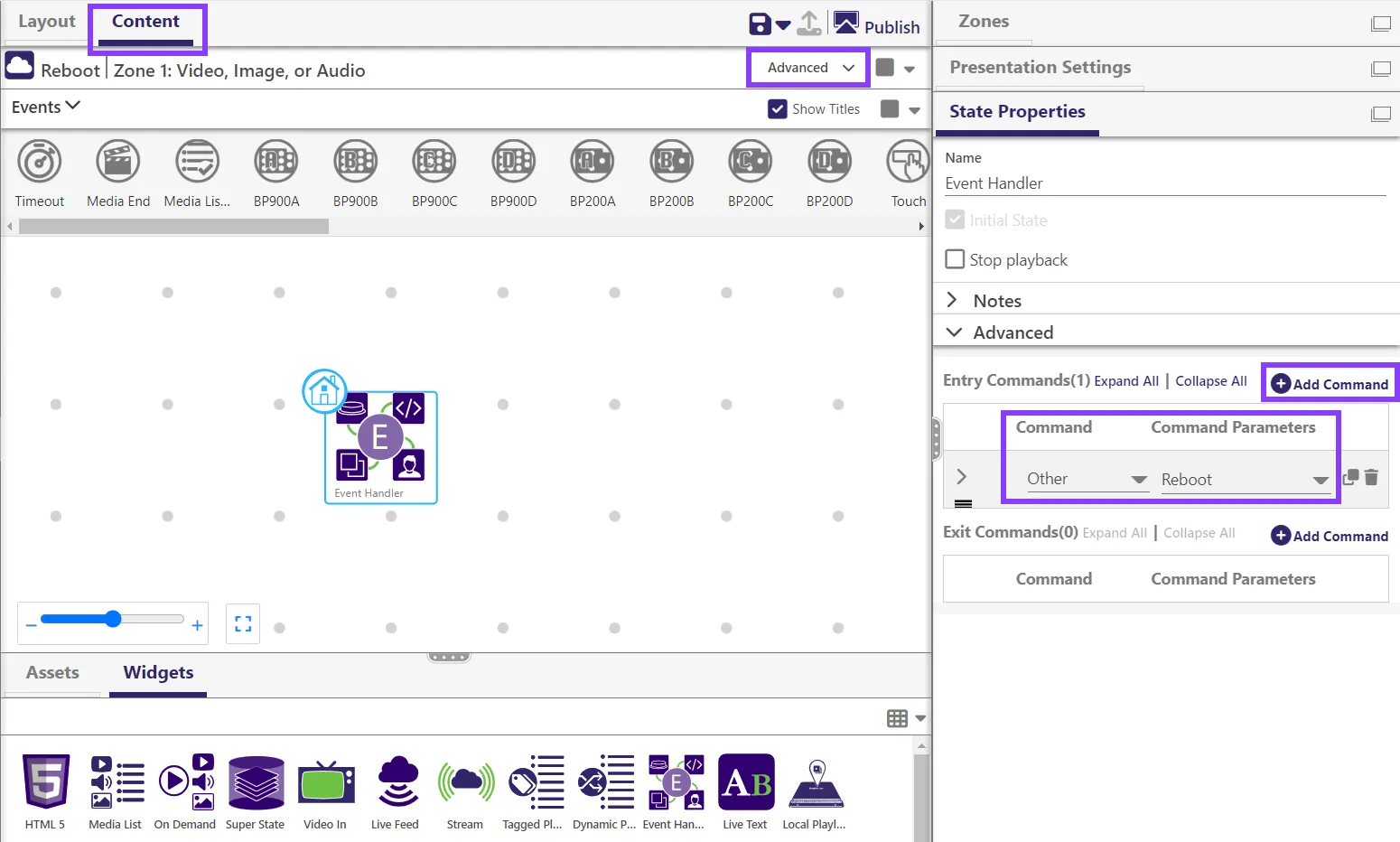
Make a presentation, select a Zone, and set the Zone to Advanced.
In the Content tab, go to Widgets and drag and drop an Event Handler state into the Zone.
In the State Properties > Advanced window, click Add Command.
Select Other under Command and Reboot under Command Parameters. Then save the presentation.
Schedule the Reboot Event
Go to the Schedule tab.
Find the presentation in Source > Recent Presentations, located to the left of the Schedule calendar. Then drag and drop it into Schedule.
Select the presentation in the calendar then go to the Schedule pane (see Image 2).
Select Recurring Event and All Days, Weekends, or Weekdays. If you want the player to reboot on certain day(s) every week select All Days and the days you want.
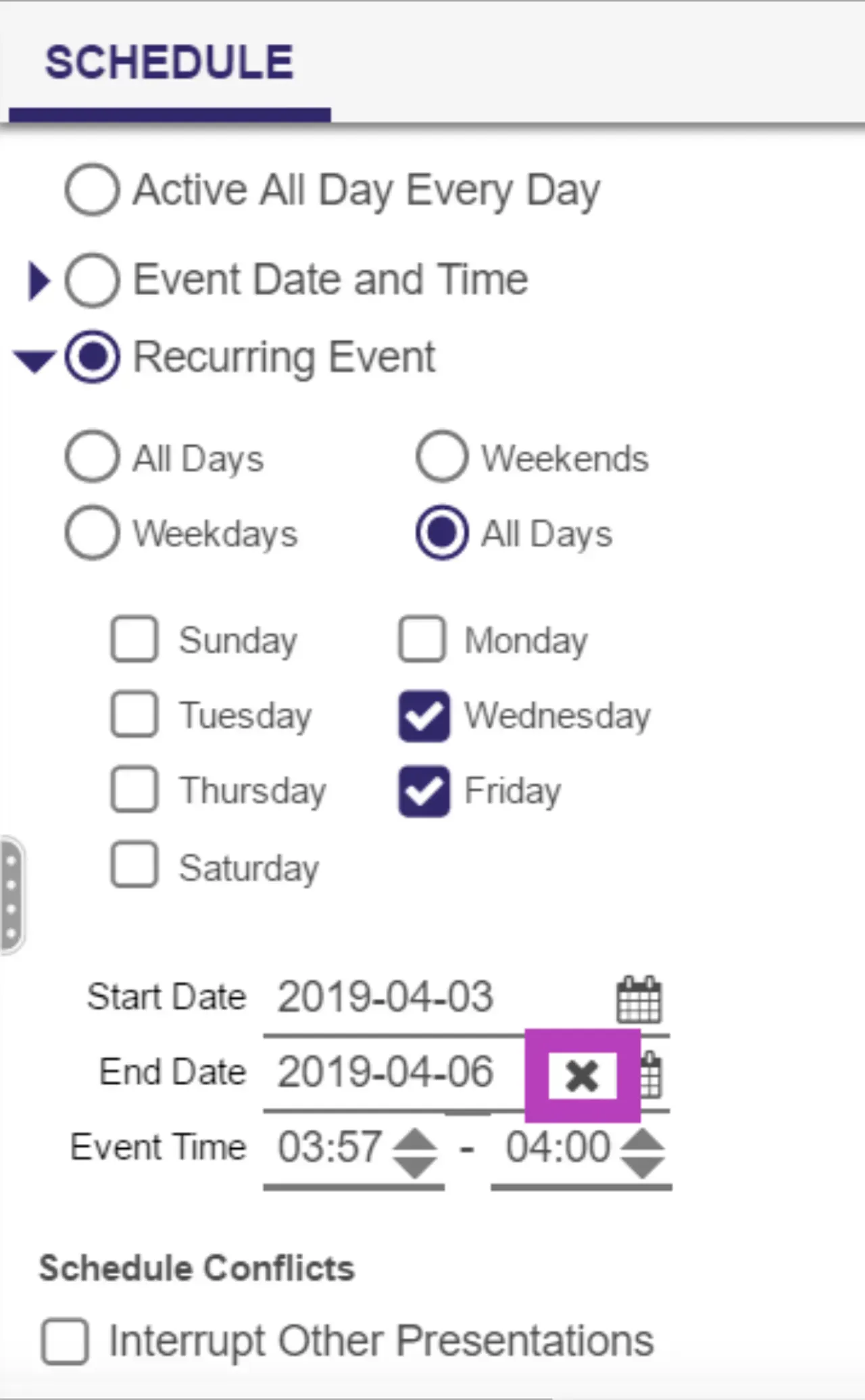
Set the Event Time to a 2 to 3 minute interval starting at your preferred time. If you schedule the presentation for a longer duration, it will cause the player to reboot multiple times.
Select the X next to the date to eliminate the listed date. This allows the Reboot presentation to repeat at the time(s) you chose every week.
Repeat these steps to schedule any additional reboots.
Publish the schedule to the desired groups or players.
Users with no space in their schedules can schedule the reboot presentation over an existing presentation as a Schedule Interrupt.
To do this in BrightAuthor Classic, see Schedule Reboots in BrightAuthor