Schedule Reboots in BrightAuthor
Even though BrightSign players are capable of running for months or even years, scheduling regular player reboots will help maximize trouble-free operation. You can do this in BrightAuthor Classic, as described below.
Create a Reboot Event
Go to File > New Presentation to create a presentation in BrightAuthor. Name the presentation “Reboot”.
Select your player model and a resolution that that your screen supports.
Choose the Full screen template and switch the playlist to be Interactive.
Click the other tab in the Media Library.
Find the Event Handler state and drag it into the empty playlist storyboard.
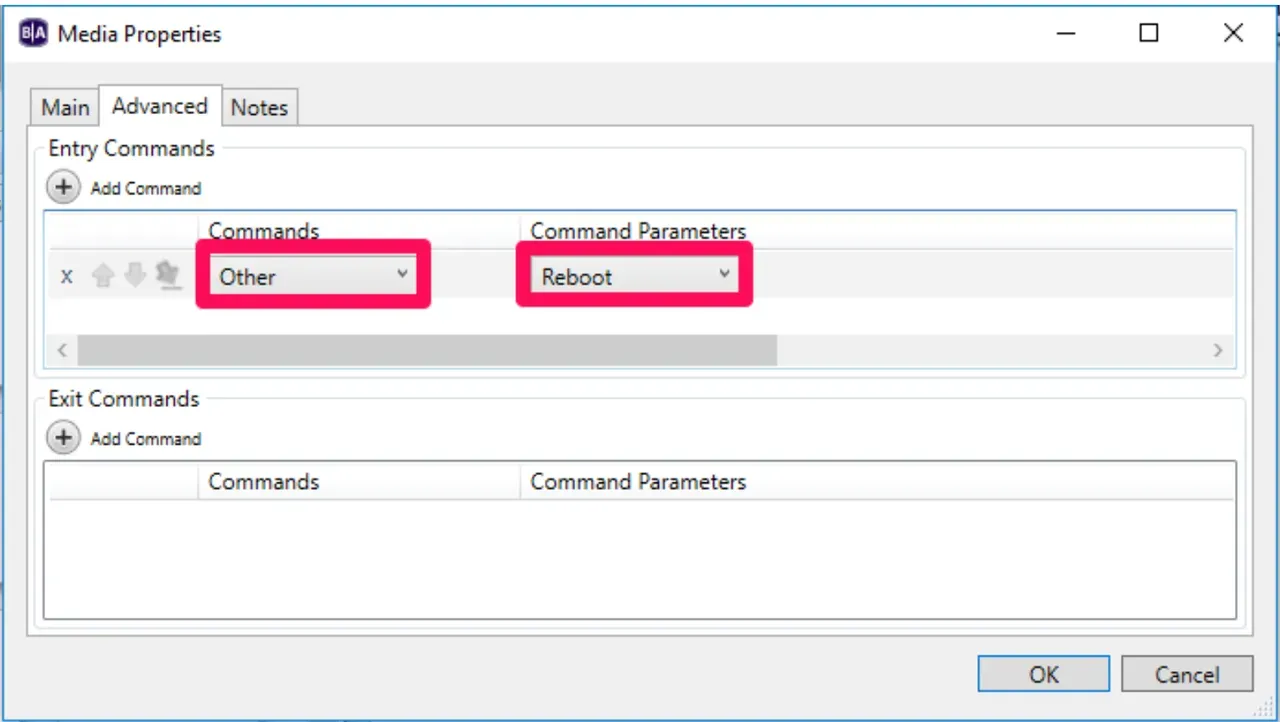
Double-click the Event Handler and switch to the Advanced tab.
Select Add Command under Entry Commands.
Set the Command to Other and the Command Parameters to Reboot. Select Ok.
Schedule the Reboot Event
Save and publish the presentation.
If the schedule is not completely blue, drag and drop the Reboot presentation into the schedule. The Reboot presentation should be set as a non-stop event.
Double-click the blue schedule block to open the Schedule Presentation properties.
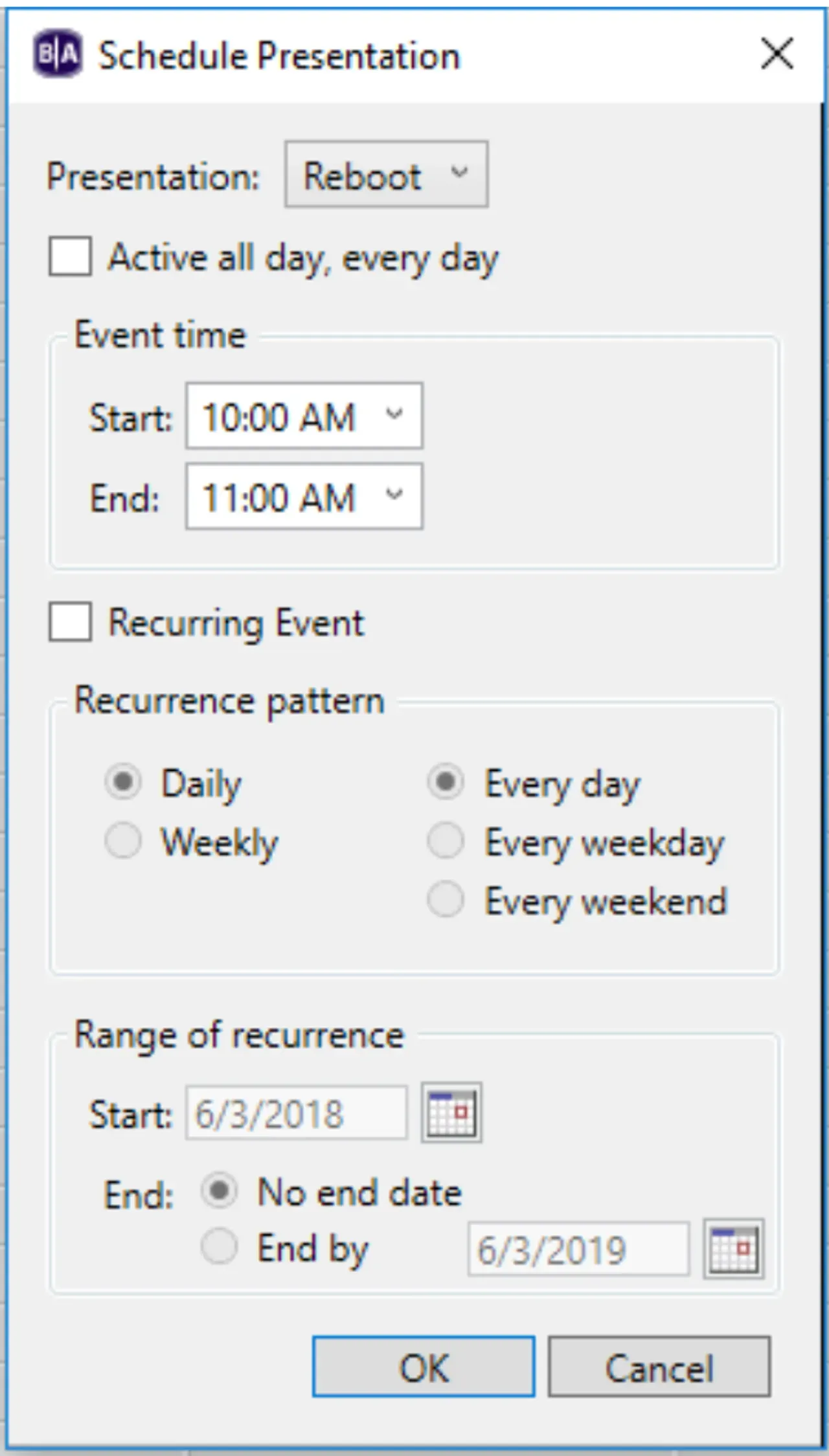
Make sure Active all day, every day is not selected.
Set the Start and End times just 2 to 3 minutes apart. (you can enter a time in the boxes). Don’t schedule a longer time block because the player will reboot multiple times during the block.
Select the Recurring Event box and chose a pattern:
- Select Daily for daily, weekday, or weekend reboots.
- Select Weekly to specify specific days of the week.
- Select No end date unless you want the scheduled reboots to stop at some point.
Select OK. The schedule appears in the specified time(s). Repeat these steps for any other times you want to reboot the player.
Publish the schedule. If you're not using BrightSign Network, be sure to Save the schedule so you can reload it to publish changes later.
Advanced users with non-stop schedules can just schedule the Reboot presentation over the existing presentation as a Schedule Interrupt.