BrightSign Control FAQs
Are all Setup features in Control/Control Plus?
No, not all BrightSign Author Setup features are available in Control/Control Plus:
- Desktop Author Plus interface gives you complete control of your network settings in a player Setup.
- Webtop BrightSign Author/Author Plus contains all of the Setup features except the ability to add certificates.
- Control and Control Plus interface is best for rudimentary network configuration (not WiFI, DHCP only, no fixed IPs, etc.). See Player Setup.
BrightSign plans to ensure that BrightSign Control has Setup feature parity with BrightSign Author in the near future.
How can I buy Control Plus?
Email [email protected] to start the subscription purchase. You will need your network information as well as the serial numbers of your players.
What bulk actions are available?
You can bulk reprovision, reboot, and update player OSs in BrightSign Control Plus. These actions all follow the same steps:
- Sign into your network at https://control.bsn.cloud/.
- Go to Actions > Schedule and select the players you would like to reprovision or update or reboot.
- Go to Choose Action and select Reprovision Players or OS Update or Reboot Players.
- You can schedule the action for a future time or start the job immediately. Then select Review.
- Enter a name for the job if you prefer, then select Start Job. The players should update at the selected time.
To update the OS in BrightSign Author, see Update the Player OS.
What is AI Assist?
The AI assist feature lets you find information about your network and your players. The AI assist feature can also help create actions that you can easily approve.
Can I turn off AI Assist?
To turn off this feature:
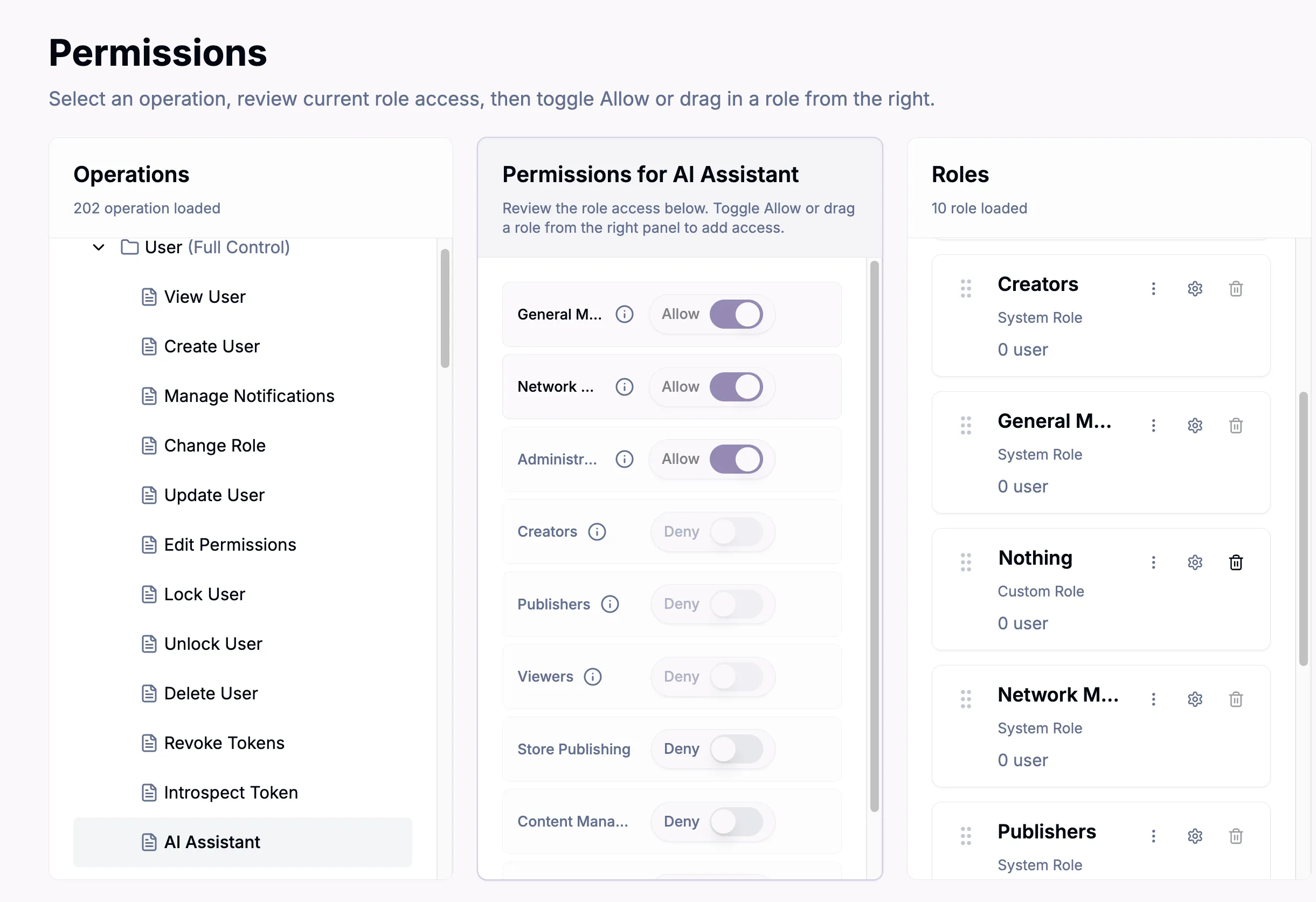
- Go to Administration > Permissions.
- Create a role that has the operations that you need.
- In the central panel, toggle the AI Assist permissions to Deny (see the image below). This will turn off AI Assist for users in that role.
What OS is my player running?
To see the player OS in BrightSign Control, open the Players List section and look for the OS column.
See Viewing the Current OS version for information about how to see your player OS in BrightSign Author.
How do I update the player OS?
There are several different ways to update the OS. See Update the Player OS for more information.
Will my player appear on my local network?
No. BrightSign players are not capable of traditional computer file sharing and thus do not appear on Mac or PC network viewers.
If your player was set up for the BrightSign Cloud publishing mode, it will be visible under the Network tab in BrightSign Author where various settings can be accessed.
If your player is on the same network as the computer you are using to run BrightSign Author, you can publish to the player directly using the Local Network publishing mode. Alternatively, you can set the player up for the Web Folder publishing mode where content on the player is automatically updated from a designated web folder.
More info on the various publishing modes can be found here.