Organizations
BrightSign Control now supports Organizations, which let you manage SSO across multiple networks. An organization in BSN.Cloud groups users, domains, and settings so they can be administered together.
This feature allows you to:
- Set up Single Sign-On (SSO) and verify domain ownership
- Define and manage organizations
- Invite other users to administer organizations
Access Organizations
To access this functionality, select Get Started in the Admin Panel, log in, and go to the Organizations menu item.
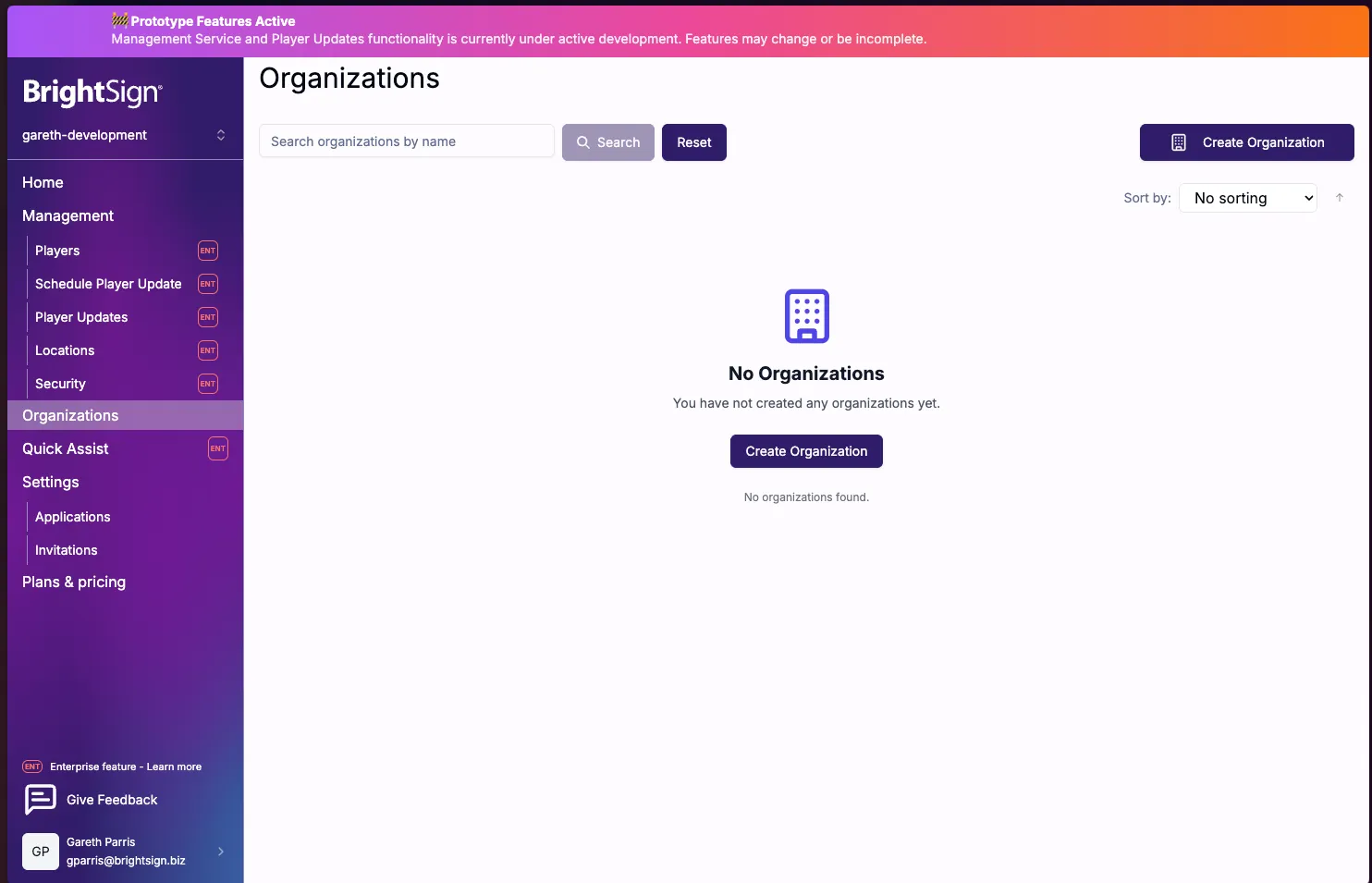
Any user can create or be associated with an organization for management purposes.
Create an Organization
To create an organization, click the Create Organization button.
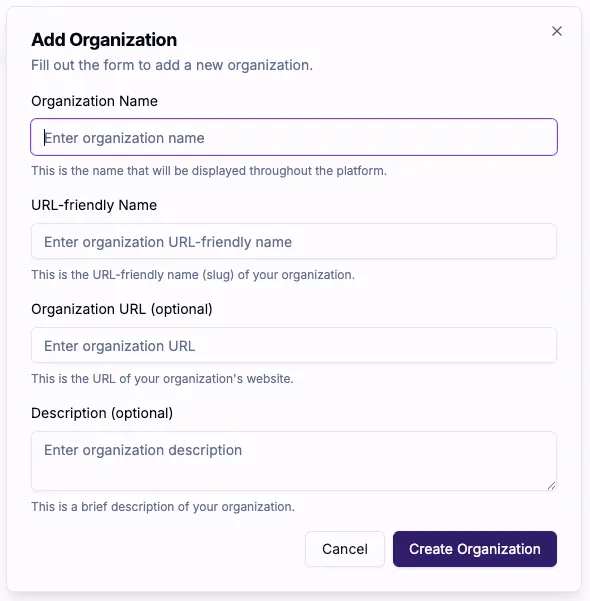
To create an organization you will need to enter the following details:
- Organization Name: This will be displayed in the user interface.
- URL-friendly Name: This will be auto-entered as you type the organization name.
- Organization URL (optional): This is for information only and is shown on the details screen.
- Description (optional): This is for information only and is shown on the details screen.
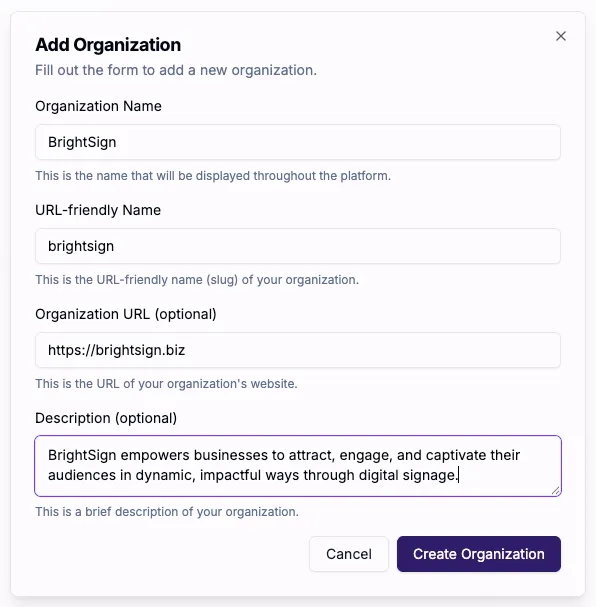
When you have entered the required information, select Create Organization.
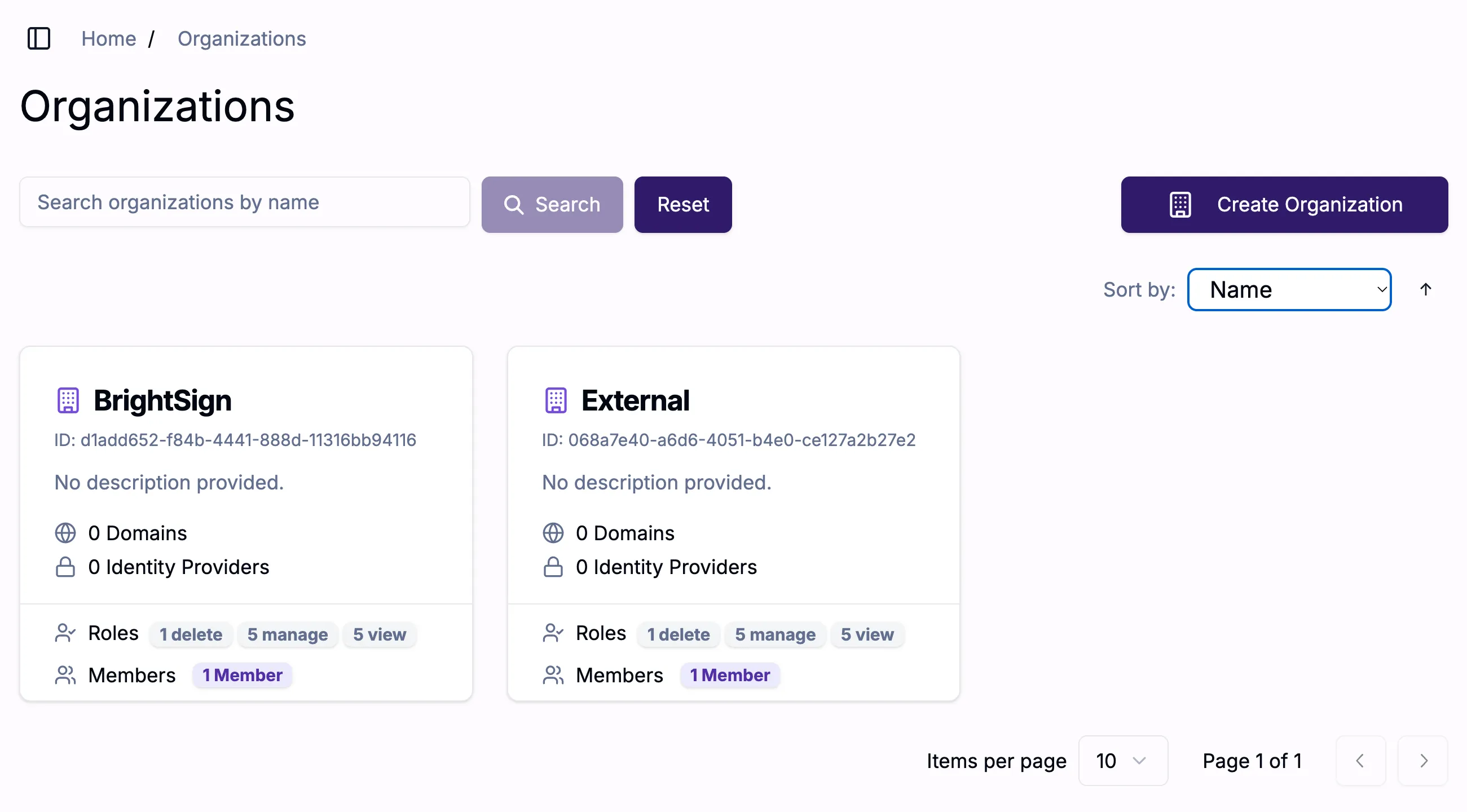
You will then be returned to the Organizations page where you will see the list of organizations. From here, you can search for organizations by name, sort organizations by name or creation date, or double-click an organization to access it. You can also create additional organizations by selecting Create Organization.
Organization Tabs
Double-clicking on an organization from the Organization list page will display a set of tabs which show additional info and allow you to further manage that organization.

Each tab is described on the following pages:
Details (display various info about the organization)
Members (display info about the members of the organization)
Invitations (display invited members of the organization)
Domains (display the domains associated with the organization)
SSO (configure Single Sign-On for the organization)
Settings (configure various settings for the organization)