Add Players to a Group
3 min
Add a Player to a Group
To add an individual player to a group:
- Go to Players List
- Select the player and click on it.
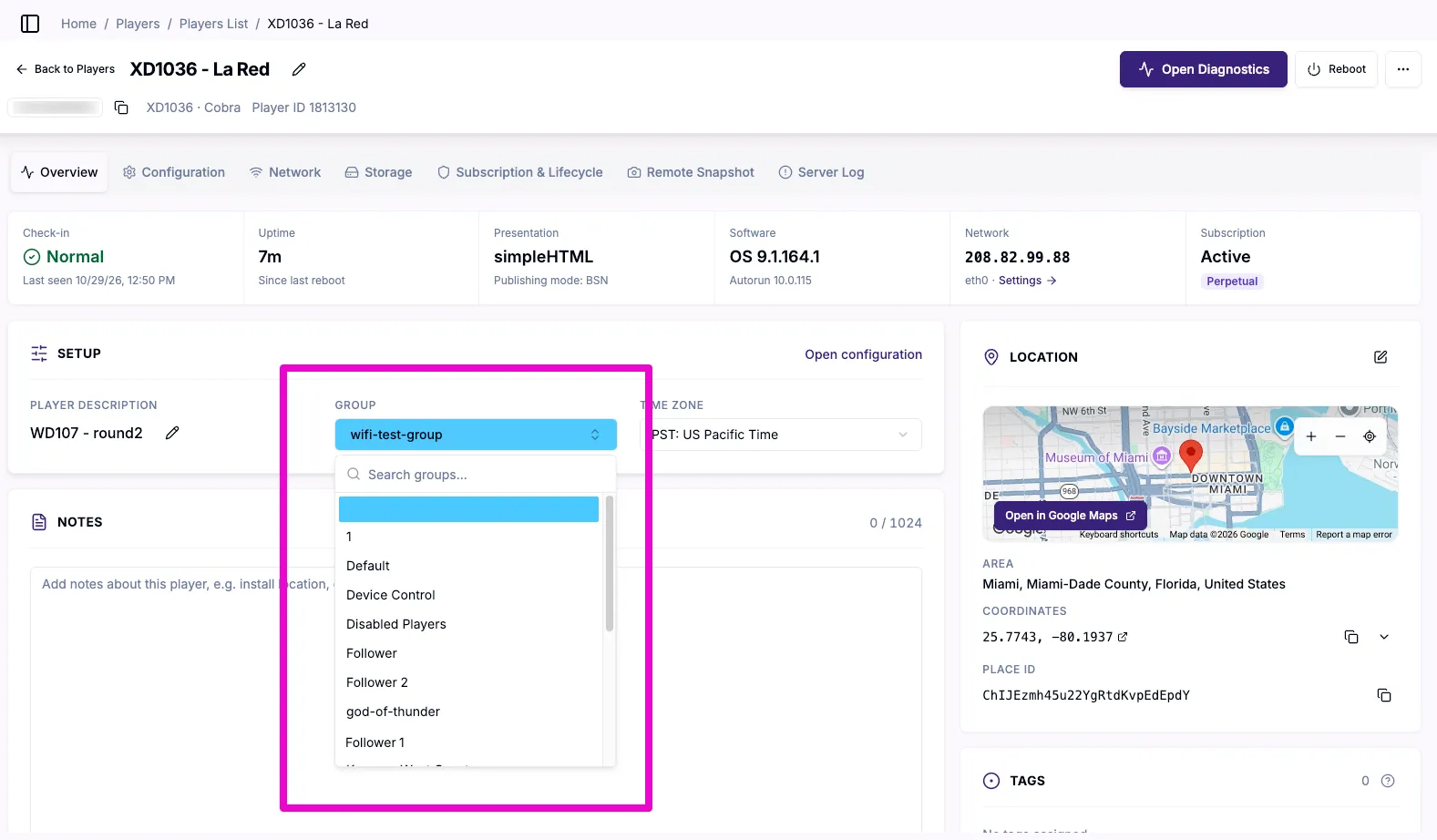
- In the new window, select the group in the pulldown menu (as shown in the image below).
Add Multiple Players to a Group
To move multiple players to a new group in Control Plus, create or edit a Setup File that specifies the new Group, assign it to the players, and then reprovision them.
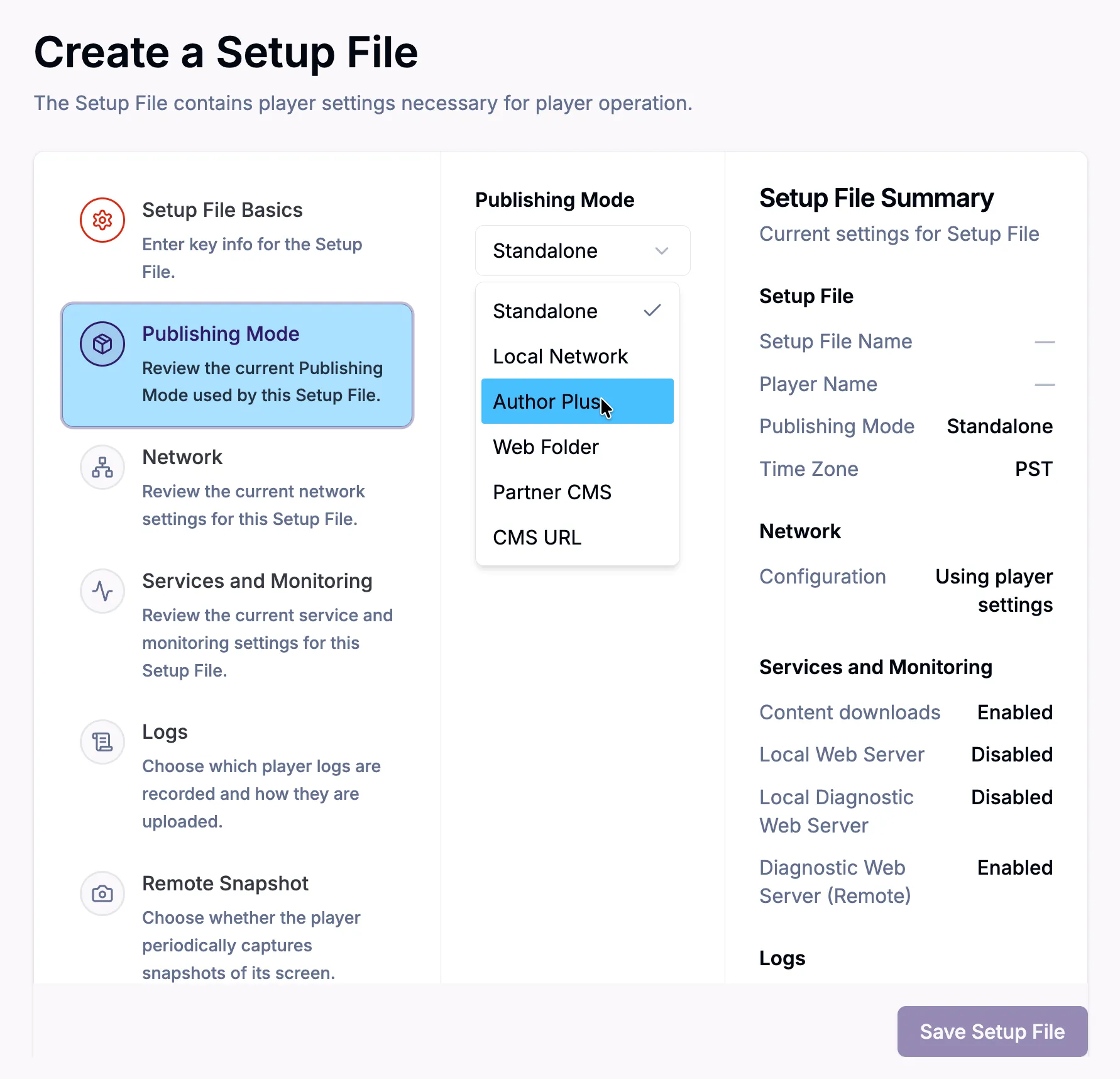
- Go to Player Setup > Setup File Library, then create or edit a Setup File.
- To create a new one, click Add a Setup File.
- To edit an existing one, click the Setup File you want to amend.
- Go to the Publishing Mode tab and make sure Author Plus is selected (see the image above). Then use the Group pulldown menu to select the new group the players will move into.
- Note: All players assigned this Setup File will use the parameters it defines, such as player name, description, time zone, and networking settings.
- Select Save Setup File.
- Go to Player Setup > Provisioning and select all the players to be moved to the new group.
- Select Assign Setup File, then select the Setup File that contains the new group.
- Go to Actions > Schedule and select all the players to be moved to the new group.
- Select Choose Action.
- In the new window, select Reprovision Players.
- To move the players to the new group immediately, go to Review.
- To schedule this action for a later time, click Enable scheduled start in the optional Scheduling section.
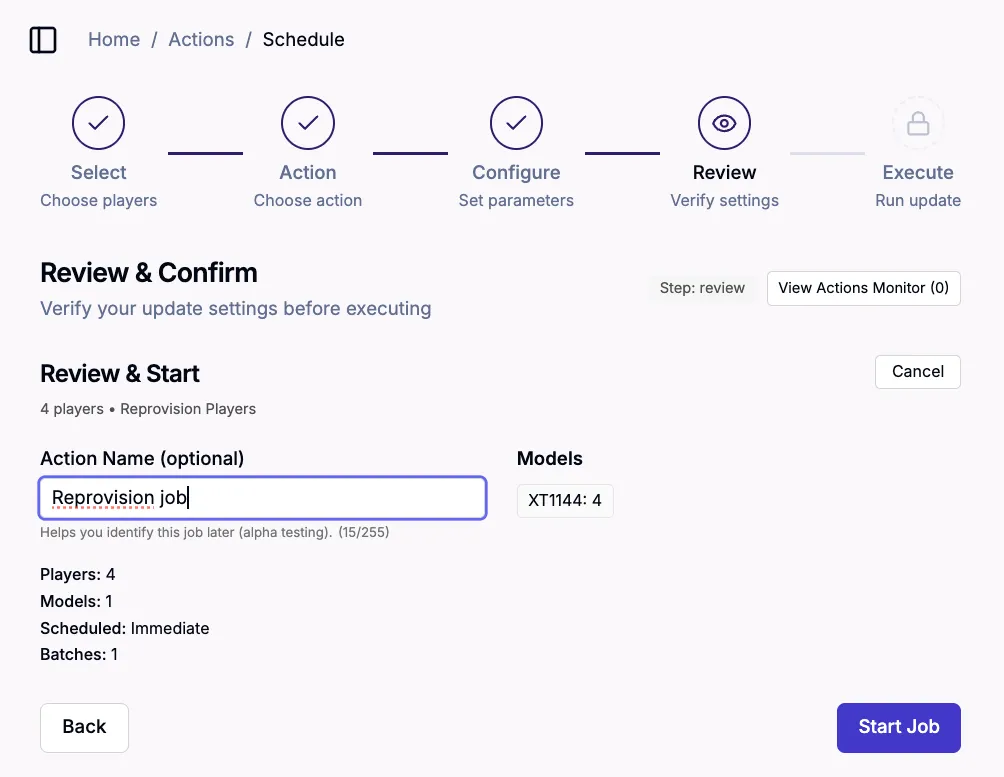
- Select Start Job, as shown below. You can follow the reprovision process in the Monitor window.