BrightSign Author
7 min
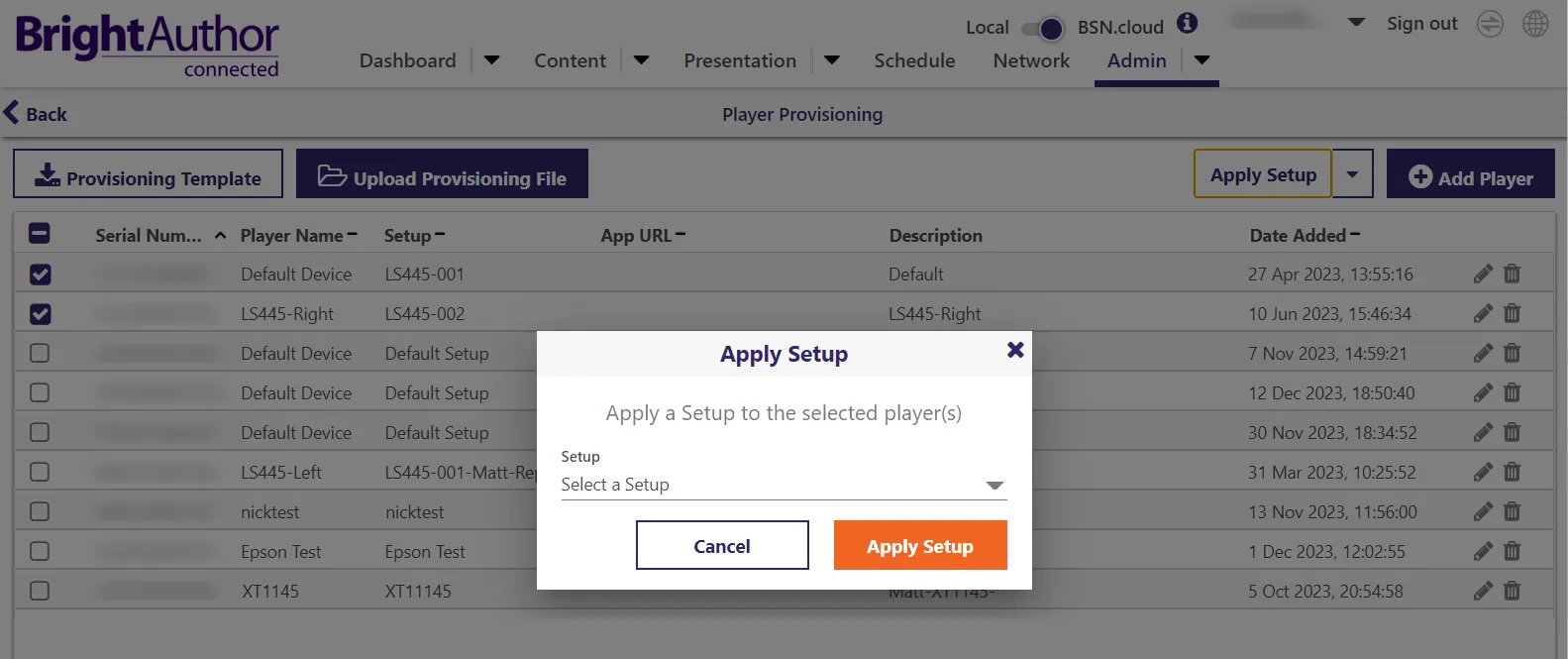
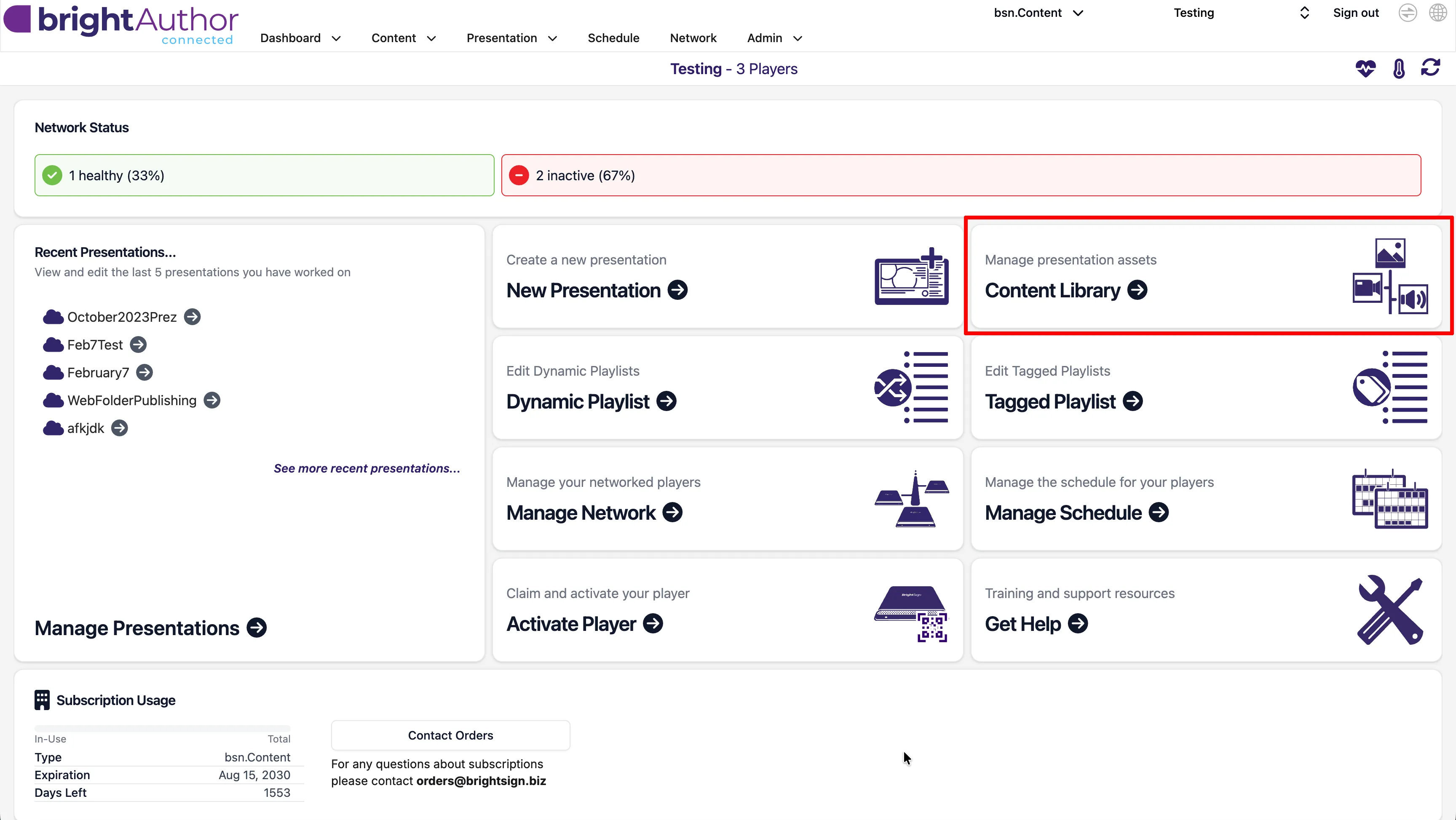
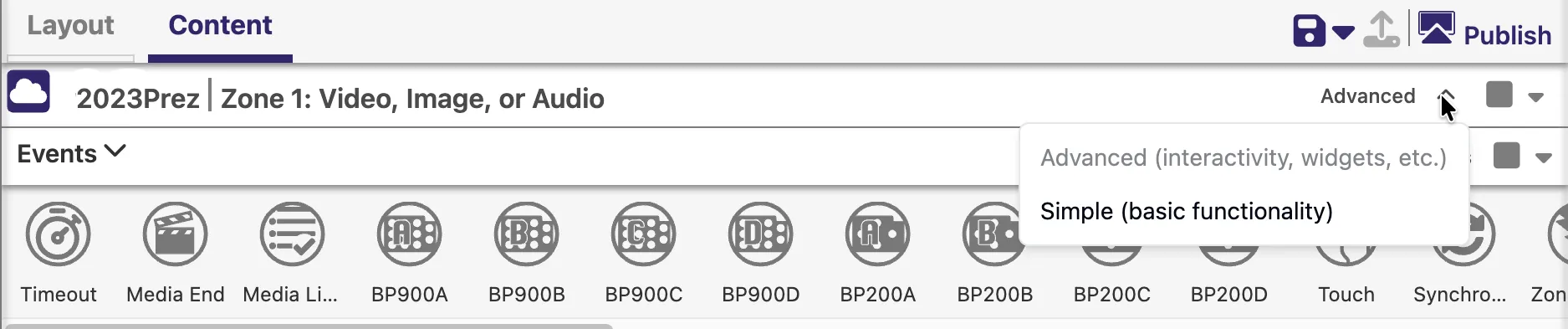
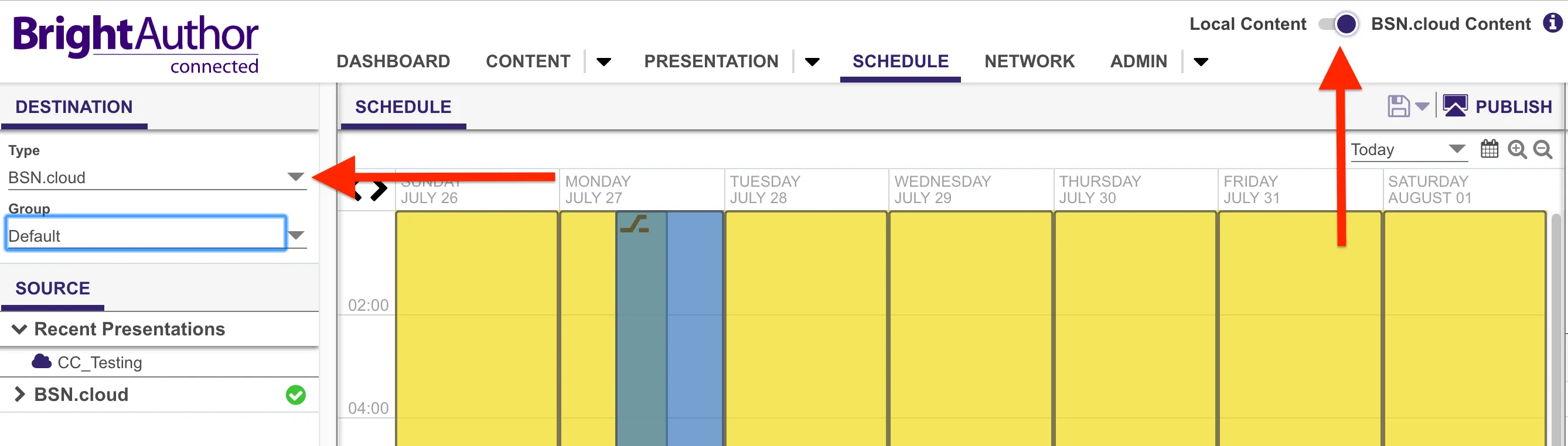
note that brightsign author (brightauthor\ connected) is our latest app for managing content and players although similarly named, it is different from brightauthor classic, our legacy app development of brightauthor classic has ceased and it will soon be deprecated and replaced with brightsign author brightsign author brightsign author is brightsign’s latest app for player setup / management, authoring, and content management key features include multi platform free desktop app available for mac or pc ( download https //www brightsign biz/resources/software downloads/ ) web app version available at https //app bsn cloud https //app bsn cloud note that with the web app, players must be connected to the internet player setup docid\ xnnxywmv09iegziit7rwa configure and set up players for use player management docid\ uba8sfkmsajsibrbv4a6n monitor and troubleshoot players over the internet presentation creation docid 0vm0utpl2j8dss dfnhmo create presentations consisting of video, images, audio, html, and text presentation publishing docid\ go2vhvit1mkpm8wmrwgit publish presentations for players to display presentations can be delivered to players via several available publishing modes docid\ resciigy djrpuzgwaa4e requirements to create presentations and publish them to your player, you will need the following mac or pc mac any mac computer running one of the last two major production releases of macos windows pc any windows pc that meets or exceeds the following minimum requirements 2 3 ghz cpu 2 gb ram required (4 gb recommended) 100 mb available hard disk space for program files (additional disk space required if storing content and/or presentations on your hard disk) one of the following operating systems windows 11 windows 10 (32 or 64 bit) windows 8 (32 or 64 bit) windows 7 (32 or 64 bit) the following is optional but recommended bonjour 3 x or later required for automatically discovering players on the local network; available with the airport utility installer web browser the browser version of brightsign author should be compatible with all major web browsers (e g , chrome, edge, safari, firefox, brave, etc ) brightsign player players must be running at least the indicated minimum os indicated series 5 au335, xcx55, xdx5, lsx5, hdx5, xtx5 (minimum os 9 0 22 3) au335 (minimum os 8 2) series 4 ( minimum os 8 0) xtx44, xdx34, hdx24, ls424, hs124 series 3 (m inimum os 8 0) xtx43, xdx33, hdx23, ls423, hs123, ho523 series 2 (minimum os 8 0) 4kx42 only display a monitor, tv, or touchscreen with an hdmi® input storage device as mentioned here docid\ o4yzospnpfagbglduleee , players require a separate storage device these can include any of the following microsd card (most common storage device) formatting requirements described here docid\ o4yzospnpfagbglduleee n ote that some very early player models use the larger form factor sd card if publishing a setup docid\ xnnxywmv09iegziit7rwa and/or presentation directly from your computer to a microsd card, a card reader / writer is required usb flash drive (supported on models with a usb port) m 2 ssd (xcx55, xdx35, xtx45, xtx44, xtx43, xdx34, xdx33 models only) msata drive (4kx42 models only) brightsign author plus the subscription based brightsign author plus (formerly known as bsn content) includes all brightsign author features plus cloud hosting of presentations and media assets along with tools to manage that content subscribers can use the brightsign author docid 7xqhhe03hrls qzv35 ta mac or windows desktop app to access brightsign author and author plus for those who prefer not to use a desktop app, all of this functionality is also accessible via a web browser at https //bsn cloud https //bsn cloud/ you can access author plus through our free 30 day trial https //www brightsign biz/bsncloud/bsncloud after the trial, you can subscribe to author plus for $139 per player, per year, or simply let the trial expire where you’ll be reverted to the free brightsign author service with brightsign author, you'll still be able to control your players remotely, but you'll lose access to the bsn cloud hosting and publishing tools along with any content and presentations you saved to the cloud during the trial updating to author plus players configured for brightsign author plus must be set up to receive content updates through bsn cloud if your player was previously set up with another publishing mode, you will have to change how it receives content updates to do this create your account to connect an existing brightsign player to bsn cloud for the first time, first factory reset docid\ yncf7p2pyzo2qedf1jyim the player format a blank microsd card to fat32 or exfat and insert it into the player activate your free brightsign author plus trial through the brightsign author admin tab create a setup in brightsign author, select setup under the admin tab if you have not already done so, select player settings and fill out setup name , player name , and player description set the idle screen color to something other than black, so that you can see if the player is outputting a video signal select brightsign author plus (bsn content) as the publishing mode choose add setup to library provision the player microsoftteams image (2) png go to the admin tab in brightsign author and select provision use the checkbox to select the player from the list select apply setup and select the setup file that you saved to your library apply setup to the player go to the network tab and select the cog icon next to the player you want to provision this will take you to the remote diagnostic web server from the control tab, go to reprovision player , and select update the player will reboot several times in the process when reprovisioning is complete, a green check mark will appear next to the player and the setup type in the properties pane will be brightsign author plus you will see the welcome screen when the player boots publishing brightsign players support several methods for publishing content to players this is known as a publishing mode with a brightsign author plus subscription, most users will opt for the brightsign author plus publishing mode in which all content is stored on bsn cloud and readily available to any internet connected player however, users have the flexibility to choose an alternative publishing mode if desired for more info, refer to this page on publishing mode docid\ resciigy djrpuzgwaa4e managing content brightsign author plus allows you to create and manage your own content library all content uploaded or created will be available to every player registered on the brightsign author plus network content library you can access the content library through the dashboard on the brightsign author home page or in the content tab drop down menu if you do not have a paid brightsign author plus subscription, these sections in the brightsign author home page will be unavailable because they access cloud content, not local content from the this section, you can upload new media (for example, images, video, and audio) create a new component like brightsign dynamic playlists, data, or media feeds, or upload an html site or script navigate the media and components already uploaded into the cloud, and view data on content including media type, dimensions, file size, and upload and modification dates in the content library local vs cloud content as a brightsign author plus subscriber, you can build a presentation from content you have uploaded to bsn cloud, or from assets stored locally on your computer however, remote and local assets can't be used in the same presentation if you plan to work with locally stored assets, switch to simple mode via the simple/advanced toggle switch at the top right if you plan to host presentations and content remotely with your brightsign author plus subscription, switch to advanced mode if you added content or presentations to brightsign in simple mode, and want to use that content with your brightsign author plus network, select the content or presentation and then select the upload presentation button, above the advanced / simple toggle, to make those assets available in the cloud note that the simple / advanced switch is only available in the brightsign author plus desktop app if you open it through a web browser, you cannot access files on your local computer adding content to the library in the content library, select a folder that corresponds to your media type, or select the icon to the right of the folder location to make a new folder enter a descriptive title and select create to create the folder add new media by selecting upload new media in the content tab dropdown and choose files to select the files from your computer that you want to upload you can preview your content and make sure it is pointing to the right folder then select upload content you will see a progress bar at the top of your screen, as shown in image 3 select transfer info to check the progress of your upload you can navigate to other tabs while your media is uploading, which is helpful if you want to work on your presentation while content is uploading scheduling & publishing publishing modes the type dropdown list allows you to select a publishing option and the destination is set by default to whichever location was last used the player setup file docid\ xnnxywmv09iegziit7rwa must be configured for bsn cloud, and the content mode docid 8ythtvfoe83v1sssbyiw must be set to bsn cloud content before you can publish to bsn cloud (see the image below) when the content mode is set to local content (for example, if you are using brightsign author rather than author plus) only the standalone , local network , or web folder publishing methods will be available note that local filesystems are not accessible from the bsn cloud web interface so this switch is only available in the desktop app you can also use the group dropdown to view the presentation schedule for any group you have created scheduling and publishing presentations can be published per predefined schedules the current player schedule can be seen in the schedule tab presentations can be set to run 24/7, at a specific time, or at a recurring time if two presentations are scheduled during the same time, one will be set to interrupt the other only one presentation can interrupt another at a time brightsign author plus allows you to remotely publish presentations, or interruptions, on the player group schedule once you have created or finished editing the schedule, select the publish icon at the top right to send your presentations and schedule to your networked players input devices brightsign author can be used to create advanced presentations that take advantage of various types of input devices depending on player model, the following input devices are supported supported input devices touchscreens equipped with a supported touch controller see supported touchscreens docid\ acl5v8 jqiuq3sntxsnfo for a list of supported touchscreens brightsign bp200 and bp900 https //www brightsign biz/digital signage products/accessories/button panels usb button panels many brands of usb keyboards many brands of usb mice or trackballs many brands of usb bar code scanners quadravox serial button board amx, crestron, and similar control devices any gpio (open/close contact switch) button, signal, or led (your custom board or led display); gpio connections may require phoenix type gpio https //www brightsign biz/digital signage products/accessories/gpio terminal block terminal blocks pc (via udp or serial) ir input/output devices using the nec or pronto hex remote control protocols brightsign author supports ir events through the ir port as well as through ir usb devices (e g , iguanaworks usb transceiver https //www iguanaworks net/products/usb ir transceiver/ ) note the ls424/423 models have a usb c port, while many of the above usb devices (including the bp200/bp900) ship with usb a connectors brightsign sells a usb a to usb c https //www brightsign biz/digital signage products/accessories/usb c cables adapter for this purpose