Single Provisioning
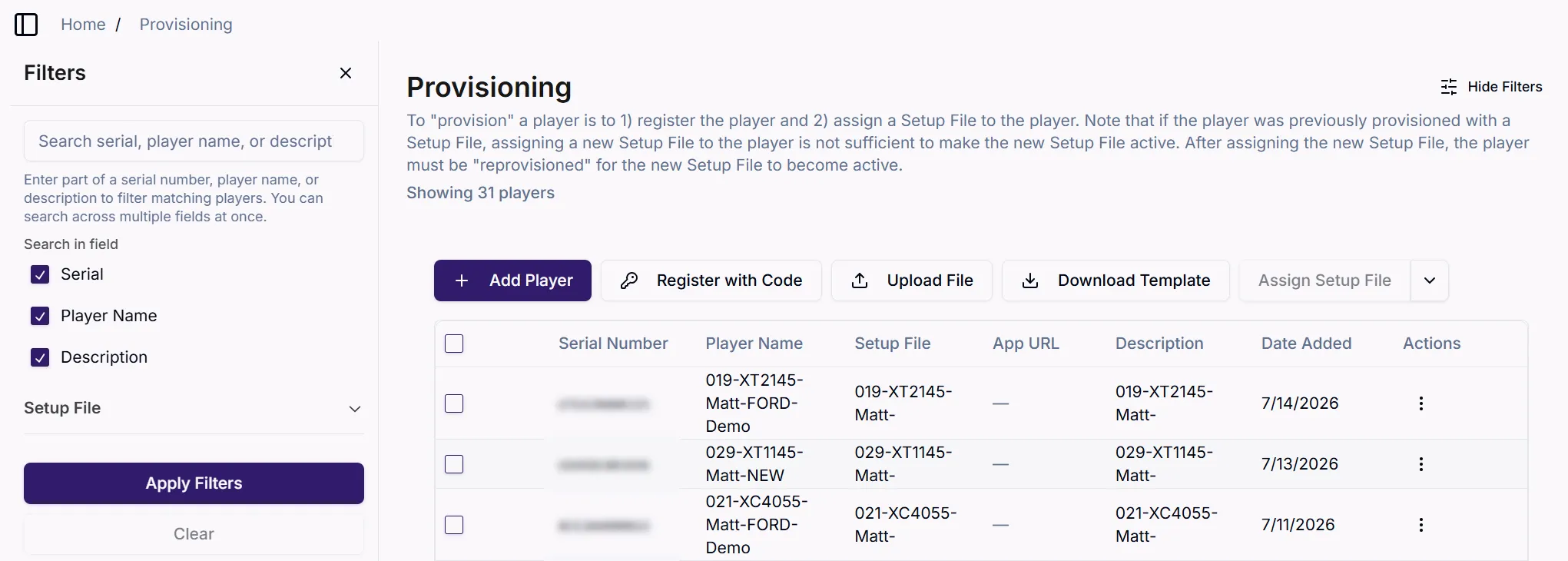
To provision a single player, go to: Player Setup > Provisioning
Add Player
Click Add Player to provision a single player. You will be prompted to enter the player's serial number and optionally, a player name and description.
IMPORTANT
The player is now provisioned even though a Setup File was not explicitly assigned because the Default Setup File has been automatically assigned to the player.
If the player is powered on at this point, it will configure itself with the Default Setup File. Changing to another Setup File at that point would require reprovisioning the player.
If you do not want the player to be configured with the Default Setup File, do not boot up the player yet and continue with the steps below.
Assign Setup File
Until the player boots up and configures itself with the assigned Setup File (in this case, the Default Setup File), you can assign a different Setup File to the player. When the player boots up, it will configure itself per the currently assigned Setup File
- Select the target player(s)
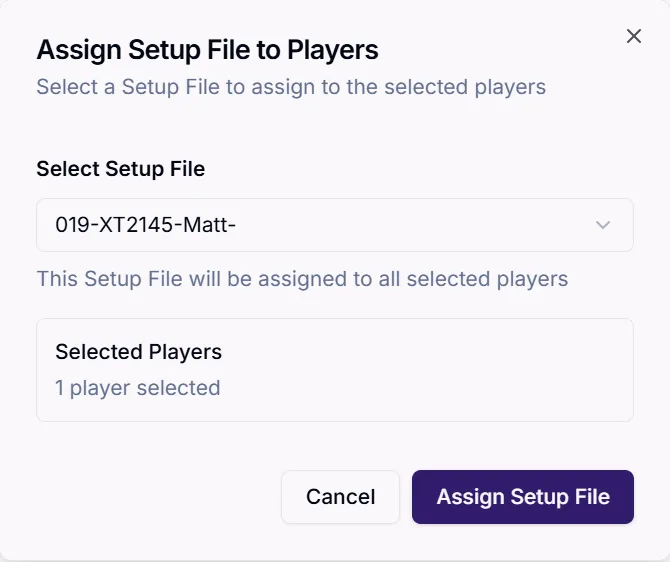
- Click Assign Setup File
- Select the desired Setup File
- If the player has not booted up since being provisioned, it will download and apply the selected Setup File upon boot up.
- If the player has booted up since being provisioned, see the important note below.
IMPORTANT
For provisioned players that have already booted up, assigning a Setup File strictly defines the Setup File that should take effect when the player is reprovisioned.
A reboot or even a Factory Reset will not result in the new Setup File going into effect. The player must be reprovisioned for the new Setup File to take effect. See Reprovisioning for more details.
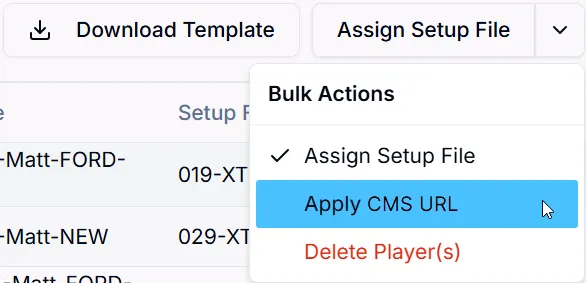
Apply CMS URL
The Apply CMS URL option lets you set up a CMS not affiliated with the BrightSign Partner program by providing the URL where the setup package for this CMS resides.
Refer to CMS URL for more details on this Publishing Mode.
Delete Player
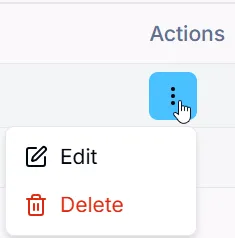
Click Delete to remove a player from the Provisioning List. This deletes the player's provisioning record with BrightSign.
When a player without an associated provisioning record boots up, it can individually be provisioned anew per the steps above, or bulk provisioned along with other players.