Provisioning
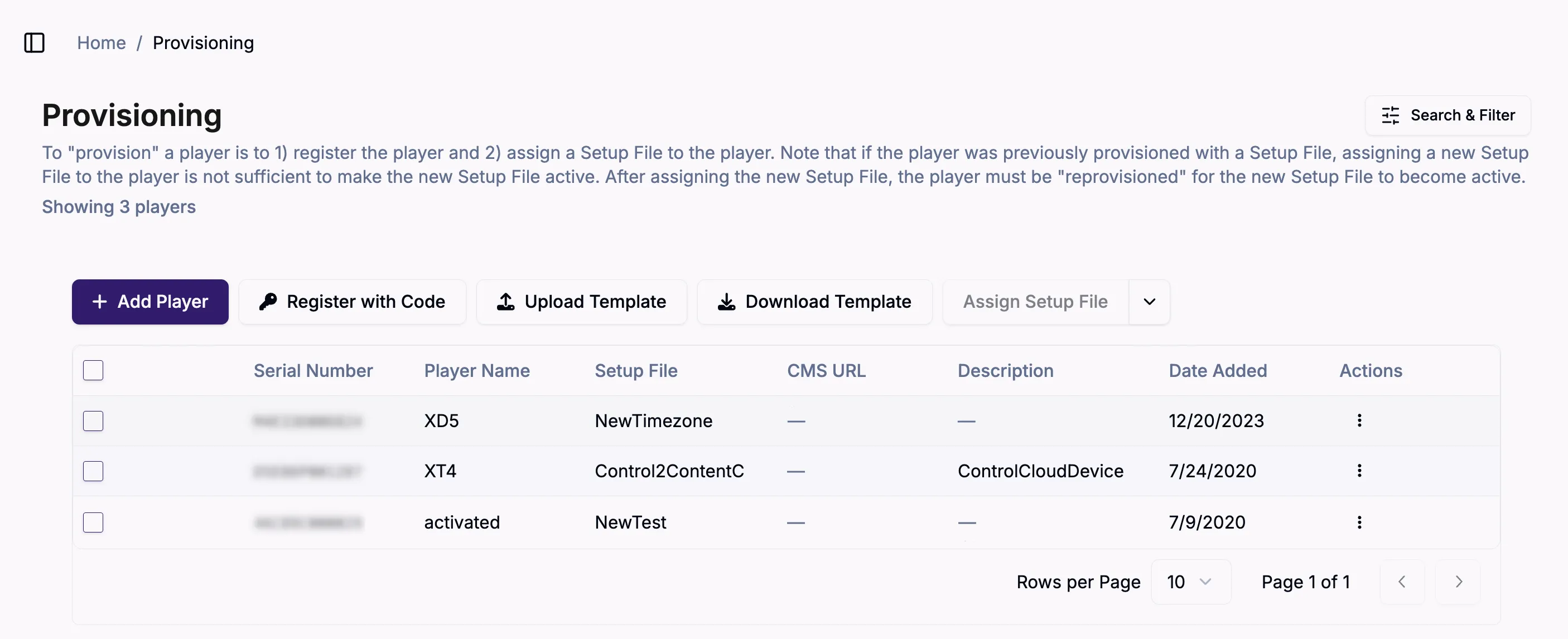
In this screen, you can add players and apply a Setup File to those players to prepare them for use. You can also edit Setup Files and delete players (under the Actions menu).
Filter Players
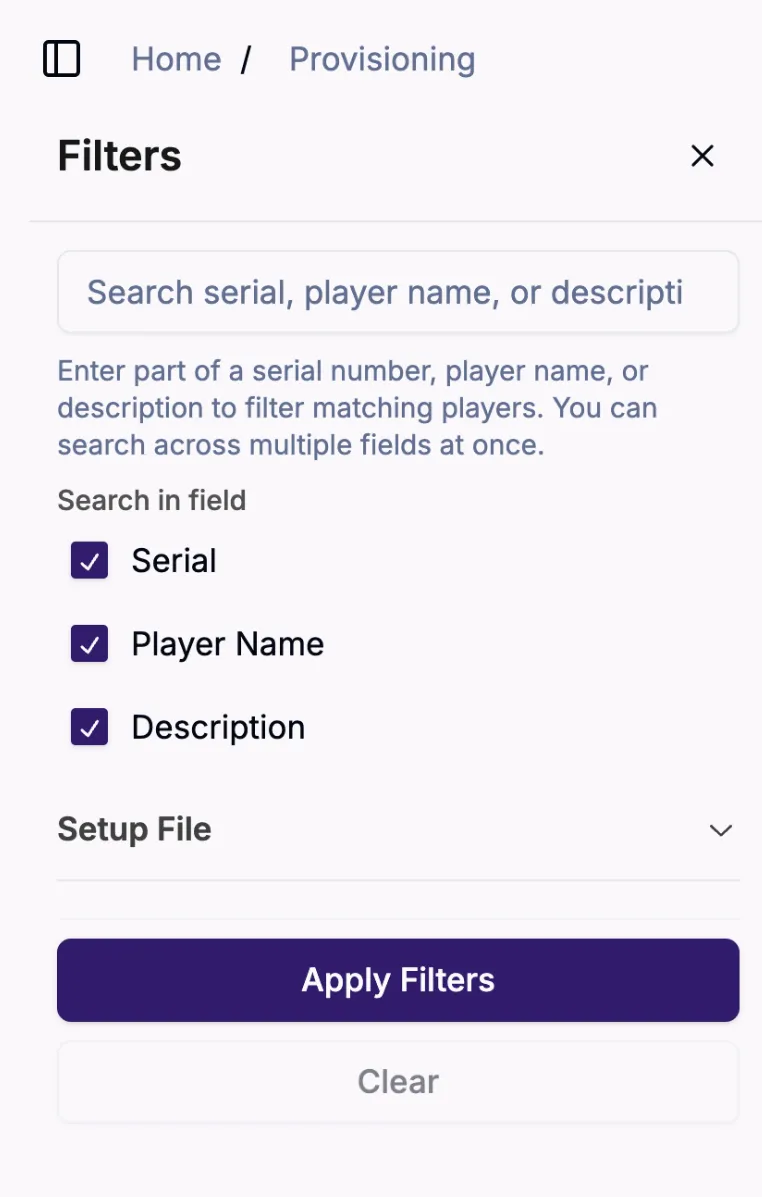
The Filters menu at right lets you search for individual players:
Add a Player
This option lets you add a player to the network by entering the player's serial number.
Register Players
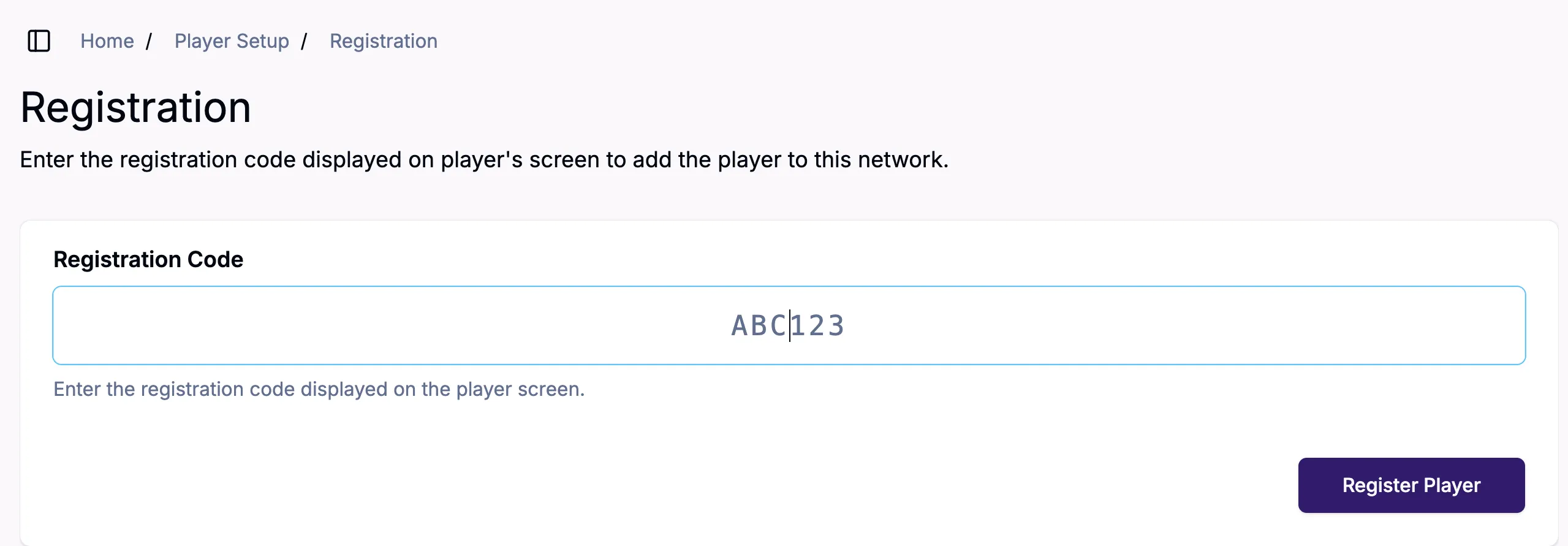
The Register with Code button lets you enter the registration code displayed on the player's screen to add the player to the selected network:
Upload Template
Use the Upload Template feature to provision multiple players at once by uploading a CSV, XLS, or XLSX template containing the required player information. If the players are already in the system, their Setup File will be updated and if they are not, they will be added with the specified Setup File.
When the player information template is modified and uploaded, it will update the assigned Setup Files. If the player does not exist in the network, it will be added and assigned to the specified Setup File. You do not need to remove the old template, it will simply be overridden by the newer file.
Download Template
Select the Download Template will download a Microsoft Excel file that contains columns for Serial Number, Device Name, Setup File, Application URL, and Description. The Excel sheet can be used to help expedite provisioning by adding multiple serial numbers simultaneously and automatically assigning them setup files and application URLs.
Assign Setup File
This dropdown lets you take Bulk Actions on players such as assigning Setup Files, applying application URLs (to use an externally hosted application), and deleting players.