Set Up WiFi
The easiest way to set up WiFi on a player is to use the BrightSign Author app (download here). This guide will walk you through that process.
A WiFi module must already be installed in the player (see the Wi-Fi, SSD, & Cell Modem Info section for more details). While this guide refers to the player's storage device as a microSD card, the steps described are applicable to any kind of storage device.
WiFi Setup Methods
There are three methods to configure WiFi for a player:
- Include WiFi settings in the player's Setup File. Learn about player Setup Files here.
- Enable WiFi from the Network tab in BrightSign Author. Note that undesirable edge cases may arise with this method. Refer to the important note below.
- WiFi can also be configured using BrightScript to access the player's APIs. This method requires more advanced technical skills. As a result, methods 1 and 2 above are generally recommended for most users.
Important Note
Method 2 (enabling WiFi from the Network tab) overrides the network settings in the Setup File. Importantly, however, it does not change the Setup File itself. Because of this, edge cases may occur which could leave the player disconnected.
Because of these possible edge cases, the most robust and thus recommended method for configuring a player for WiFi is to create a Provision Record for the player and to create or update the player's Setup File to include WiFi.
The process of getting a WiFi-configured Setup File onto the player depends on the player's specific situation (whether or not the player has a wired internet connection, whether or not the player has a Provision Record, etc.). The instructions below are organized into sections representing various player situations.
Player Has Not Been Set Up Previously
If the player has not been set up previously (e.g., a brand-new player), follow the steps below according to the player's specific network situation.
Player Has a Wired Internet Connection
Create a Provision Record for the player using one of the following methods:
- Add Player from the Provision screen.
- Activate the player.
Create a Setup with the appropriate WiFi settings. The WiFi settings are in the Network Configuration > Network Options section of the Setup. See here for more details.
Save the Setup File to your Setup Library.
Apply the previously created Setup File to the player. See Apply Setup for more details.
Reboot the player. BSN.Cloud will deliver and apply the Setup File to the player. When complete, you can disconnect the wired network, and the player should connect to the internet and BSN.Cloud via WiFi.
Player Does Not Have a Wired Internet Connection
Create a Setup File with the appropriate WiFi settings. The WiFi settings are in the Network Configuration > Network Options section of the Setup. See here for more details.
Save the Setup File to your computer and manually copy the Setup File to the microSD card.
Insert the microSD card into the player and reboot the player.
Player Has Been Set Up Previously
If the player has previously had a Setup File applied and it is desired to update that Setup File to include WiFi, follow the steps below according to the player's specific situation.
Player Can Connect to BSN.Cloud and Has a Provision Record
Preferred Method (Update Setup)
Update the Setup File associated with the player's Provision Record to include the WiFi settings. See here for more details.
Reprovision the player.
Alternative Method (Network Tab)
This method has some limitations to be aware of. See Important Note above.
From the Network tab, select the player you want to reconfigure.
In the right pane, go to Properties > Network Settings
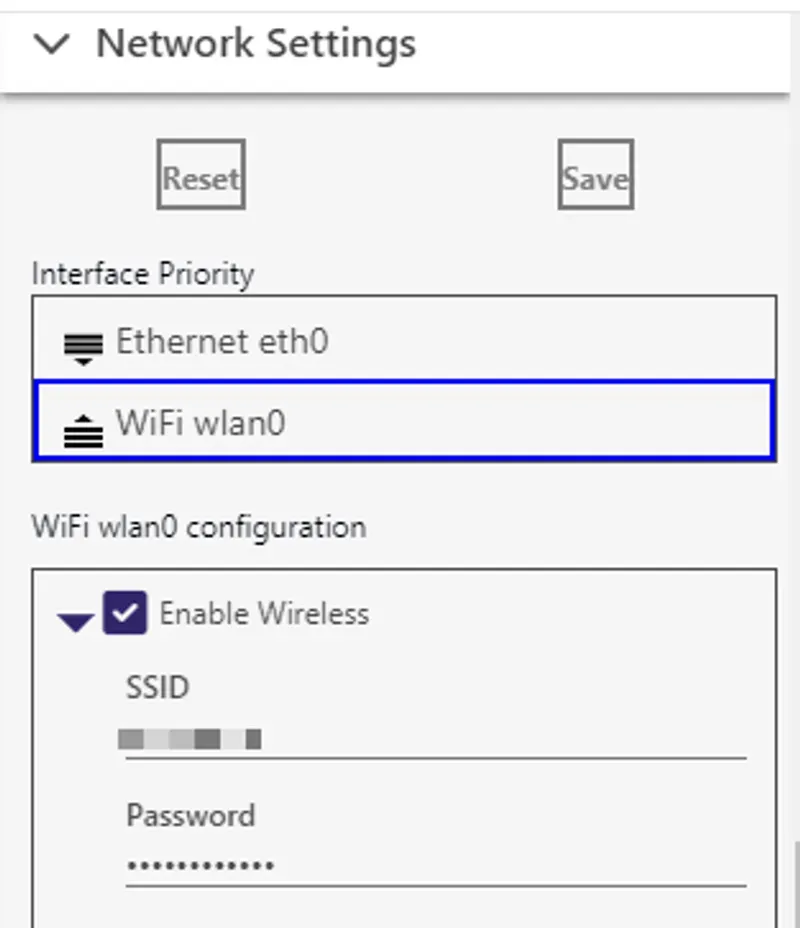
- Click Enable Wireless.
- Enter your network’s SSID and password. Be cognizant of capitalization. If your network doesn’t use SSID or a password, see the Network Authentication section of this page to set your WPA Enterprise / 802.1x options.
- If you want to prioritize a wired connection, click Ethernet on the Interface Priority to prioritize Ethernet over WiFi.
Click Save to save the network configuration. BSN.Cloud will deliver the updated settings to the player. This may take up to several minutes.
Player Can Connect to BSN.Cloud but Does Not Have a Provision Record
It is possible for a player to be connected to BSN.Cloud but not have a Provision Record. This situation can arise when a Setup File is manually copied to the player that has not been provisioned (either via Activation or by Adding a Player from the Provision screen). Because there is no Provision Record, BSN.Cloud will not be able to deliver an updated Setup File with WiFi settings to the player.
Ideally, the player would be provisioned through the aforementioned Activation or Adding a Player methods. If a Provision Record for the player is not desired, the player can still be configured for WiFi using the Alternative Method (Network Tab) described above.
Player Cannot Connect to BSN.Cloud
The steps for this situation are the same as for the Player Does Not Have a Wired Internet Connection section above.