Add Node.js to Presentations
This page / section pertains to BrightSign Author, our latest app for authoring and managing content and players. For the legacy BrightAuthor Classic app, refer to our Legacy DocsLegacy Docs.
You may need to compress your Node.js file to import it into BrightSign Author. See Node.js for more info.
New Presentation
In the Presentation dropdown menu, select New Presentation.
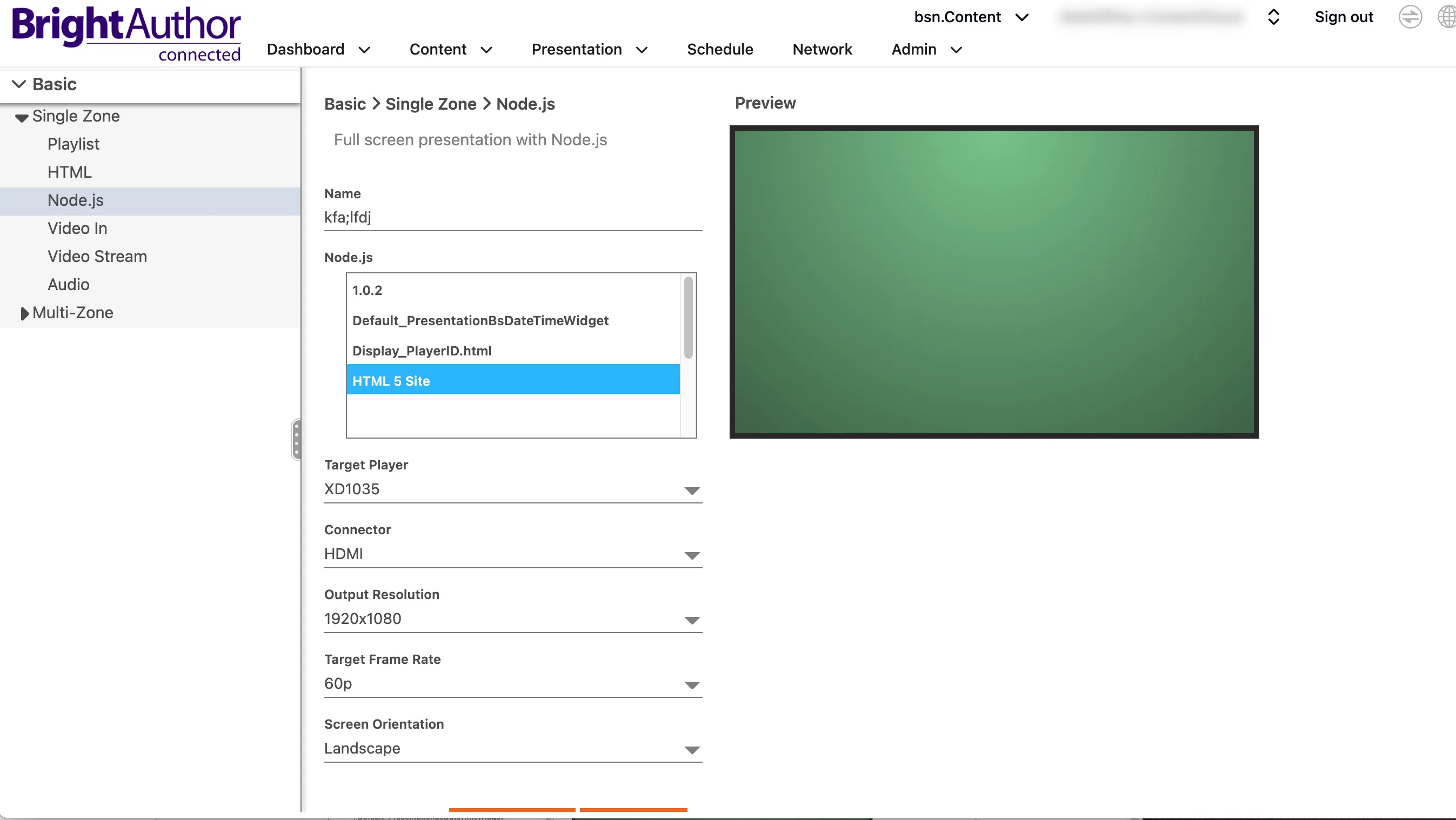
Select Single Zone > Node.js as the presentation type.
Enter a presentation name.
Select the Node.js file you want to include in the presentation, as shown:
Select Start.
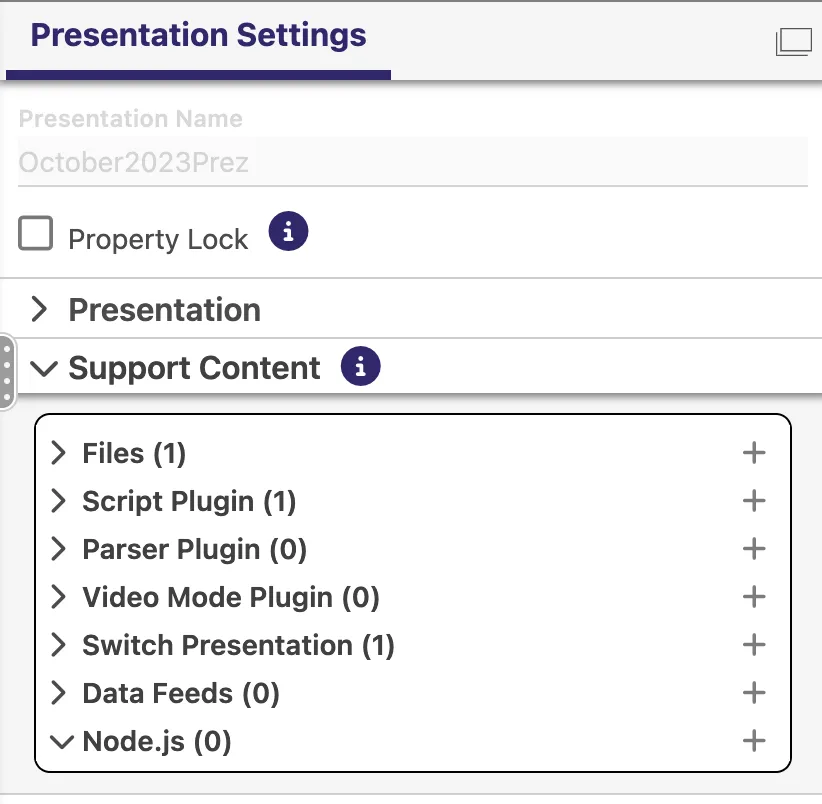
Save and publish your presentation. You will be able to see your Node.js content in Presentation Settings > Support Content.
Existing Presentation
To add a Node.js file to an existing presentation, select the plus sign in Presentation Settings > Support Content, as shown:
Node.js can only be enabled on HTML5 states pointing at Local Site.
Other Resources
See these pages for more info:
- Node.js