BrightSign Player Security
The network settings of a BrightSign player are highly flexible and configurable. As a result, the integrity of a player is the direct result of the publishing and network configuration specified during the player setup process. Some configurations are best for networks where security is of little importance, while other configurations give the player a significant amount of resilience to outside attacks. This page explains settings that affect the security of the player.
Overview
Four optional features in BrightSign Author set up affect the overall security of the player:
A. The Local Diagnostic Web Server: The Local Diagnostic Web Server (DWS) responds to requests sent to the player IP address, allowing a user who meets the username and password requirements to retrieve information about the player and send system commands to it (reboot, enter recovery mode, test video resolution, etc.). (The Remote DWS goes through BrightSign Cloud so it’s secured by the BSN.Cloud authentication and secure connection between the player and the service.)
As of BOS 9.0.218 and BOS 9.1.92, the Local Diagnostic Web Server (DWS) is no longer enabled by default on new or factory reset players. To enable it and set the password, perform the player setup process.
BrightSignOS versions before 6.2.147.9 have a cross-site scripting vulnerability and a permissions issue that allowed authorized users to view hidden storage directories (see DWS Vulnerability for full details). These vulnerabilities are catalogued as CVE-2017-17737, -17738, and -17739. We recommend updating to the current version of production firmware to patch these vulnerabilities.
B. Local Web Server: The Local Web Server responds to requests sent to the IP address of the player at port 8008. By default, this option also enables the device webpage at port 8008. The device webpage allows users on the local network to alter User Variables, which are numerical values within the presentation that extend the interactive capabilities of a player.
C. Local Network: Among the three networked methods for publishing content to a player, only Local Network can facilitate problems with network security. A player configured to use Web Folder or the BrightSign Network will send content update requests to a remote server based on internal conditions and intervals that are specified during the setup process: A player with one of these configurations will not respond to outside requests. A player that uses Local Network, on the other hand, is configured to respond to connection and content-update requests from local servers.
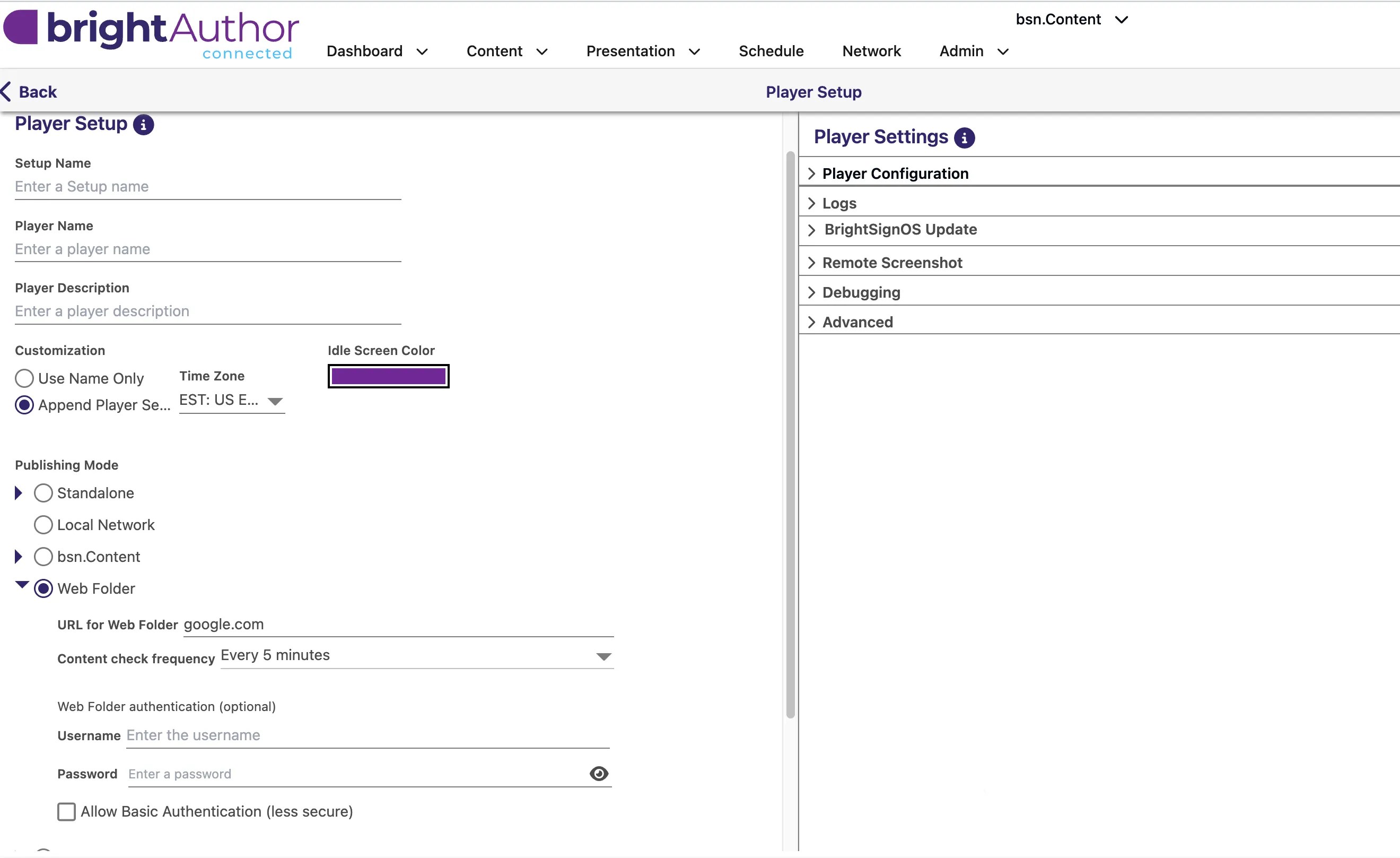
D. Web Folder – Basic Authentication: If you configure a player for Web Folder with username and password authentication parameters, the player will use digest access authentication by default. This will prevent replay attacks and other attempts by third parties to read authentication packet data sent to the server. If you select Allow basic authentication (less secure), the player will send the username and password as plaintext data. This option makes the player compatible with certain server authentication systems but also makes intercepted packets very easy to read.
Other network settings that are configurable during the player setup process—such as proxy setup, wireless configuration, DHCP vs. manual IP—do not negatively affect the security of a player.
For a full description of all the options in the Setup window, see Player Quickstart.
High Security
Follow these steps during the BrightSign Author set up process to ensure the player has a high level of resilience to outside attacks:
- Disable the Local DWS: The password-authentication system for the Local DWS is vulnerable to brute-force dictionary attacks. Access to the Local DWS allows an intruder to copy, rename, and delete contents from the local storage, as well as reboot the player or force it into recovery mode.
- Enable the Local Web Server with password protection: The authentication system for the Local Web Server is just as vulnerable to brute-force hacking as the Local DWS, but the Local Web Server does not grant access to critical system processes.
- Do not use Local Network: A player set up for Local Network will listen for scheduling and publishing commands from a computer running BrightSign Author on the local network. It may be possible for an attacker to use this responsiveness to gain access to system processes on the player. If you would like to publish presentations over the network, use the BrightSign Cloud or Web Folder network instead.
- Do not enable basic authentication: If you would like to securely publish content using Web Folder, make sure to use a server that is compatible with digest access authentication.
- Do not enable the Chromium Web Inspector: See the Advanced Topics section below for more details.
Basic Security
Follow these steps during the BrightSign Author set up process to ensure the player has basic level of protection against outside attacks.
- Enable the Local DWS with password protection: Access to the Local DWS allows you to copy, rename, and delete contents from the local storage, as well as reboot the player or force it into recovery mode. Enabling password protection for this feature gives the player at least a basic level of security.
- Do not use Local Network: A player set up for Local Network will listen for scheduling and publishing commands from a computer running BrightSign Author on the local network. It may be possible for an attacker to use this responsiveness to gain access to system processes on the player. If you would like to publish presentations over the network, use the BSN.Cloud or Web Folder network instead.
- Do not enable basic authentication: If you would like to securely publish content using Web Folder, make sure to use a server that is compatible with digest access authentication.
- Do not enable the Chromium Web Inspector: See the Advanced Topics section below for more details.
Test Environment: Low Security
Follow these steps to create the most feature-rich player setup possible. We recommend this setup only if a player is in a test environment or if security is not a concern
- Enable the Local DWS: Without password protection, the Local DWS will be accessible by anyone on the local network at the player IP address.
- Enable the Local Web Server: Anyone on the local network will be able to access the device webpage at port 8008.
- Use Local Network: You will be able to use BrightSign Author to publish presentations and update schedules on a player connected to the local network.
- Enable basic authentication: If you are using Web Folder, you can enable basic authentication to have the player send the username and password credentials to the server as plaintext data. This makes Web Folder compatible with a greater range of server configurations.
- Enable Chromium Web Inspector: If you need to debug HTML applications on BrightSign players, you can enable the Web Inspector in a presentation. See the Advanced Topics section below for more details.
Advanced Topics
Chromium Web Inspector
You can use the Web Inspector to debug webpages on the BrightSign Chromium instance (see the HTML Best Practices page for more details). This tool does not require authentication, so any party on the network can access and alter content on the BrightSign player; therefore, the Web Inspector should be disabled in production environments.
Linux Security
Though the BrightSign application runs on a Linux stack, it is unlikely that conventional Linux malware will be able to infect BrightSign players. A BrightSign player will only execute a firmware image that has been cryptographically signed by BrightSign. Also, during normal operation, the filesystem used on the player is read-only.
SSH & Telnet
SSH and Telnet ports are available for debug and log console, similar to the serial port. These ports should only be enabled for debugging, not during production operation.
Java Runtime Environment
BrightSign players support a Java Runtime Environment (JRE): Developers can load Java applications using the roJRE BrightScript object. This functionality is not enabled by default and must be initialized by the autorun.
While network interfaces in BrightScript are built to prioritize security, Java code can generate any number of security vulnerabilities. If you plan to load Java applications on a BrightSign player, we recommend testing the configuration thoroughly before deploying it in a production environment.