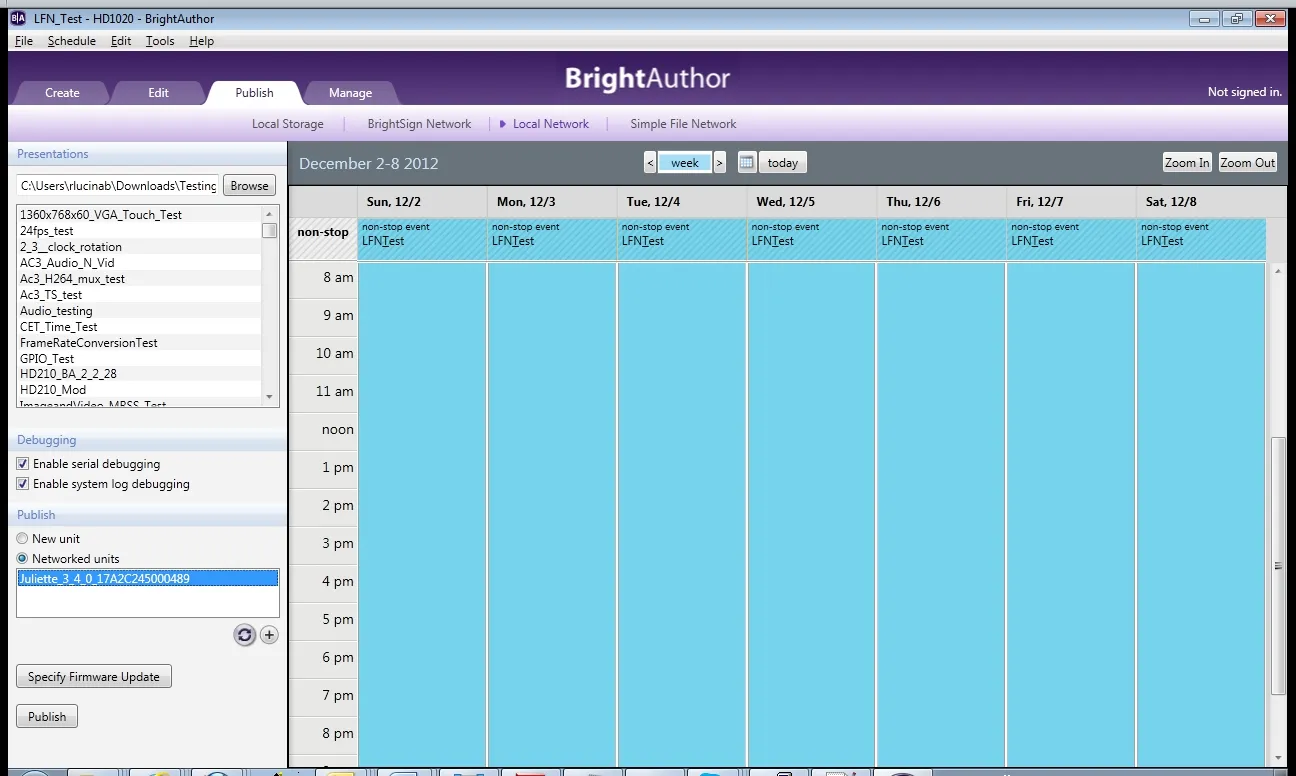
Set Up Local File Networking
This page / section pertains to BrightAuthor Classic, our legacy app. BrightSign Author is our latest app for managing content and players.
Development of BrightAuthor Classic has largely ceased and the app will eventually be deprecated and replaced with BrightSign Author.
More details about Local File Networking settings and constraints are on this page.
Follow the instructions below to quickly set up a player for Local File Networking.
Enable Local File Networking
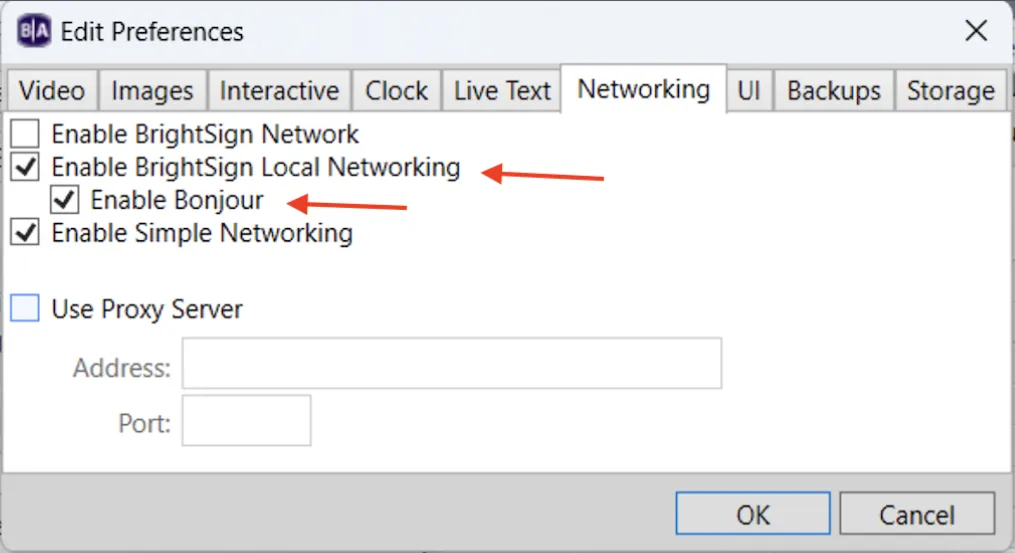
- Go to Edit > Preferences > Networking.
- Check the Enable BrightSign Local Networking and Enable Bonjour boxes.
- Click OK when finished.
Player Setup for Local File Networking
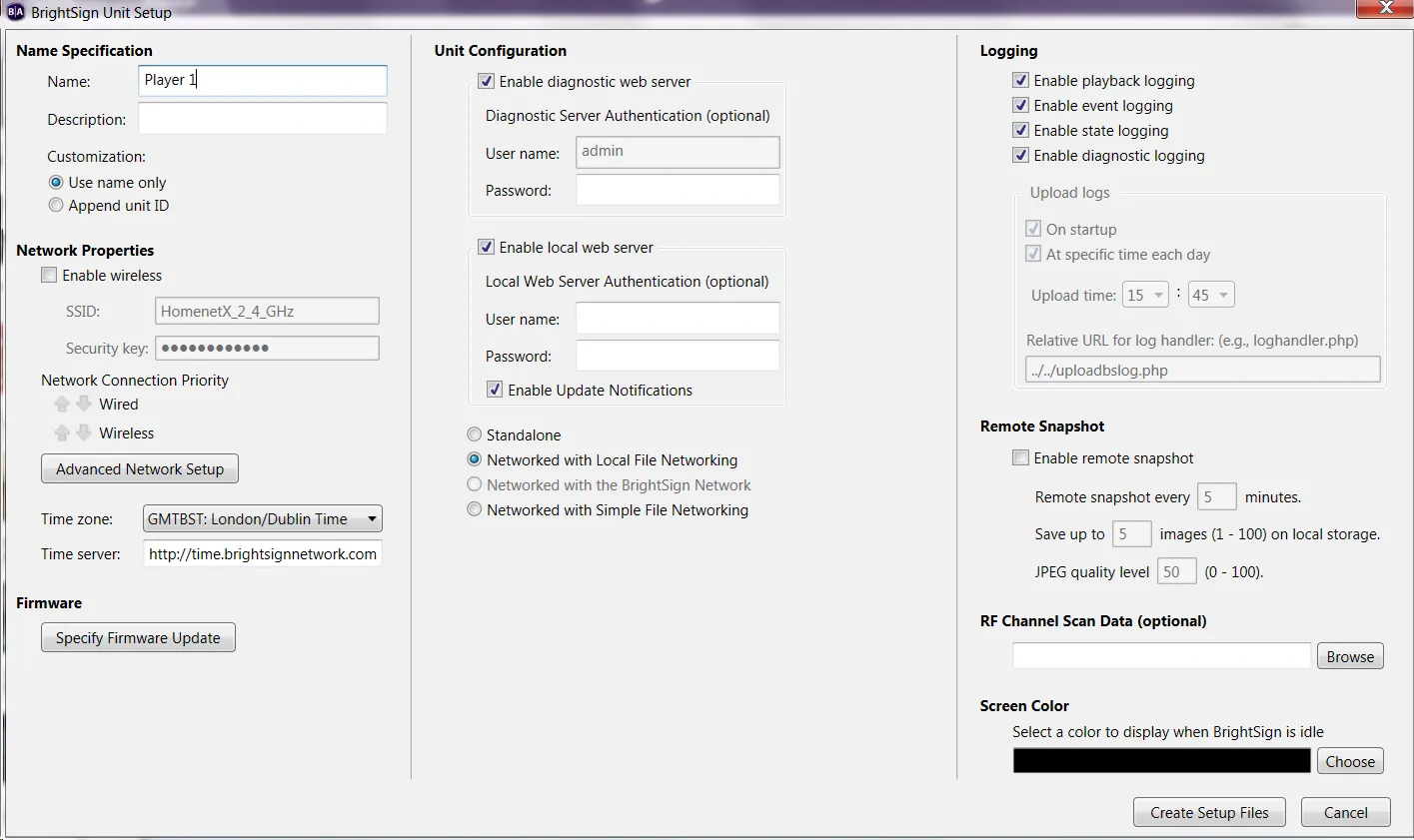
- Go to Tools > Setup BrightSign Unit.
- By default, players are configured to obtain an IP address automatically. If needed, you can manually enter IP address parameters for a player by clicking the Advanced Network Setup button (if using BrightAuthor version 3.5 or later) and choosing Use the following IP address in the Wired and/or Wireless tabs.
- If you’re using a static IP address, make sure to specify all of the following parameters: IP address, Subnet Mask, Default gateway, Broadcast, DNS1.
- Under Unit Configuration, select the Enable diagnostic web server (optional) and Enable local web server (required) options.
- Select Networked with Local File Networking.
- Click Specify Firmware Update.
- If the player firmware is out of date, select either the Production Release or Beta Release of firmware for your player model.
- Insert a blank microSD card (formatted using FAT32) in the card reader of your PC.
- Click Create Setup Files to write the player Setup files to the SD card
- Insert the microSD card in the player while it is powered OFF.
- Power the player back ON and wait for the orange LED. The player will then reboot. After the player reboots, the screen should be blank.
Locate the Player (without Bonjour)
Bonjour (Apple Bonjour Print Services for Windows) allows BrightAuthor Classic to automatically discover players on the local network. If you cannot use Bonjour, you will need to manually locate and enter the IP address of the player (skip to the next section if you have Bonjour):
- Power the player OFF and remove the microSD card.
- Power the player back ON.
- Allow a few moments for the player to boot up and establish communication with the local network. Once the player has attained an IP address, it will be displayed on screen (along with the player serial number and other information).
- Reinsert the microSD card into the player.
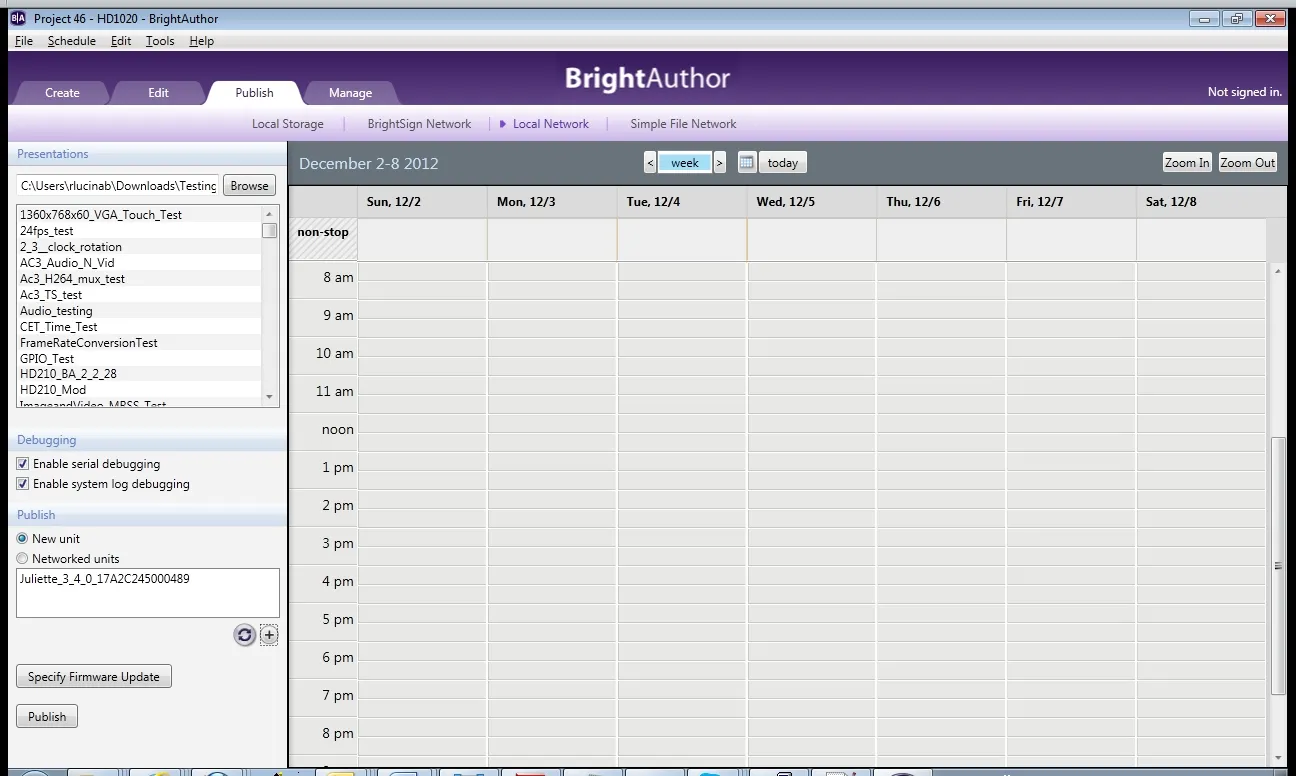
- Click the Publish tab and select Local Network immediately beneath it.
- Under the Publish section on the left, select the Add Unit (plus sign) button and enter the IP address of the player. The player will now appear in the list of Networked Units and is ready to receive presentations and schedules.
If the player is configured to obtain an IP address automatically (via DHCP), it may be assigned a new IP address every time it reboots. For this reason, we recommend using Bonjour whenever possible.
Publish Using Local File Networking
- Open an existing presentation or create a new presentation using the Edit tab.
- Schedule one or more presentations in the schedule grid of the Publish tab.
- Click the Networked units radio button in the Publish section and select the player you wish to publish to.
- If the credentials of the player’s Local Web Server were configured on a different copy of BrightAuthor Classic, the player will initially appear on the Networked units list as “Access to [player IP address] denied”. You will need to gain access to the player by right clicking it and choosing Specify User Name / Password.
- Click the Publish button to publish the schedule to the player. Note that, with Local File Networking, you can only publish a presentation to a single player at a time.
- Wait for the file transfer to complete. The presentation should begin playing shortly afterward. Depending on the resolution of the presentation, the player may need to reboot first. If you’re still having troubling using Local File Networking, please see this FAQ for troubleshooting tips.