Postman Collections
This is a collection of sample endpoint calls to introduce users to our infrastructure. It is not a comprehensive document of our available endpoints. Please see the BSN.CloudBSN.cloud, Remote DWSRemote DWS, and B-Deploy/Provisioning endpoint documentation for a complete list of those endpoints and their usage.
Prerequisites
- A Postman account. If necessary, go to this site to download Postman and create a free account.
- A BrightSign player with an active internet connection
- A BSN.Cloud account with at least one network
- Access to control.bsn.cloud
- The two files below:
Create Client Credentials
Before you can use the APIs, you need to create an Application in control.bsn.cloud to get a Client ID and Client Secret. See Applications for instructions.
Client Secrets expire every 180 days. Set a reminder to rotate them before expiry.
Import the Collection & Environment
Import the Environment
- Open Postman and select Import at the top-left.
- Drag and drop (or browse to) the bsn-cloud-production.postman_environment.json file.
- Select Import to confirm
Import the Collection
- Select Import again
- Drag and drop (or browse to) the BSN_Cloud_API_2022-06.postman_collection.json file
- Select Import to confirm
Activate the Environment
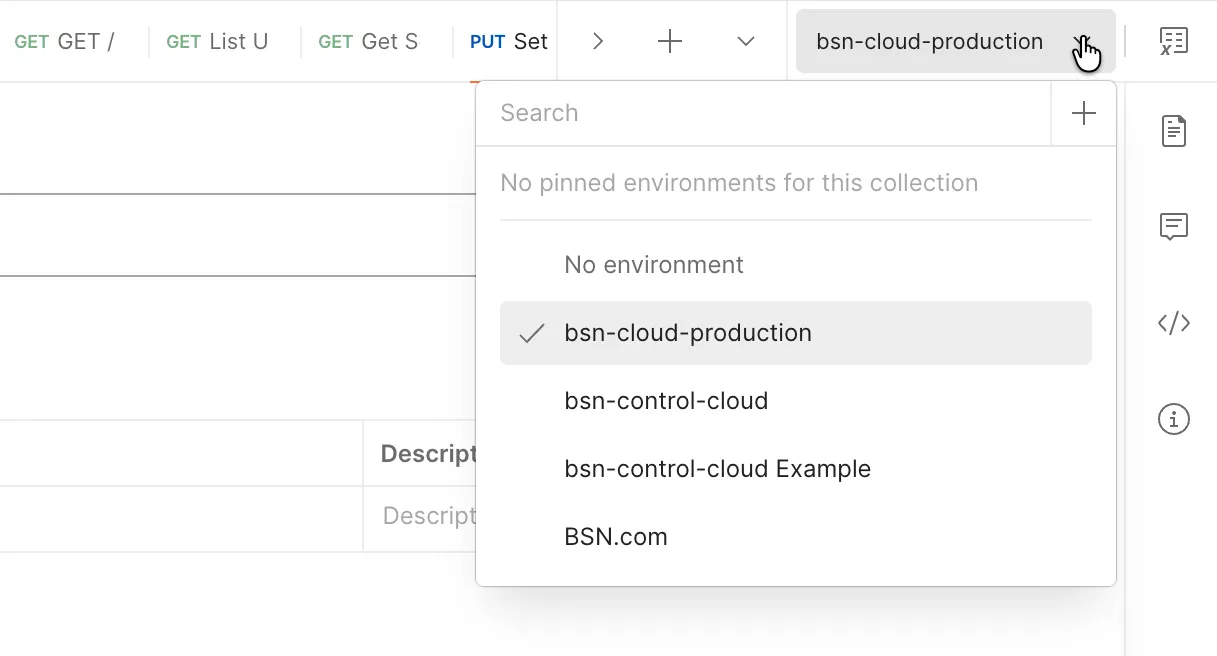
Select bsn-cloud-production from the environment dropdown in the top right corner (it may say "No Environment"), as shown in Image 1. The environment is now active — all {{variable}} references in the collection will resolve using these values
Configure Environment Variables
Click the eye icon next to the environment dropdown to view and edit your environment variables. You need to set a few values before making any requests.
Required Variables
Variable | What to Enter | Example |
|---|---|---|
clientId | Your Client ID from the Admin Panel | a1b2c3d4-e5f6-7890-abcd-ef1234567890 |
clientSecret | Your Client Secret from the Admin Panel | AbCdEfGhIjKlMnOpQrStUvWx |
networkName | The name of the network you want to work with | MyCompanyNetwork |
Optional Variables (set as needed)
Variable | Purpose |
|---|---|
networkId | Numeric network ID (alternative to networkName) |
playerSerial | Serial number of a player (for DWS and device requests) |
playerModel | Player model string (for B-Deploy) |
deviceName | Name for a device (for B-Deploy) |
setupName | B-Deploy setup package name |
partnerLogin | Your BSN.Cloud login email (for B-Deploy requests) |
applicationId | Application ID for secret rotation (not the Client ID) |
Auto-Populated Variables
- token: set by "Get Access Token"
- setupId: set by "POST /setup/"
- deviceId: set by "POST /device/"
- deviceRegToken, deviceRegTokenScope, deviceRegTokenValidFrom, deviceRegTokenValidTo: set by "Get Device Registration Token"
Enter values in the CURRENT VALUE column (not the INITIAL VALUE column) to keep your credentials local and prevent them from being synced to Postman's cloud.
Authentication Workflow
The BSN.Cloud API uses a two-step authentication process. You must complete both steps before making any other API calls.
Step 1: Get an Access Token
- In the collection sidebar, expand the Authentication folder
- Select Get Access Token
- Click Send
This sends a POST request to the BrightSign auth server using the OAuth2 Client Credentials flow. The request uses HTTP Basic authentication with your Client ID and Client Secret (handled automatically by Postman's auth tab). On success, the test script automatically saves the access_token to the {{token}} environment variable.
Step 2: Set the Network
- Select Set Network (by Name) (or Set Network (by ID) if you prefer)
- Select Send.
This tells the BSN.Cloud API which network you want to work with in this session. The request uses the token obtained in Step 1. An HTTP 204 No Content empty body response is normal and means success.
After both steps complete successfully, all other requests in the collection will work using the {{token}} variable that was automatically set.
Every time you get a new access token, you must set the network again. The token expires after 5 minutes 30 seconds, but the network session lasts 24 hours.
Troubleshooting
Could not get any response" or connection timeout
- Verify you have internet connectivity
- Check that the URLs in your environment are correct (click the eye icon to verify)
- Ensure your corporate firewall/proxy allows connections to *.bsn.cloud
204 No Content on Set Network (but subsequent calls fail)
- The network name may be misspelled. Names are case-sensitive.
- Verify the network exists and your account has access to it
- Try Set Network (by ID) instead of the numeric network ID
400 Bad Request on Set Network
- The specified network does not exist or you don't have access to it
- Double-check the networkName or networkId in your environment
401 Unauthorized on Get Access Token
- Double-check your clientId and clientSecret values in the environment (look for extra spaces or missing characters)
- Verify your Client Secret hasn't expired (180-day limit). If it has:
- Run Get Access Token again
- Run Set Network again
- Retry your original request
- Make sure you're entering values in the CURRENT VALUE column
401 Unauthorized on other requests
- Your access token has expired (it has a five minute 30 second lifetime). You must run Get Access Token and Set Network again
- Make sure the environment dropdown (top-right) is set to bsn-cloud-production
403 Forbidden
- Your application doesn't have the required scope for this API call:
- Go to the Admin Panel, edit your Application, and add the necessary features
- Then get a new access token (scope changes don't take effect on existing tokens)
- You must belong to the same BSN.Cloud network as the player if you are messaging it using the Remote DWS APIs
404 Not Found
- Check that the URL path is correct