Manage Support Tickets
BrightSign has a ticketing system that is used for sales, orders, and technical support. You must log in to the Support Center to see or manage your requests. To do this:
View Tickets
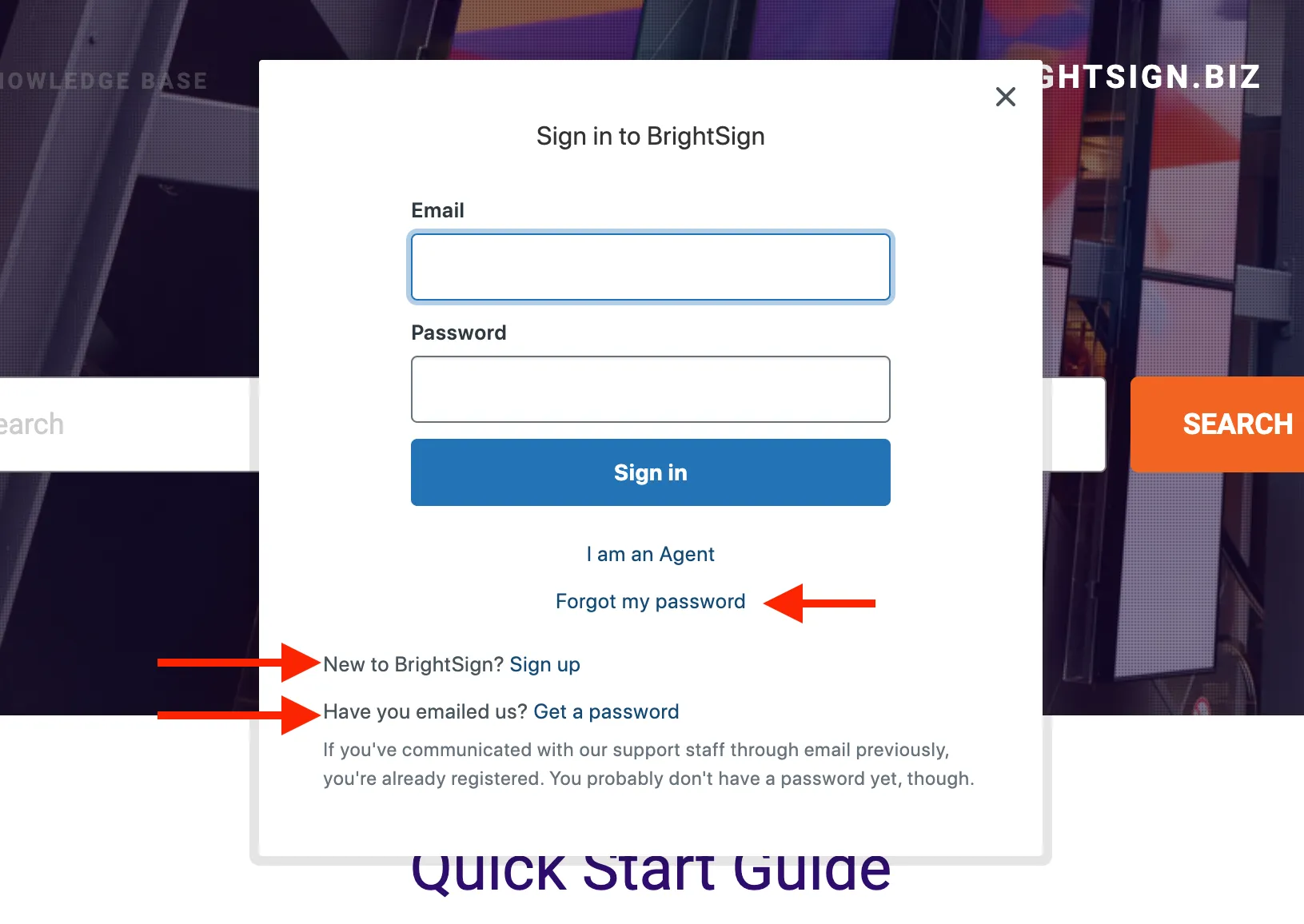
Go to the Support Center and click the "Sign In" link in the upper-right corner:
- If you've contacted support, orders, or sales in the past, you may already have an account and just need to set up a password.
- If you're not signed in, you will be prompted to sign in, recover your password, create an account (sign up), or to get a password if you have emailed us before.
After logging in, you'll be able to see all tickets associated with your login. You can select the following, as shown:
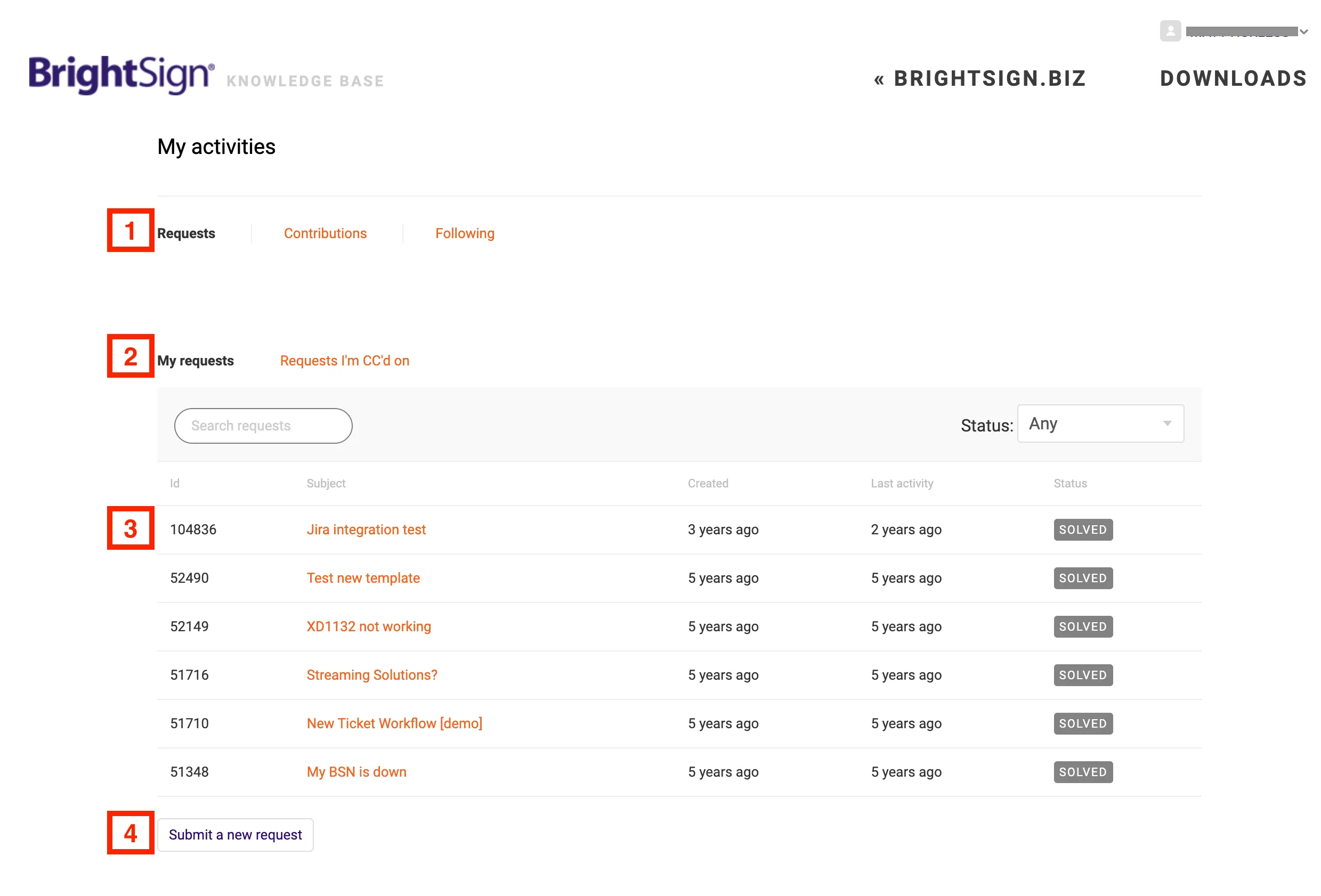
- Requests (viewing your tickets), Contributions (forum/community activity), and Following (articles or forum threads you are currently following).
- My Requests (tickets you logged) or Requests I'm CC'd on (tickets in which you are copied).
- Select from a list of requests, filtered by status (the default is Any status). The id is the ticket number, and you can view details by clicking on the subject.
- Submit a new request is an option for creating a new request.
Update Tickets
Selecting the ticket subject in the request view will take you to the details page. Here you can add new information the ticket, as shown:
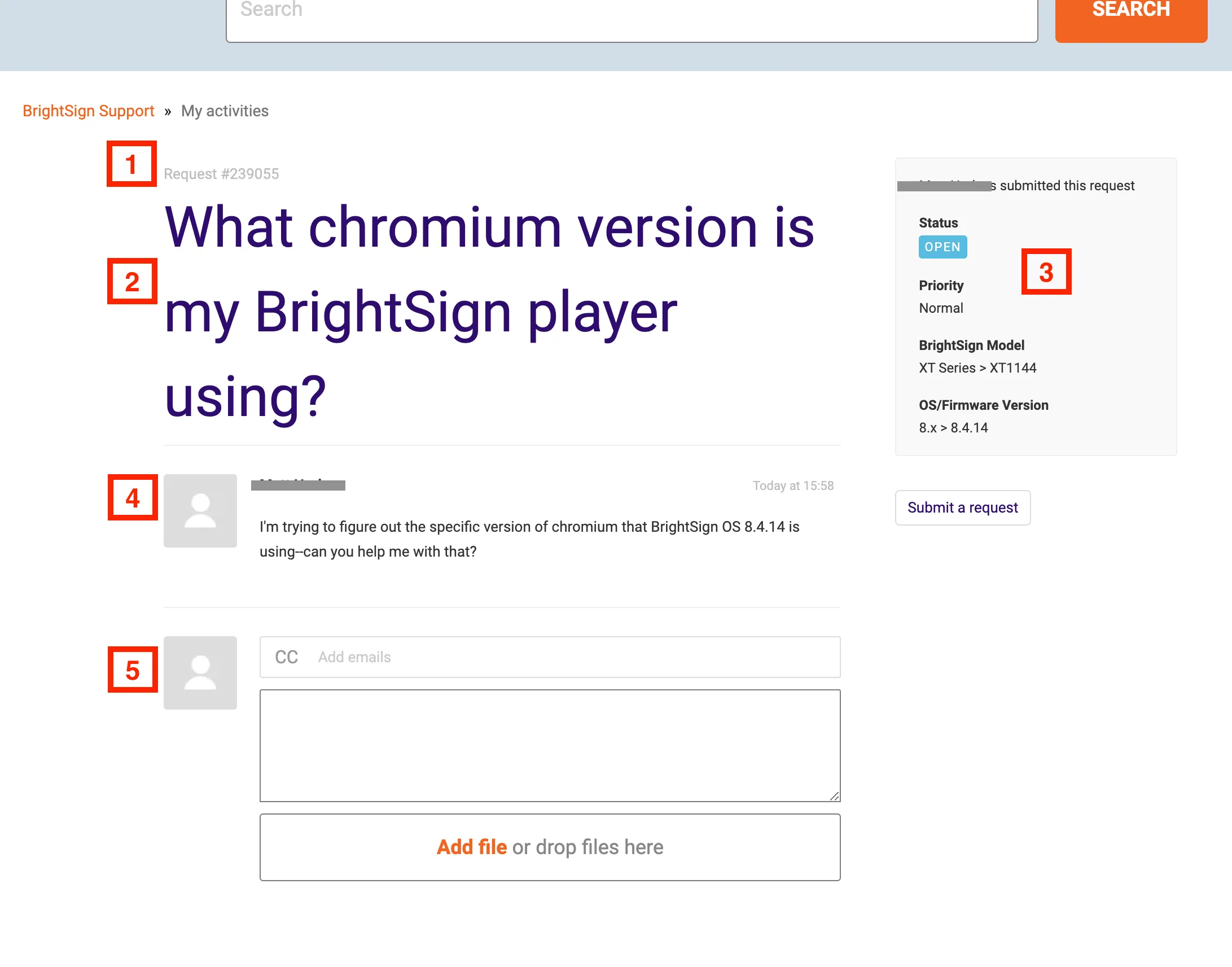
Request/ticket ID
Subject of the ticket
Additional ticket properties
Comment history
Add comments, CC's, and attachments
New Requests
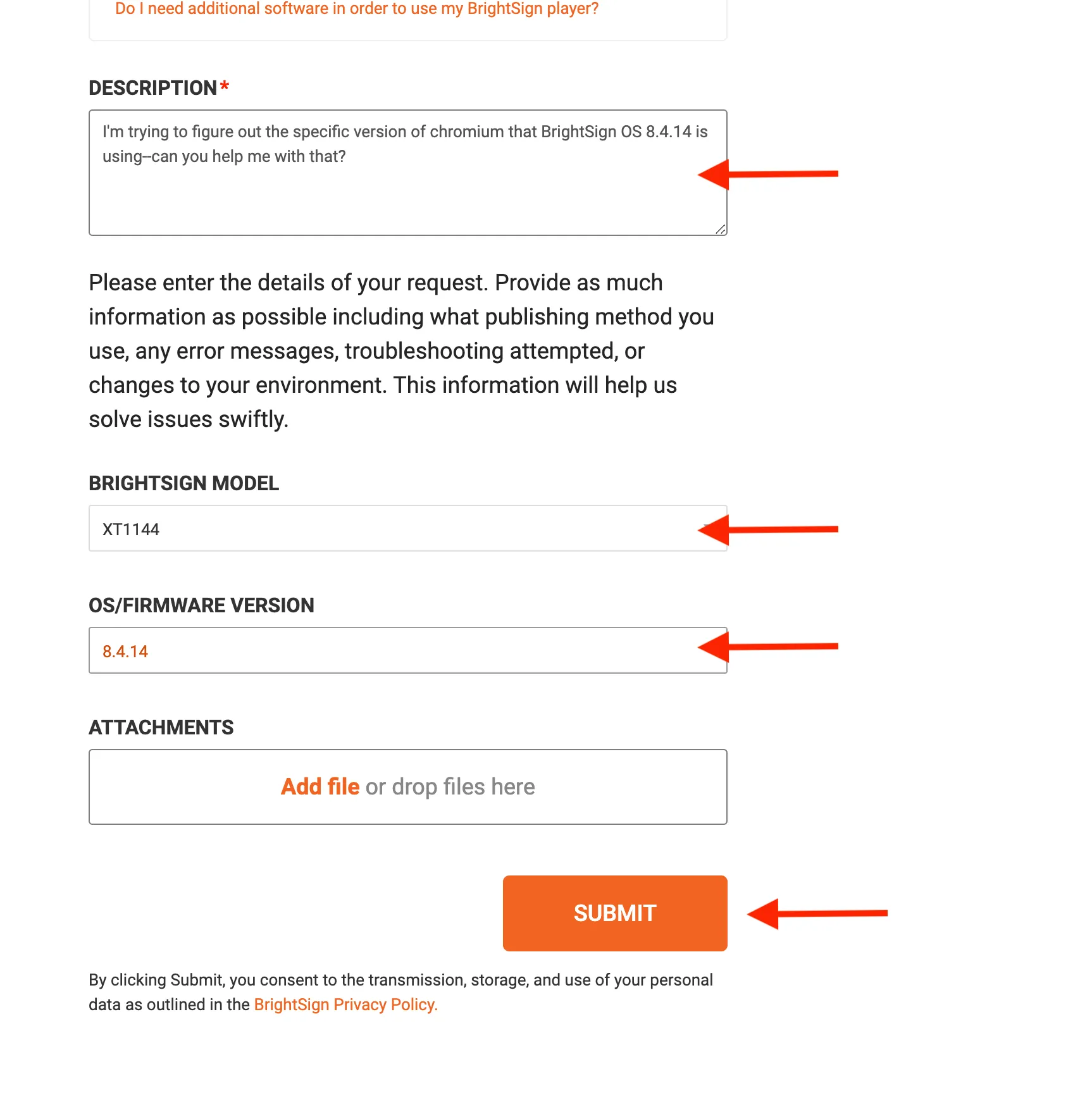
Choose Submit a new request
Fill in the form that appears. Refer to Write Support Tickets for getting the most efficient issue resolution.
Submit the ticket when you have completed all the information.