YouTube Videos
This page / section pertains to BrightAuthor Classic, our legacy app. BrightSign Author is our latest app for managing content and players.
Development of BrightAuthor Classic has largely ceased and the app will eventually be deprecated and replaced with BrightSign Author.
For BrightSign players capable of displaying HTML5 content, BrightAuthor Classic can be used to create HTML5 content that can play YouTube videos. To do this, you must construct an embedded player URL from the standard YouTube URL for the page. The process is different depending on whether you are playing a single video or a playlist.
Link Type
To determine if your link is for a single video or a playlist, check the YouTube URL. If it contains list=something, it's a playlist. Otherwise, it's a single video.


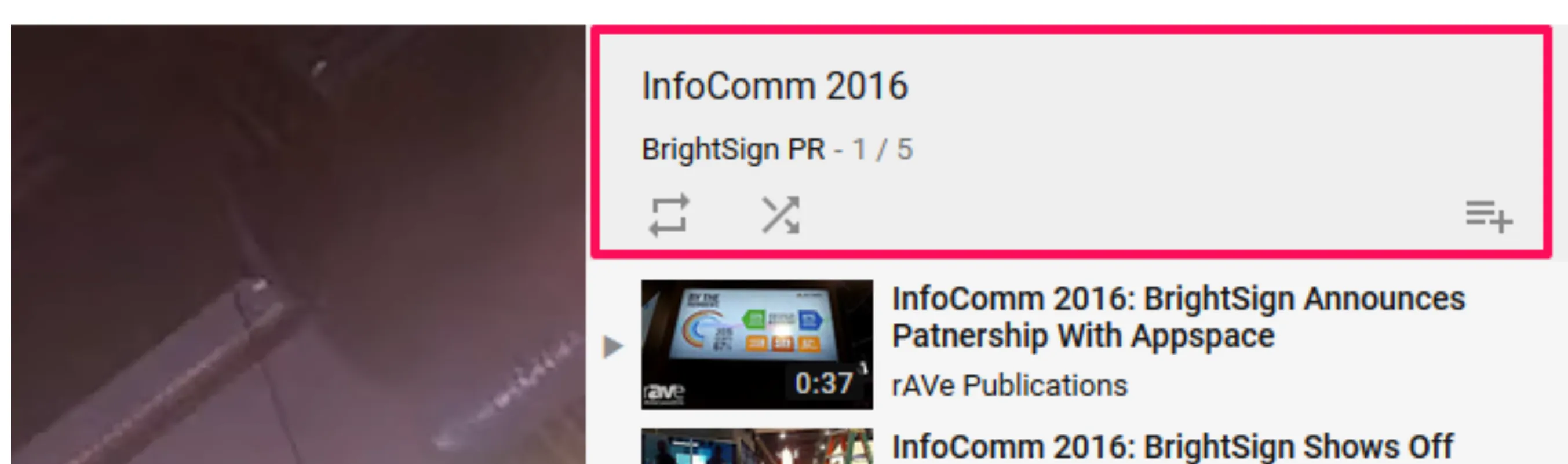
Another indicator that it is a playlist is if you can see the playlist name and author listed, and can see shuffle and repeat icons and can add it to the library (see the example image below):
Single Video URL

- Open the YouTube video or playlist in a web browser and find the URL in the address bar, as shown in Image 4, above.
- The base URL of the new URL you will construct is https://www.youtube.com/embed/ . Add the following elements to that base URL:
- Add the video id from the current URL to the end of the new base URL. This appears after the v= in the current URL. For the image above, the video ID is y1XxnZA1yiQ. Add the current video to the end of the base URL: https://www.youtube.com/embed/**y1XxnZA1yiQ**
- Add ?playlist= to the URL we're constructing: https://www.youtube.com/embed/y1XxnZA1yiQ***?*****playlist=**
- Add the playlist ID, which for a single video, is the video ID again: https://www.youtube.com/embed/y1XxnZA1yiQ?playlist=**y1XxnZA1yiQ**
- Add parameters to control the video (for more URL parameters, see YouTube's Player Parameters page):
- Add &autoplay=1 to automatically start playing the video without interaction: https://www.youtube.com/embed/y1XxnZA1yiQ?playlist=y1XxnZA1yiQ**&autoplay=1**
- Add &rel=0 to the end of the URL to eliminate related videos appearing at the end of the video: https://www.youtube.com/embed/y1XxnZA1yiQ?playlist=y1XxnZA1yiQ&autoplay=1**&rel=0**
- The video controls aren't useful in a non-interactive situations, so turn them off by adding &controls=0 to the end: https://www.youtube.com/embed/y1XxnZA1yiQ?playlist=y1XxnZA1yiQ&autoplay=1&rel=0**&controls=0**
- Add &loop=1 to loop the video when it reaches the end: https://www.youtube.com/embed/y1XxnZA1yiQ?playlist=y1XxnZA1yiQ&autoplay=1&rel=0&controls=0&showinfo=0**&loop=1*.*
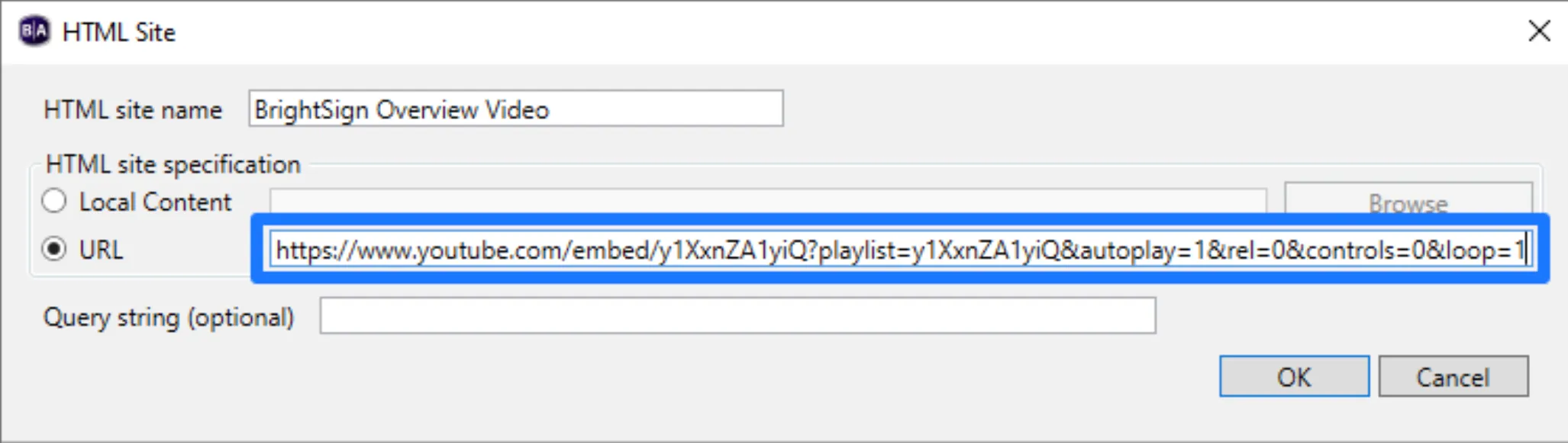
- Now add the URL we constructed as the URL for an HTML site in File > Presentation Properties, in the HTML Sites tab (see Image 5, below):https://www.youtube.com/embed/y1XxnZA1yiQ?playlist=y1XxnZA1yiQ&autoplay=1&rel=0&controls=0&loop=1
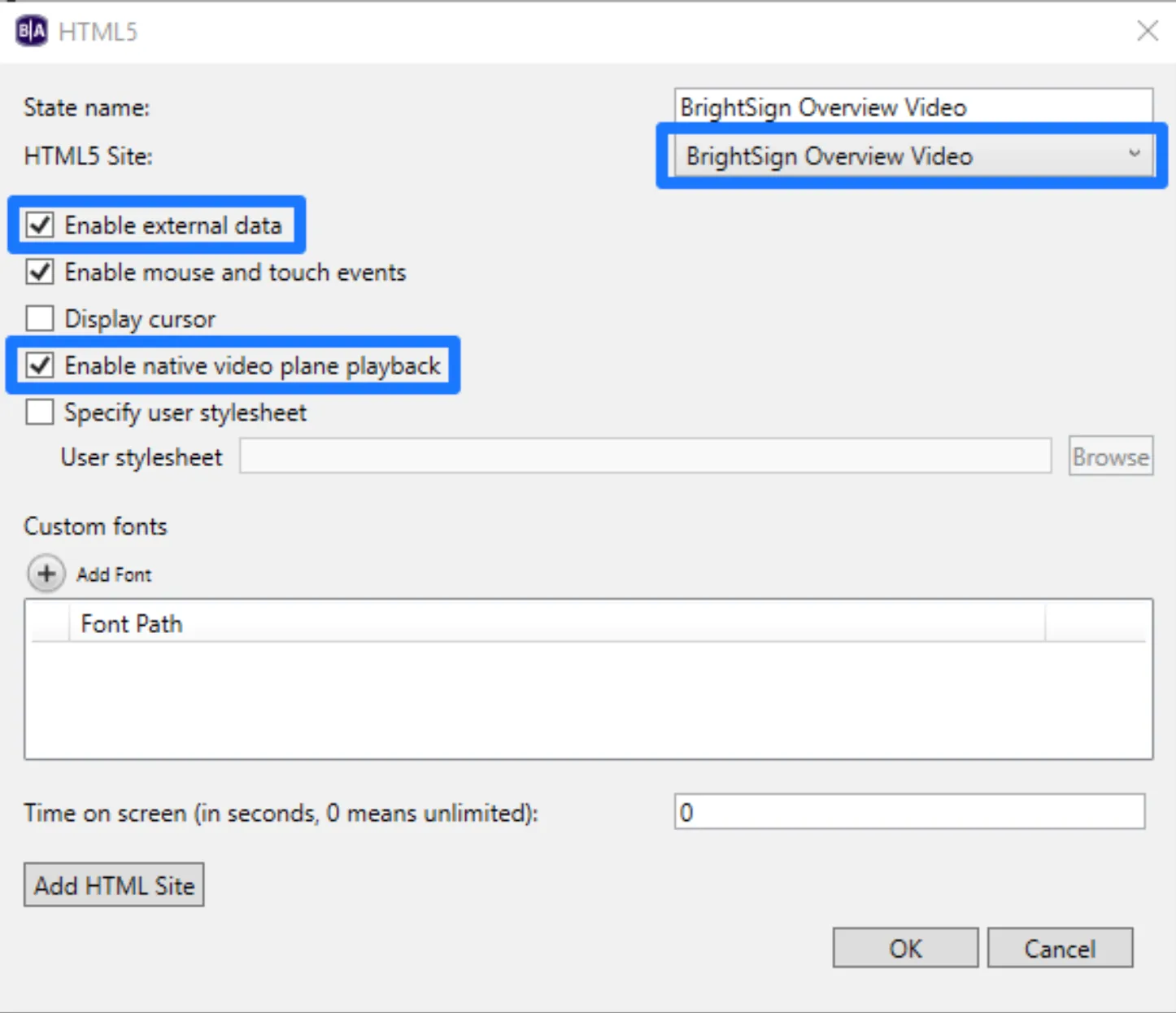
- Add an HTML5 State with Enable external data and Enable native video plane playback checked (see Image 6, below). Note that the player does not know when a YouTube video ends, so if you want it to move to the next state after the video is complete, you will need to set the Time on screen value on a non-interactive HTML5 state, or put a Timeout event on an interactive HTML5 state in order to get it to move to the next item if you do not want the video to loop endlessly or just stay "stuck" at the end of the video.
- Publish the presentation. Unless the video is restricted (not all videos can be embedded, and some aren't in a compatible format for our players), your Internet connection is broken, or the player's clock isn't set (prevents HTTPS from working), it should play.
Multiple Video (Playlist) URL
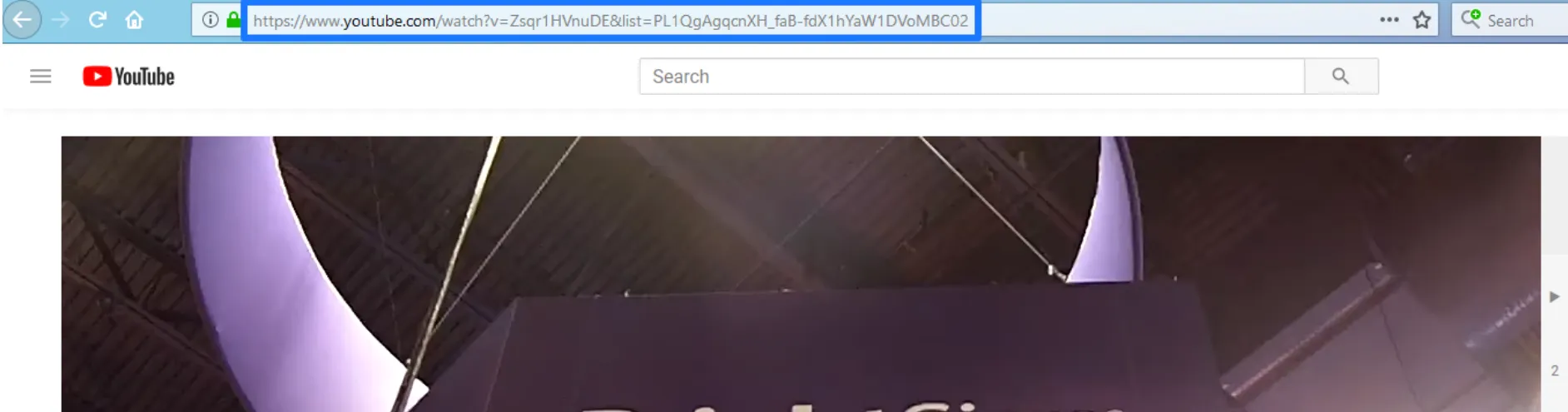
- Open the YouTube video or playlist in a web browser and find the URL in the address bar, as shown in Image 7, above (https://www.youtube.com/watch?v=Zsqr1HVnuDE&list=PL1QgAgqcnXH\_faB-fdX1hYaW1DVoMBC02)
- The base URL of the new URL you will construct is https://www.youtube.com/embed/. Add the following elements to that base URL:
- The current video Id, which appears after the v= and before the following & in the URL. Add the video id: https://www.youtube.com/embed/**Zsqr1HVnuDE**
- The playlist Id which is the list parameter that appears after the list= in the URL. Add the playlist id and &list= to the URL: https://www.youtube.com/embed/Zsqr1HVnuDE**?listType=playlist&list=PL1QgAgqcnXH\_faB-fdX1hYaW1DVoMBC02**
- Add parameters to control the video (for more URL parameters, see YouTube's Player Parameters page):
- Add &autoplay=1 to automatically start playing the video without interaction: https://www.youtube.com/embed/Zsqr1HVnuDE?listType=playlist&list=PL1QgAgqcnXH\_faB-fdX1hYaW1DVoMBC02**&autoplay=1**
- Add &rel=0 to the end of the URL to eliminate related videos appearing at the end of the video: https://www.youtube.com/embed/Zsqr1HVnuDE?listType=playlist&list=PL1QgAgqcnXH\_faB-fdX1hYaW1DVoMBC02&autoplay=1**&rel=0**
- Add &controls=0 to turn off video controls as they aren't useful in a non-interactive environment: https://www.youtube.com/embed/Zsqr1HVnuDE?listType=playlist&list=PL1QgAgqcnXH\_faB-fdX1hYaW1DVoMBC02&autoplay=1&rel=0**&controls=0**
- Add &loop=1 to loop the video when it reaches the end: https://www.youtube.com/embed/Zsqr1HVnuDE?listType=playlist&list=PL1QgAgqcnXH\_faB-fdX1hYaW1DVoMBC02&autoplay=1&rel=0&controls=0**&loop=1**
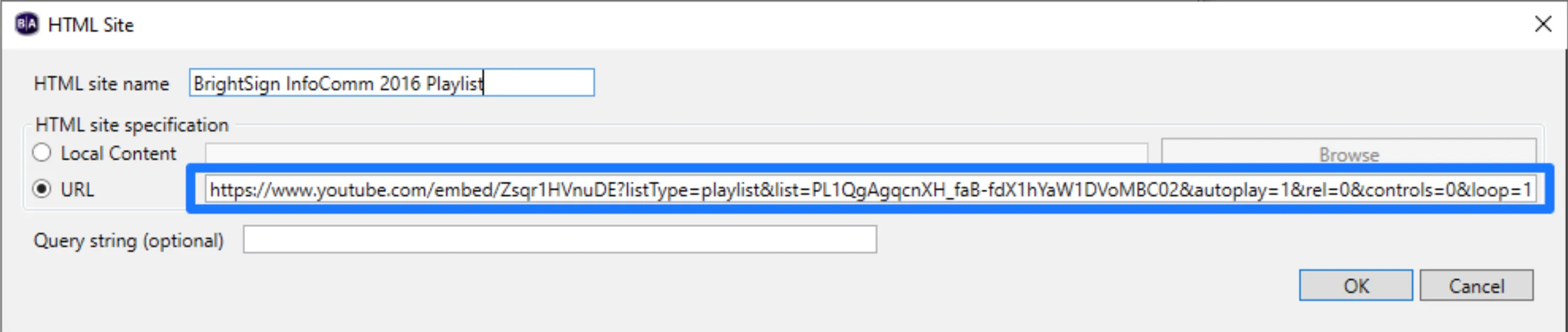
- Add this URL as the URL for an HTML Site in File > Presentation Properties in the HTML Sites tab). See Image 8.
- Add an HTML5 State with Enable external data and Enable native video plane playback checked. The player does not know when a YouTube playlist ends, so to move to the next state after the playlist is complete, set the Time on screen value on a non-interactive HTML5 state or put a Timeout Event on an interactive HTML5 State to move to the next item and not have the playlist to loop endlessly or be "stuck" at the end of the last video.
- Publish the presentation. Unless the video is restricted (not all videos can be embedded, and some aren't in a compatible format for our players), your Internet connection is broken, or the player's clock isn't set (prevents HTTPS from working), it should play.
Additional Notes
- To force subtitles in your YouTube video, add &cc_load_policy=1 in the URL link and disable HWZ (disable the Enable native video plane playback option in the HTML5 State). Video performance may be reduced.
- Not all YouTube videos are set to allow embedded playback. The content owner has the ability to change that permission.