Use Geofencing
This page / section pertains to BrightAuthor Classic, our legacy app. BrightSign Author is our latest app for managing content and players.
Development of BrightAuthor Classic has largely ceased and the app will eventually be deprecated and replaced with BrightSign Author.
Geofencing allows your BrightSign player to play specific audio and/or video content within a defined geographical radius.
Player / Geofence Preparation
Install a GPS dongle in the USB port of the player. Any USB GPS receiver that conforms to the NMEA GPS standard and doesn't require drivers should work with BrightSign players.
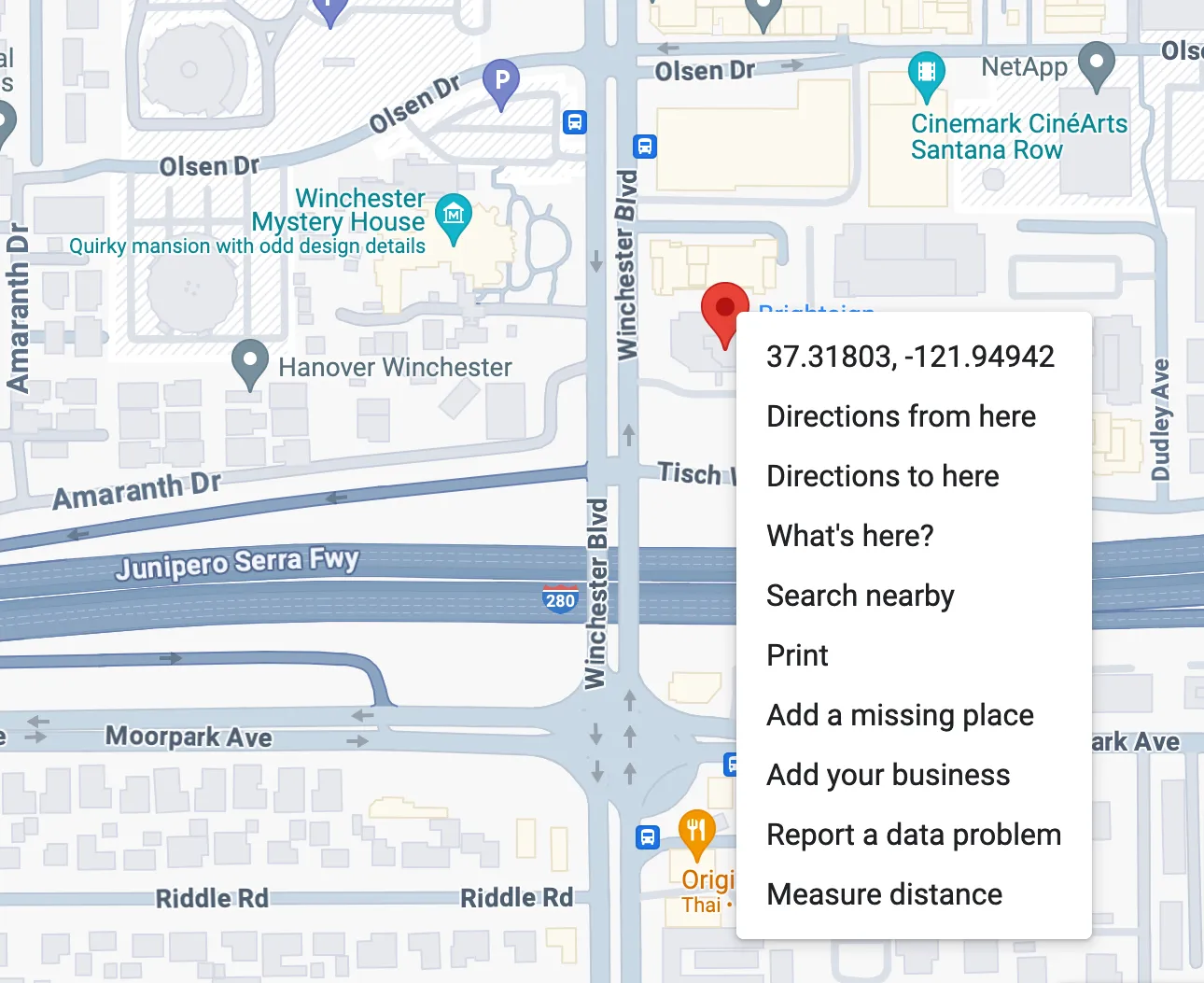
Identify your Geofence center coordinates:
- Open Google maps.
- Right-click (Windows) or control-click (Mac) on the desired spot.
- Copy the coordinates in the pop-up window.
- Decide on the radius from that center point.
Enable Geofencing
Go to File > Presentation Properties > Interactive.
Select port 2 from the Port drop down menu.
Check the GPS Receiver box to the right.
Create the Geofence
Create an interactive playlist that sets the Geofence area to assigns the trigger event.
Set the coordinates and radius for each Geofence.
Assign a GPS Event to trigger content playback when entering or exiting the Geofence.