Send Non-Printable Keys in BrightAuthor Classic
Serial Port
Non-printable keys (e.g., function keys, ENTER, CTRL, ALT, ESC) can be sent via the player's serial port. Refer to the directions below for BrightAuthor Classic.
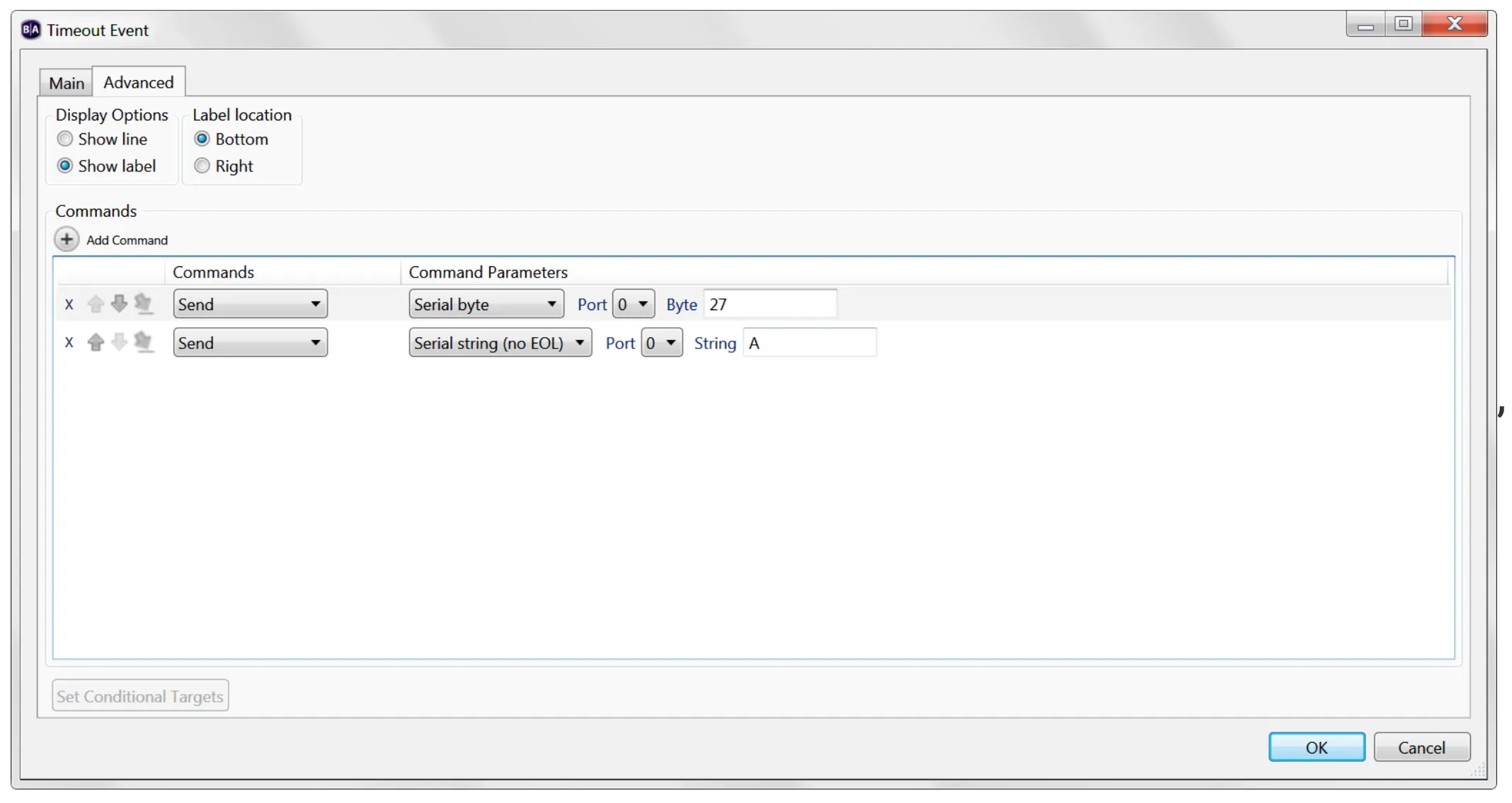
Use the Send -- Serial byte command to send the decimal value of the non printing character. For example, if you need to send the serial string ESC A to turn on your display:
Create an Interactive presentation (see Interactive Presentations for details).
Open the media state or event where you want to send the command.
Select the Advanced tab.
Use Add Command to add these two commands:
- Set the first command to a Send -- Serial byte. Enter "27", which is the decimal value for ESC.
- Set the second command to Send -- Serial string (no EOL). Enter the letter "A".
- Port should be set to 0 for most standard serial devices.
Keyboards
BrightSign players can accept input from non-printing characters on a keyboard. For example, to have the space bar trigger an event, you would enter "<sp>" as the input value for the Keyboard event in your BrightAuthor project.
To do this:
Select the code in the chart below that corresponds to the keyboard character you need.
Add a Keyboard Input event and enter the code in the Specify keyboard input field.
Codes
Key | Code | Key | Code |
|---|---|---|---|
Space | <sp> | F1 | <f1> |
Left arrow | <la> | F2 | <f2> |
Right arrow | <ra> | F3 | <f3> |
Up arrow | <ua> | F4 | <f4> |
Down arrow | <da> | F5 | <f5> |
Return | <rn> | F6 | <f6> |
Enter | <en> | F7 | <f7> |
Escape | <es> | F8 | <f8> |
Page Up | <pu> | F9 | <f9> |
Page Down | <pd> | F10 | <f10> |
Backspace | <bs> | F11 | <f11> |
Tab | <tb> | F12 | <f12> |
Insert | <in> | F13 (prnt scrn) | <f13> |
Del | <de> | F14 (Scrl Lck) | <f14> |
Home | <ho> | F15 (Pause-Break) | <f15> |
End | <ed> |
|
|