Play Scrolling Text
This page / section pertains to BrightAuthor Classic, our legacy app. BrightSign Author is our latest app for managing content and players.
Development of BrightAuthor Classic has largely ceased and the app will eventually be deprecated and replaced with BrightSign Author.
To display scrolling text with BrightAuthor Classic, you can either use a Ticker zone (which displays .txt files, RSS feeds, Twitter and variables) or an HTML5 object to display a webpage that contains scrolling text.
Series 1 and 2 BrightSign players do not support scrolling text. To implement this feature, you should have a newer player model and your presentation must be created for that model.
Ticker Zone
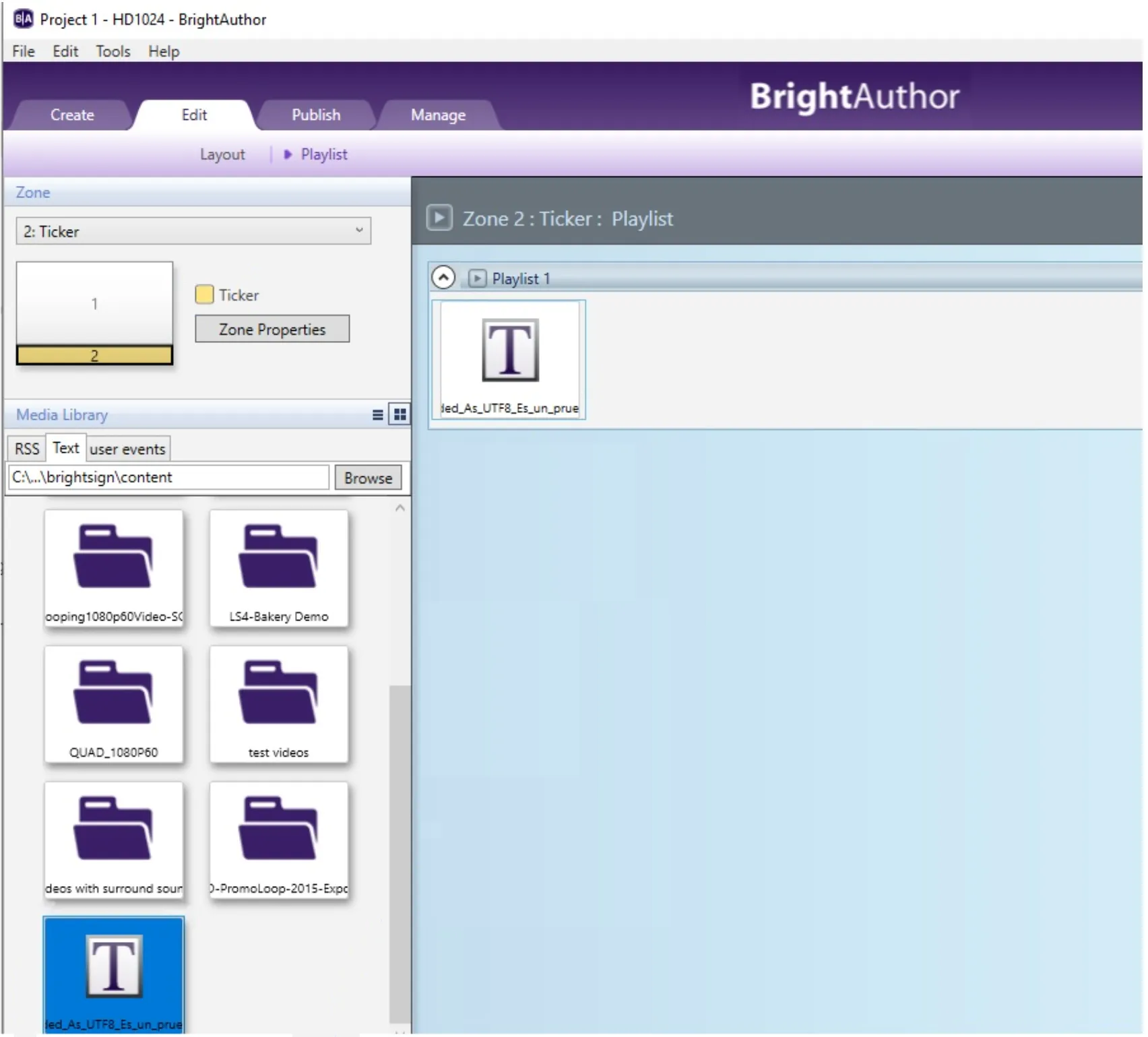
- In Edit > Layout, add a Ticker zone to your presentation
- Go to Edit > Playlist, select the Ticker zone, and click Zone Properties.
- Set the Text Appearance to Scrolling.
- Select OK to exit the Edit Zone window when finished.
HTML5 Object
Implement text scroll in the HTML/CSS/JavaScript language, then use the HTML5 object in the Images zone to play back the webpage.
Additional Notes
- BrightAuthor Classic's preview doesn't support scrolling text. The presentation should be published and tested directly on the BrightSign player.
- The text scroll feature is also available in BrightScript via the roTextWidget object and JavaScript through the BSTicker object.