Enable Bonjour
This page / section pertains to BrightAuthor Classic, our legacy app. BrightSign Author is our latest app for managing content and players.
Development of BrightAuthor Classic has largely ceased and the app will eventually be deprecated and replaced with BrightSign Author.
Apple Bonjour Print Services for Windows lets BrightAuthor Classic automatically detect networked players configured for Local File Networking so you don’t need to manually enter each player IP address.
Install Bonjour
Bonjour Print Services for Windows v2.0.2 can be downloaded here. Double-click the downloaded .exe file and follow the prompts to install Bonjour.
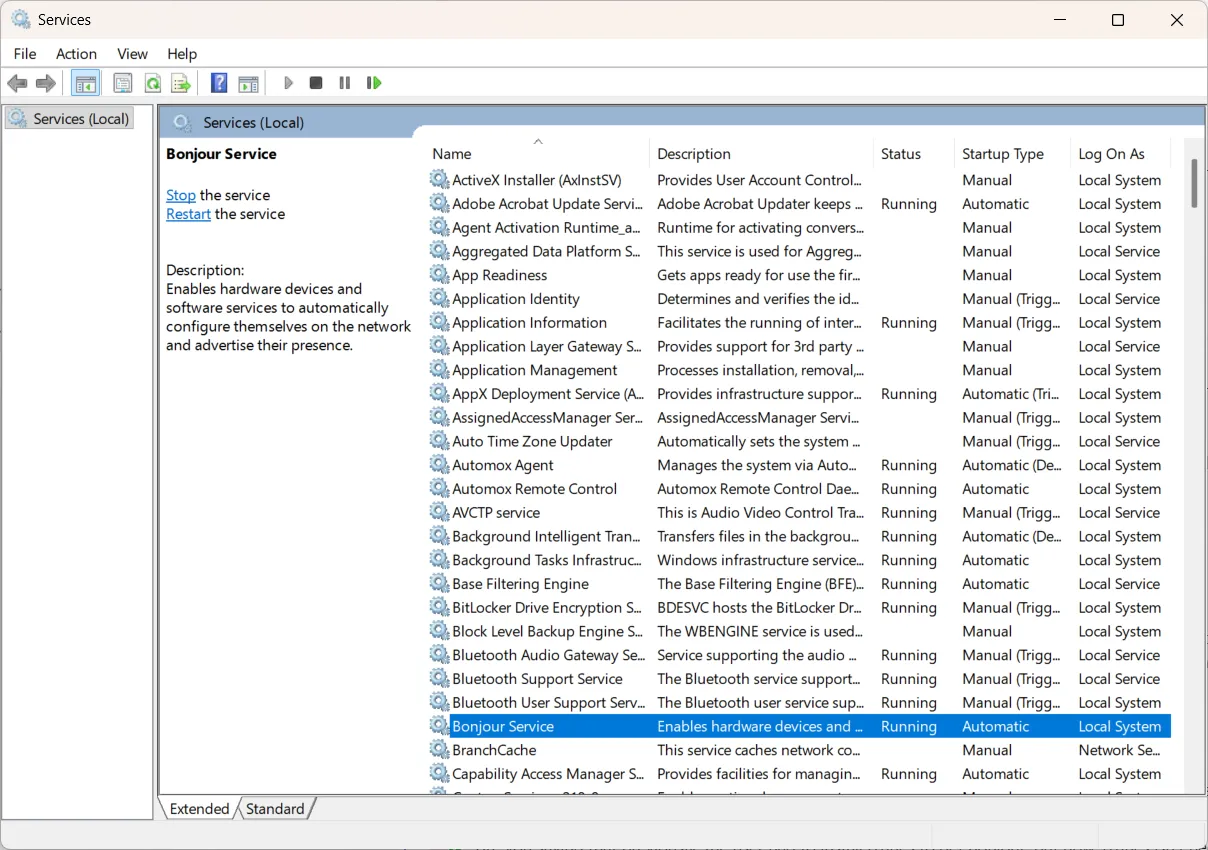
After the installation has completed, go to Windows Services to ensure that Bonjour was properly installed. Restarting your computer should not be required. However, if you don't see the Bonjour Service listed, restart your computer and check again.
BrightAuthor Classic Settings
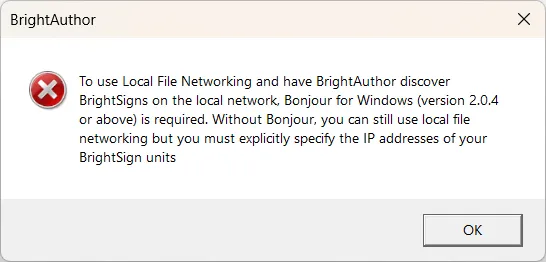
Launch BrightAuthor Classic. You will see the following message even if Bonjour was installed correctly. Click OK to acknowledge.
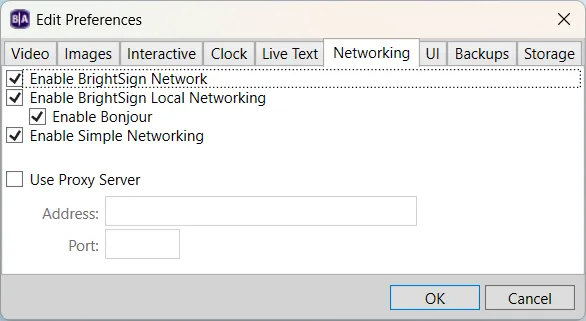
From the Edit menu (not the Edit tab), go to Edit > Preferences > Networking and ensure that all the boxes are checked as shown below. Click OK. Note that the above message may appear again.
Your system should now be set up for BrightAuthor Classic to use Bonjour.