Disable Wireless Bandwidth Shaping
This page / section pertains to BrightSign Network (often abbreviated BSN), our legacy cloud platform. Our latest cloud platform is BSN.Cloud. Development of BSN has largely ceased and the platform will eventually be deprecated and replaced with BSN.Cloud.
BSN & Simple File Networking
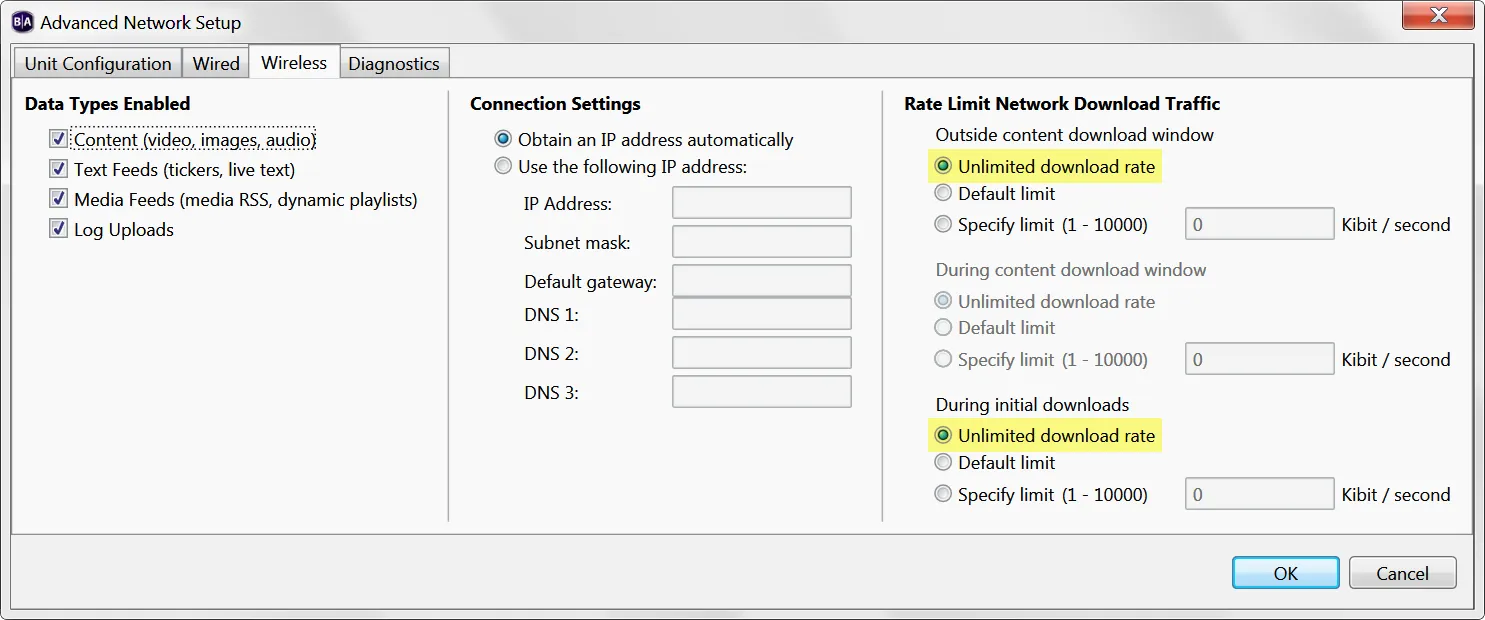
If you're setting up the player for wireless with BrightSign Network or Simple File Network publishing, you can disable the limits during the Unit Setup process in BrightAuthor Classic:
- Once you've enabled wireless using the Enable Wireless option, click Advanced Network Setup.
- Select the Wireless tab.
- Under Rate Limit Network Download Traffic, select the Unlimited download rate option for both Outside content download window and During initial downloads. You won't need to set the option for During content download window unless you've chosen the Limit content downloads option in the Unit Configuration tab.
Standalone & Local File Networking
If you're setting up the player for wireless with Standalone or Local File Network publishing, you can disable the limits by editing the setup.xml file, which is created once you complete the Unit Setup process in BrightAuthor Classic. To do this:
- Open the setup.xml file with a plaintext editor like Notepad or TextEdit.
- Find this tag: default
- Change the value from "default" to "unlimited": unlimited
Depending on the speed of your network, if the wireless is not throttled, you may see video playback issues during content uploads to the player.