Custom Internal Web Page
This page / section pertains to BrightAuthor Classic, our legacy app. BrightSign Author is our latest app for managing content and players.
Development of BrightAuthor Classic has largely ceased and the app will eventually be deprecated and replaced with BrightSign Author.
This page describes how to create a custom Internal Web Page for networked BrightSign players using BrightAuthor Classic. The custom Internal Web Page feature allows you to replace the default Local Web Server page, which is accessible from the BrightSign App or from a web browser, with a custom webpage. Note that this requires some website building knowledge (HTML and CSS).
Converting the Default Internal Web Page
The BrightSign device webpage (i.e., the Local Web Server) contains JavaScript elements that interact with the system software, allowing users to change User Variables dynamically. Changing or customizing these JavaScript elements is a complex task that might result in system instability. Therefore, we recommend using the default internal webpage as the template (available below) for your custom Internal Web Page:
These instructions assume a standard BrightAuthor Classic installation.
- Go to C:\Program Files\BrightSign\BrightAuthor\templates.
- Make a copy of the deviceWebPage.html file in a new folder. This folder does not need to be in the BrightAuthor Classic application folder.
- Open the deviceWebPage.html file using a text editing program like TextPad or Notepad.
- Replace the content between the <style> tags on lines 69-115 with your custom CSS.
Separating Page Elements
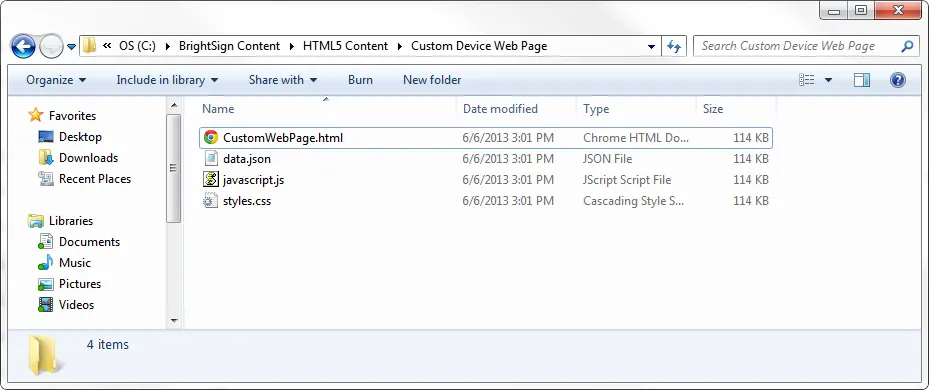
To ensure optimum performance of your custom device webpage, we recommend splitting the elements of the default page into discrete files. You can place the Javascript elements (lines 4-63) in a .js file, the JSON elements (lines 125-132) in a .json file, and the custom CSS elements in a .css file. You can then reference these elements from the primary custom device webpage file.
Also note that partial asset URLs are interpreted relative to the source of the style sheet, not relative to the .html document. If you separate the .css of the page into a another file, the URL of your assets will not reflect this change, and the device webpage will return 404 “Not Found” errors. Therefore, we recommend placing all custom webpage files within the same folder.
Adding the Custom Device Webpage to a Presentation
The custom device webpage feature is only available in BrightAuthor Classic version 3.7.0.12 or later.
- With the desired presentation open in BrightAuthor Classic, navigate to File > Presentation Properties.
- Click the Variables tab.
- Under Device Web Page Display, select Custom device web page.
- Click the Browse button. Navigate to and select the custom device web page you created in the above steps.
- Click OK and, when ready, publish your presentation.