Change the Audio Output
1 min
This page / section pertains to BrightAuthor Classic, our legacy app. BrightSign Author is our latest app for managing content and players.
Development of BrightAuthor Classic has largely ceased and the app will eventually be deprecated and replaced with BrightSign Author.
You can change the audio output settings (e.g., analog, HDMI, SPDIF) for a BrightAuthor Classic project in Zone Properties:
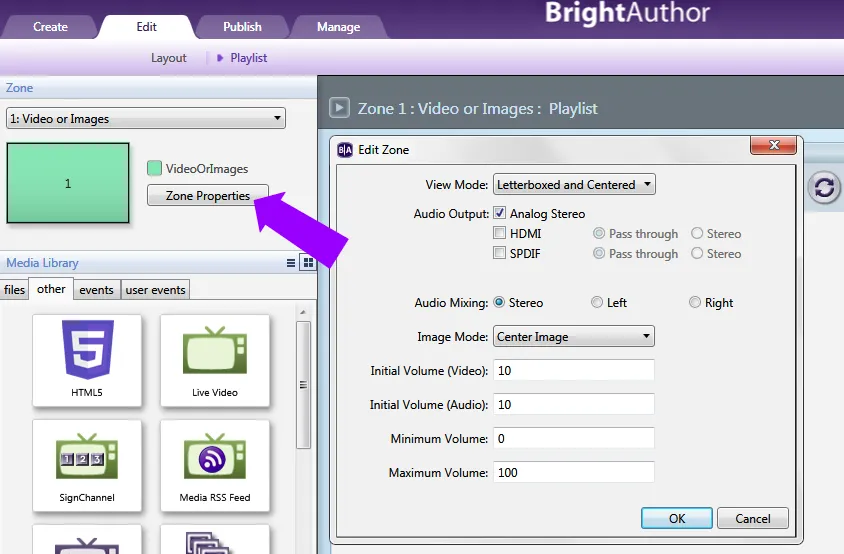
- Select the Video Only, Video or Images, Audio Only, or Enhanced Audio zone you wish to edit in the Edit > Playlist tab (see the image below).
- Select Zone Properties.
- Audio Output: Select the output(s) the zone should use (SPDIF output is not available on all models). For HDMI/SPDIF, select if the audio should be output as Pass through or Stereo:
- Pass through: Supplies the un-decoded audio signal through the connector. Use this option if the zone audio (for example, AC3 Dolby Digital) is being decoded on an external device.
- Stereo: Supplies the decoded audio signal through the connector.
- Change the following options (optional):
- Audio Mixing: Send the Left signal, Right signal, or the full Stereo signal.
- Initial volume (Audio): Set the initial volume for audio files (0-100).
- Initial volume (Video): Set the initial volume for video files (0-100).
- Minimum Volume: Set the minimum volume for the zone (0-100).
- Maximum Volume: Set the maximum volume for the zone (0-100). This setting can be overridden by other volume settings in a presentation, including the Initial Volume setting for the zone and volume commands attached to events or states.
- Fade (in seconds):(Enhanced Audio zones only) Specify the duration of cross-fading between audio files, as well as the fade in and fade out duration at the beginning and ending of a playlist.